
How to Send a Fax From a Chromebook
Chromebooks can't connect to traditional fax machines, but online fax services let you send through Chrome in minutes—no phone line or hardware needed.
Quick Verdict
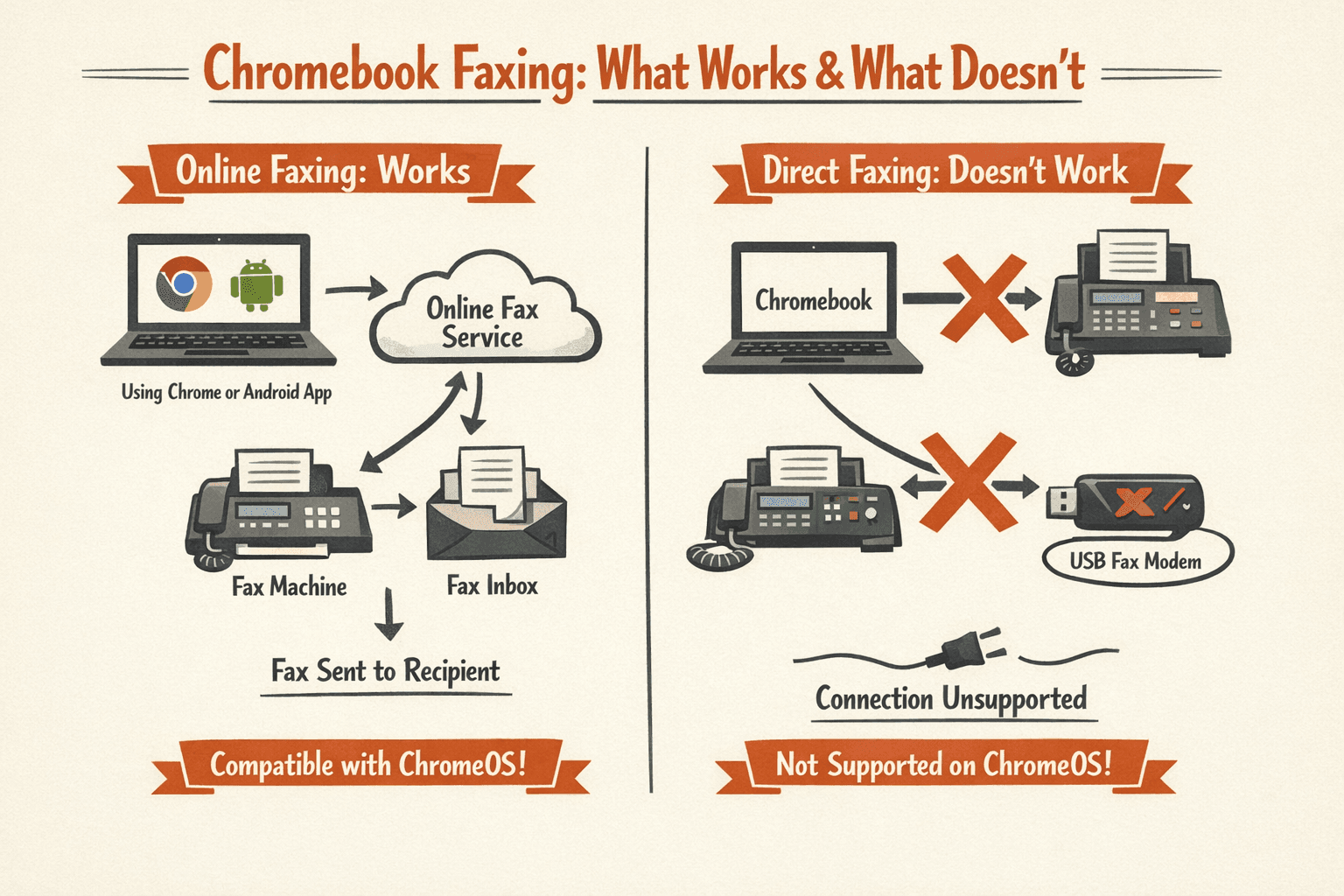
You can send a fax from a Chromebook using an online fax service through your Chrome browser or a compatible Android app. Chromebooks can’t connect to traditional fax machines, so internet-based faxing is your only option—but it’s faster and easier anyway.
How to Fax From Chromebook
The process is straightforward: sign into an online fax service through Chrome, upload your document, and send.

- Open your fax service (1 minute): Launch Chrome and go to your online fax provider. If you’re using an Android fax app on a supported Chromebook, open the app from your launcher instead.
- Sign in or create an account (2 minutes): Most services require an account—but if you’re sending just one fax, ThirtyFax lets you send without signing up. For regular faxing, create an account with your chosen service.
- Click “Send Fax”: Look for the send button on your service’s dashboard. It’s usually labeled “New Fax,” “Send,” or something similar.
- Enter the recipient’s fax number: Type the full number, including area code. For international faxes, add the country code (e.g., +1 for US/Canada).
- Upload your document from Chromebook storage (1-2 minutes): Click “Attach” or “Upload.” Your Chromebook’s Files app will open—choose from Downloads, My files, Google Drive, or Android app folders (“Play files”). PDF works best for preserving formatting.
- Add a cover page (optional): Most services offer a template. Fill in your name, company, and a brief message if needed.
- Review and send: Double-check the recipient number and document. Click “Send.”
- Check confirmation: You’ll get a delivery receipt via email or in-app notification within minutes. If it fails, you’ll see an error message with the reason.
Most online fax services accept PDF, DOCX, JPG, PNG, and other common formats. PDF is the safest choice—it always works and maintains your document’s exact layout.
Best Online Fax Services for Chromebook
Some services integrate better with ChromeOS than others—look for browser-first tools and Google Drive integration.
| Service | Browser Access | Android App | Key Chromebook Feature | Starting Price |
|---|---|---|---|---|
| Dropbox Fax | Yes | Yes | Google Drive integration—send directly from your Drive files | Free (5 pages); $0.99/fax or $9.99/mo |
| Fax.Plus | Yes | Yes | Clean web interface, works entirely in Chrome | Free (10 pages total); $8.99/mo |
| ThirtyFax | Yes | No | No account required—send one fax instantly | Free (1 fax, 5 pages); €4.99 one-time |
| eFax | Yes | Yes | Full-featured web portal | $18.99/mo (170 pages) |
Important note: Not all Chromebooks support Android apps, and work/school-managed devices may block the Play Store entirely. If you can’t install Android apps, stick with browser-based services—they work on every Chromebook.

For occasional faxing, ThirtyFax is the no-friction option—you don’t need an account, trial, or subscription. For regular business faxing, Dropbox Fax’s cloud storage integration fits naturally into Chromebook workflows.
Can You Connect a Fax Machine to a Chromebook?
No. Chromebooks don’t support fax modems or direct connections to traditional fax machines. ChromeOS is designed for web apps and cloud storage—not legacy hardware like USB fax devices or phone-line setups.
The only practical way to fax from a Chromebook is through an online service.
Troubleshooting Common Issues
Document Won’t Upload
- File format not supported: Save the file as PDF. Online fax services accept DOCX, JPG, PNG, and PDF, but less common formats may fail.
- File too large: Most services cap uploads at 20-40 MB. Compress large PDFs or split multi-page scans into smaller files.
- Storage permission denied: If you’re using an Android fax app, it needs permission to access your Chromebook’s Downloads folder. Grant storage access in Settings > Apps > App management > [your fax app] > Permissions.
Fax Failed to Send
- Wrong number format: Include the area code. For international faxes, add the country code first (e.g., +44 for UK).
- Recipient fax machine offline: The machine might be powered off, out of paper, or experiencing a line issue. Try resending during business hours.
- Service outage: Check your fax provider’s status page or contact support.
Can’t Access Fax Service
- Browser compatibility: Update ChromeOS—Chromebooks update Chrome automatically when you update the system. Go to Settings > About ChromeOS > Check for updates.
- Cached data issue: Clear your browser cache and cookies (Ctrl+Shift+Delete), then reload the fax service page.

Sending a fax from a Chromebook is simpler than it sounds—you just need an internet connection and an online fax service. No phone line, no hardware, no complicated setup. Pick a service, upload your document, and you’re done.

Written by
Bernard Bado
I created ThirtyFax after needing to send a single fax and refusing to pay for a monthly subscription to do it. I write here about faxing, document workflows, and the surprisingly stubborn role fax still plays in modern business.
View author profile