
How to Send a Fax From Your iPhone
You don't need a fax machine to send faxes from your iPhone. Use fax apps, scan documents with your camera, or send PDFs directly—all in minutes.
Quick Verdict
You can send faxes from your iPhone using fax apps from the App Store that convert your phone into a mobile fax machine. The three main methods are: downloading a dedicated fax app, scanning paper documents and faxing them directly, or using online fax services that work through email or web portals.
The beauty of iPhone faxing? No physical fax machine, phone line, or supplies needed. Works anywhere you have an internet connection—coffee shop, airport, your couch. You can fax documents, photos, and PDFs straight from your device in minutes.
This guide covers step-by-step instructions for every iPhone faxing method, what file types you can send, and answers the most common questions about turning your phone into a fax machine.
How to Fax From Your iPhone Using a Fax App
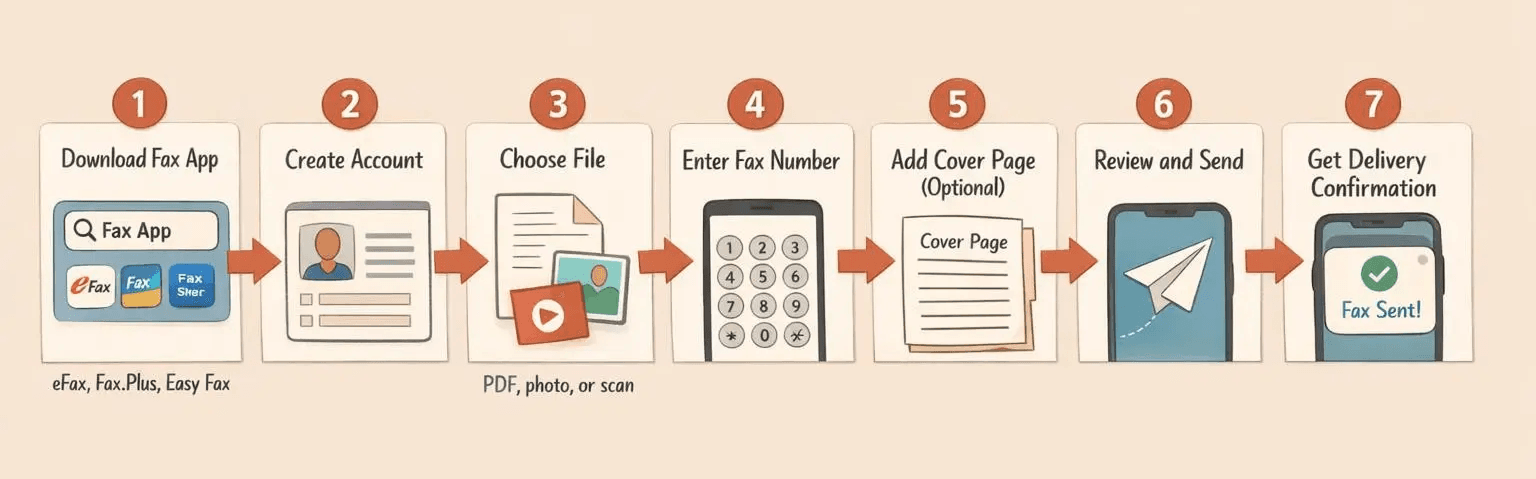
The easiest method is downloading a fax app from the App Store. You’ll be sending faxes in minutes without any hardware.
- Download a fax app (2 minutes): Search “fax” in the App Store and pick one—popular options include eFax, Fax.Plus, or Easy Fax. Most offer free trials or a few free pages to test the service.
- Create your account (3 minutes): Open the app and sign up with your email. Some apps assign you a dedicated fax number for receiving faxes—useful if you need two-way faxing.
- Select your document: Tap “Send Fax” or the plus icon. Choose from your Files app, iCloud Drive, camera roll, or scan a new document with your iPhone’s camera.
- Enter the recipient fax number: Type the 10-digit number including area code. For international faxes, add the country code first.
- Add a cover page (optional): Most apps let you include a quick cover sheet with your name, recipient, and message. Takes 30 seconds if you need it.
- Review and send: Double-check the fax number, preview your document, then hit Send. The app handles the transmission.
- Get confirmation: You’ll receive a notification, email, or dashboard update confirming delivery within a few minutes. Some apps provide detailed transmission reports.
Popular iPhone fax apps to consider:
- eFax – Established service with web portal, email faxing, and mobile app access
- Fax.Plus – Built-in scanner, iCloud Drive integration, international fax numbers available
- Easy Fax – HIPAA-compliant, includes image enhancement and document preview
- Fax from iPhone – Supports PDF, Word, Excel, images, and text files
- BPMobile Fax – Advanced color correction and noise removal for clearer faxes
What File Types Can You Fax From iPhone
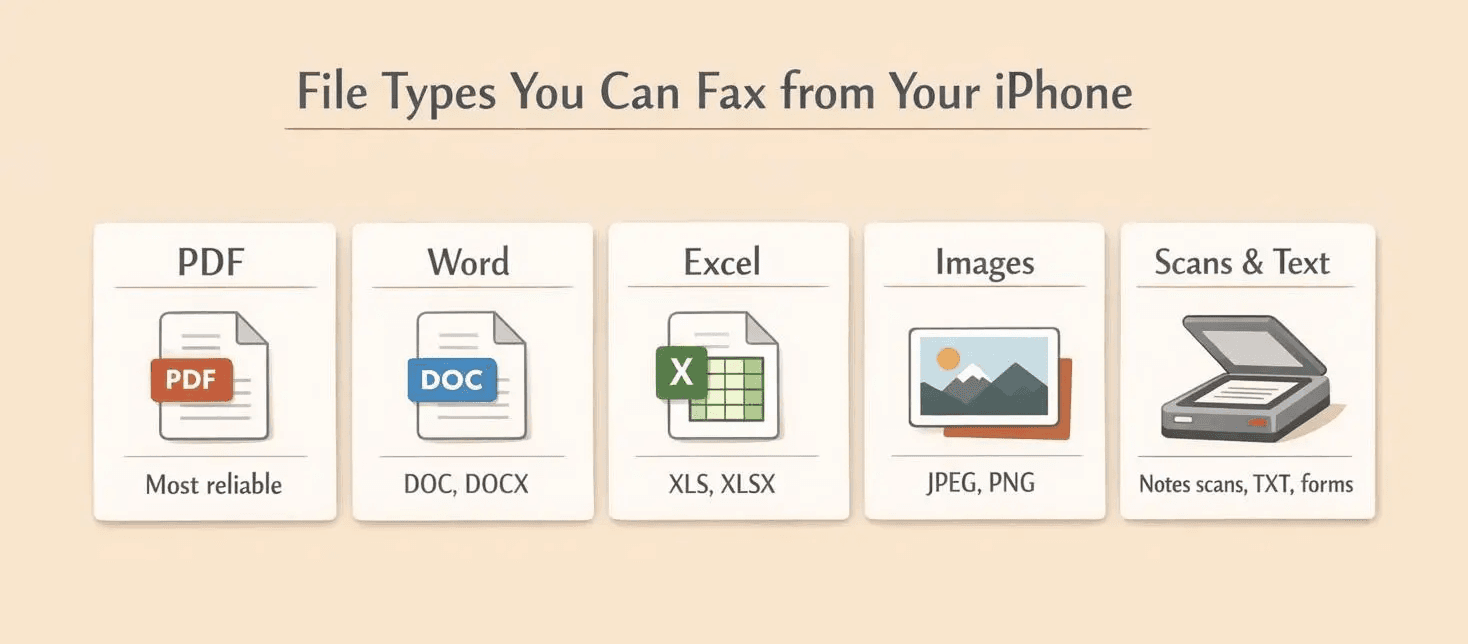
iPhone fax apps support multiple file formats, so you’re not limited to PDFs. Most apps handle whatever you throw at them.
Supported file types:
- PDFs (most common and reliable)
- Word documents (DOC, DOCX)
- Excel spreadsheets (XLS, XLSX)
- Photos and images (JPEG, PNG)
- Scanned documents (from camera or Notes app)
- Text files (TXT)
- Forms and filled paperwork
- Camera roll pictures
How to Fax a PDF From iPhone
PDFs are the most reliable format for faxing. You can send them directly from your Files app, email attachments, or cloud storage.
- Locate your PDF: Open the Files app, iCloud Drive, or wherever your PDF lives. If it’s an email attachment, save it to Files first.
- Open it in your fax app: Tap the PDF, hit the Share icon, and select your fax app from the share sheet. Or open your fax app and browse to the file.
- Enter recipient details: Type the fax number and add a cover page if needed.
- Send it: Hit Send and wait for confirmation. PDFs typically take 1-2 minutes per page to transmit.
- Save confirmation: Screenshot or save the delivery receipt if you need proof the fax went through.
PDFs maintain your original formatting perfectly—no weird line breaks or font changes. They’re the professional standard for faxing contracts, forms, and official documents. Plus, scanned documents in Notes are automatically saved as PDFs, making them fax-ready without conversion.
How to Fax a Photo or Picture From iPhone
You can fax images directly from your iPhone’s photo library or camera roll. Useful for sending ID cards, handwritten notes, or quick snapshots of documents.
- Open your fax app: Tap the Send Fax button and choose “Photo Library” or “Camera Roll” as your source.
- Select your image: Browse to the photo you want to fax and tap it. Most apps let you pick multiple images to combine into one fax.
- Adjust quality (if needed): Some apps offer enhancement tools—increase contrast, remove noise, or crop edges. Takes 30 seconds and makes the fax more readable.
- Add recipient and send: Enter the fax number and hit Send. Photos typically transmit faster than multi-page documents.
For best results: use good lighting when photographing documents, keep your phone steady, and make sure text is clearly visible. Most fax apps work with standard resolution photos, but some include color correction and noise removal to improve readability on the receiving end.
How to Scan and Fax From iPhone
You can use your iPhone’s camera to scan physical documents and fax them immediately—no scanner needed.
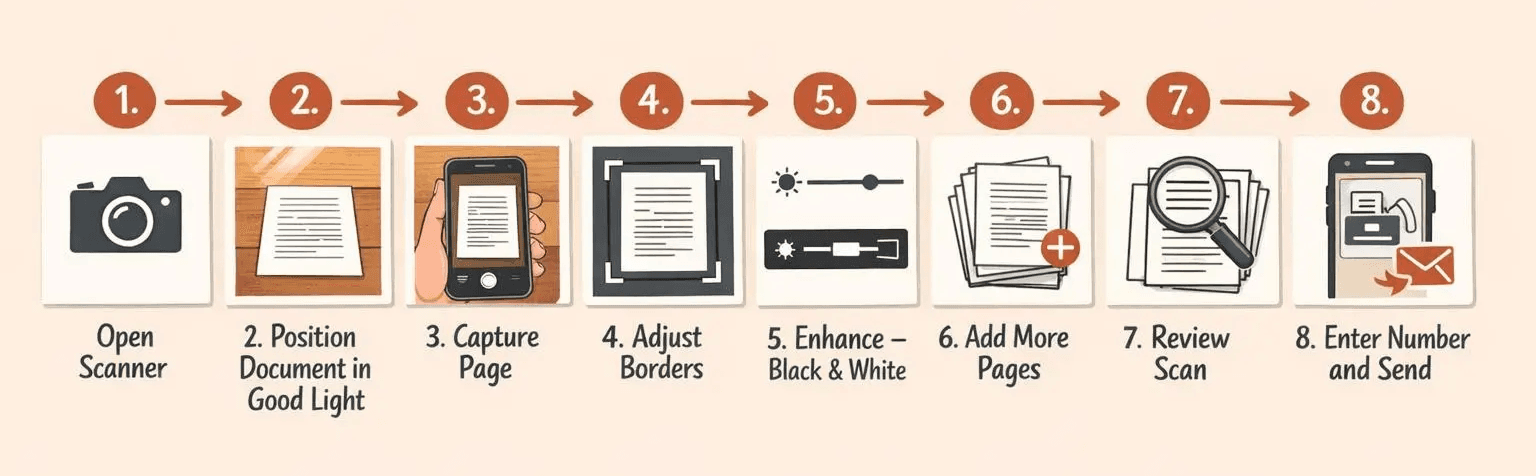
- Open your fax app’s scanner: Most fax apps have a built-in scanning feature. Tap “Scan Document” or the camera icon.
- Position your document: Place the paper on a flat surface with good lighting. Hold your iPhone directly above it.
- Capture the image: The app will auto-detect the page and snap the photo. Or tap the shutter button manually if auto-capture misses it.
- Adjust the borders: Drag the corner handles to crop out shadows, table edges, or other background noise.
- Enhance contrast: Most apps offer a “Black & White” or “Enhance” filter to make text sharper. Makes a huge difference for old or faded documents.
- Add more pages: Scanning a multi-page document? Keep scanning—most apps let you add 20+ pages to one fax.
- Review your scan: Flip through the pages to check for blurry images or missing text. Re-scan any problem pages.
- Enter fax number and send: Add the recipient, optional cover page, and hit Send.
Don’t have a fax app yet? The built-in Notes app can scan documents and save them as PDFs. Open Notes, create a new note, tap the camera icon, choose “Scan Documents,” and follow the prompts. Then share the PDF to your fax app when you’re ready.
How to Fax a Document From iPhone
Documents from email attachments, cloud storage, or downloaded files can all be faxed from iPhone. The process is basically the same regardless of where the file lives.
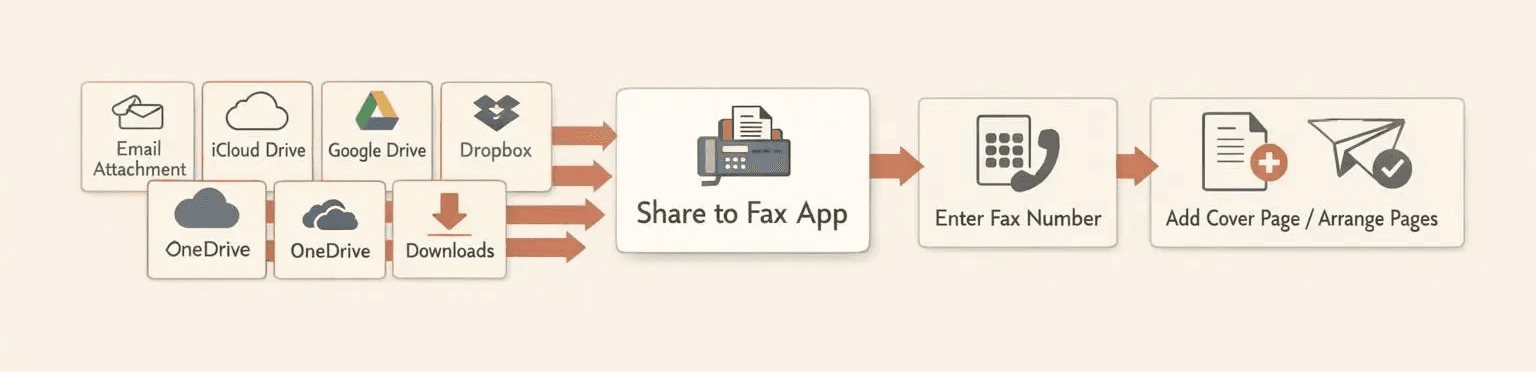
Common document sources on iPhone:
- Email attachments (save to Files first)
- iCloud Drive
- Google Drive
- Dropbox
- OneDrive
- Downloaded files from Safari or other browsers
General process for faxing any document:
- Access your document: Open the app where your file is stored—Files, Google Drive, Dropbox, etc.
- Share to your fax app: Tap the file, hit Share, and select your fax app. Or open the fax app and browse to the file location.
- Configure fax settings: Enter the recipient fax number, add a cover page if needed, and arrange pages if you’re sending multiple documents.
- Send and confirm: Hit Send, wait for the confirmation notification, and you’re done.
Most fax apps pull files from local storage or iCloud Drive seamlessly. Cloud services like Google Drive and Dropbox work through the Files app integration, so everything shows up in one place.
FAQ: Can You Fax From an iPhone?
Can I Fax From My iPhone?
Yes. iPhones can send faxes through apps. No special hardware required. Works on any iPhone model as long as you have iOS compatibility and an internet connection. Download a fax app, upload your document, enter a fax number, and send.
Can I Use My iPhone as a Fax Machine?
Yes. Your iPhone essentially becomes a portable fax machine with the right app. You can send faxes, receive faxes, store fax archives, and manage everything from notifications. It’s more convenient than a physical fax machine—fits in your pocket and works anywhere with Wi-Fi or cellular data.
Can I Fax a Scanned Document From My iPhone?
Yes. Scanning-then-faxing is one of the most popular methods. Use your iPhone’s camera through the fax app or the Notes app to create a digital copy, then send it immediately. No need to scan on a separate device or transfer files.
Is It Safe to Fax From iPhone?
Reputable fax apps use encryption and follow HIPAA compliance if needed. For example, Fax.Plus uses encrypted transmission channels and AES 256-bit encryption for stored faxes. Many apps also offer two-factor authentication, audit logs, and role-based access controls for healthcare and legal use.
Safety depends on choosing a trusted provider. Look for these features:
- End-to-end encryption for transmission and storage
- Secure cloud storage with AES 256-bit encryption
- HIPAA compliance if you’re faxing medical records or PHI
- Two-factor authentication to protect your account
- Audit trails to track who accessed what and when
That said, HIPAA doesn’t prohibit faxing as long as safeguards like encryption and access controls are in place. Just make sure your chosen app advertises these protections.
Can You Fax to an iPhone?
Yes. iPhones can receive faxes through apps that give you a dedicated fax number. Incoming faxes arrive as PDFs with push notifications when they hit your inbox. You can view, download, or forward them just like email attachments. No physical fax machine sitting in the corner needed.

Written by
Bernard Bado
I created ThirtyFax after needing to send a single fax and refusing to pay for a monthly subscription to do it. I write here about faxing, document workflows, and the surprisingly stubborn role fax still plays in modern business.
View author profile