
How to Send a Fax From a Samsung Phone
Faxing from a Samsung phone takes two routes: mobile fax apps or email-to-fax services. This guide covers both methods, plus troubleshooting tips.
Quick Verdict
You can fax from a Samsung phone using a mobile fax app or an email-to-fax service—no fax machine or phone line required. The fastest method is downloading a fax app from the Google Play Store, which lets you scan documents with your camera and send them in under five minutes.
How to Fax From Samsung Phone
This section walks through both methods step-by-step so you can choose the approach that fits your situation.
Method 1: Using a Mobile Fax App
This is the most straightforward method—apps like Fax.Plus, Genius Fax, and Tiny Fax work on all Samsung Galaxy devices and let you send directly from your phone.
- Open the Google Play Store: Swipe up to your Apps screen or search for “Play Store.” The Google Play Store comes preinstalled on Samsung smartphones.
- Download a fax app: Search for “fax app” and install your preferred option. Fax.Plus, Tiny Fax, and Genius Fax are popular choices with strong ratings.
- Open the app and create an account: Most apps require a quick sign-up with your email. Some offer guest sending for one-time use.
- Tap the “+” or “Send Fax” button: This opens the fax composer. The exact button varies by app—Genius Fax uses a “+” button, while others say “New Fax” or “Compose.”
- Select your document: You can scan with your camera, import from local storage, or pull from Google Drive or Dropbox. Most apps support PDF, PNG, JPG, and TXT files.
- Enter the recipient’s fax number: Include the country code (1 for US/Canada) and area code. Format it as a 10-digit number: 2125551234.
- Add a cover page (optional): Most apps let you add a cover with your name, recipient name, and a short message. This step is optional but helpful for professional faxes.
- Preview the fax: Tap “Preview” to see exactly what the recipient will receive. Check for cropping, readability, and correct page order.
- Tap “Send”: The app transmits your fax over the internet. You’ll receive a delivery confirmation via push notification or email, usually within 1-5 minutes.

Note: Most fax apps offer a free trial with 5-10 pages, then charge $10-25/month for unlimited or high-volume plans. If you only need to send one fax, ThirtyFax lets you send up to 5 pages for free with no account required—or pay €4.99 flat for up to 20 pages with no subscription.
Method 2: Using Email-to-Fax Service
This method works through your existing email app and requires a subscription to an online fax service that assigns you an email-to-fax address.
- Sign up for an email-to-fax service: Services like eFax, Fax.Plus, and Dropbox Fax provide an email address that converts your attachments into faxes (e.g., recipientnumber@efax.com).
- Open Gmail or Samsung Email: Use your phone’s default email app.
- Tap Compose: This opens a new email. Gmail users can tap Compose and then Attach to add files.
- Attach your document: Tap “Attach” and select your file from local storage or Google Drive. Keep attachments under 25 MB—email-to-fax services may reject oversized files.
- Enter the recipient fax number in email format: Use your service’s format. For eFax, it’s recipientfaxnumber@efax.com. For Fax.Plus, it’s recipientfaxnumber@fax.plus.
- Send the email: Your service converts the attachment into a fax and transmits it to the recipient’s fax machine.
You’ll get a confirmation email when the fax is delivered, usually within a few minutes. If the transmission fails, the service sends an error notification with details.

Can I Fax From My Samsung Phone
Yes—all Samsung Galaxy phones support faxing through third-party apps and online services. Samsung phones don’t have a built-in fax feature, but you can send faxes from Android without a fax machine, landline, or special equipment.
Here’s what you need to know:
- Samsung phones require a fax app or online fax service — The native phone and messaging apps can’t send faxes on their own. You download an app from the Play Store or use an email-to-fax service.
- Works on all Samsung Galaxy models with internet connection — As long as your phone runs a compatible Android version and can install apps from the Google Play Store, you can fax.
- No fax machine or phone line needed — Everything happens over the internet. The app converts your document into a fax transmission and sends it digitally.
- Both Wi-Fi and mobile data connections work — You don’t need a specific network type. Any active internet connection is fine.
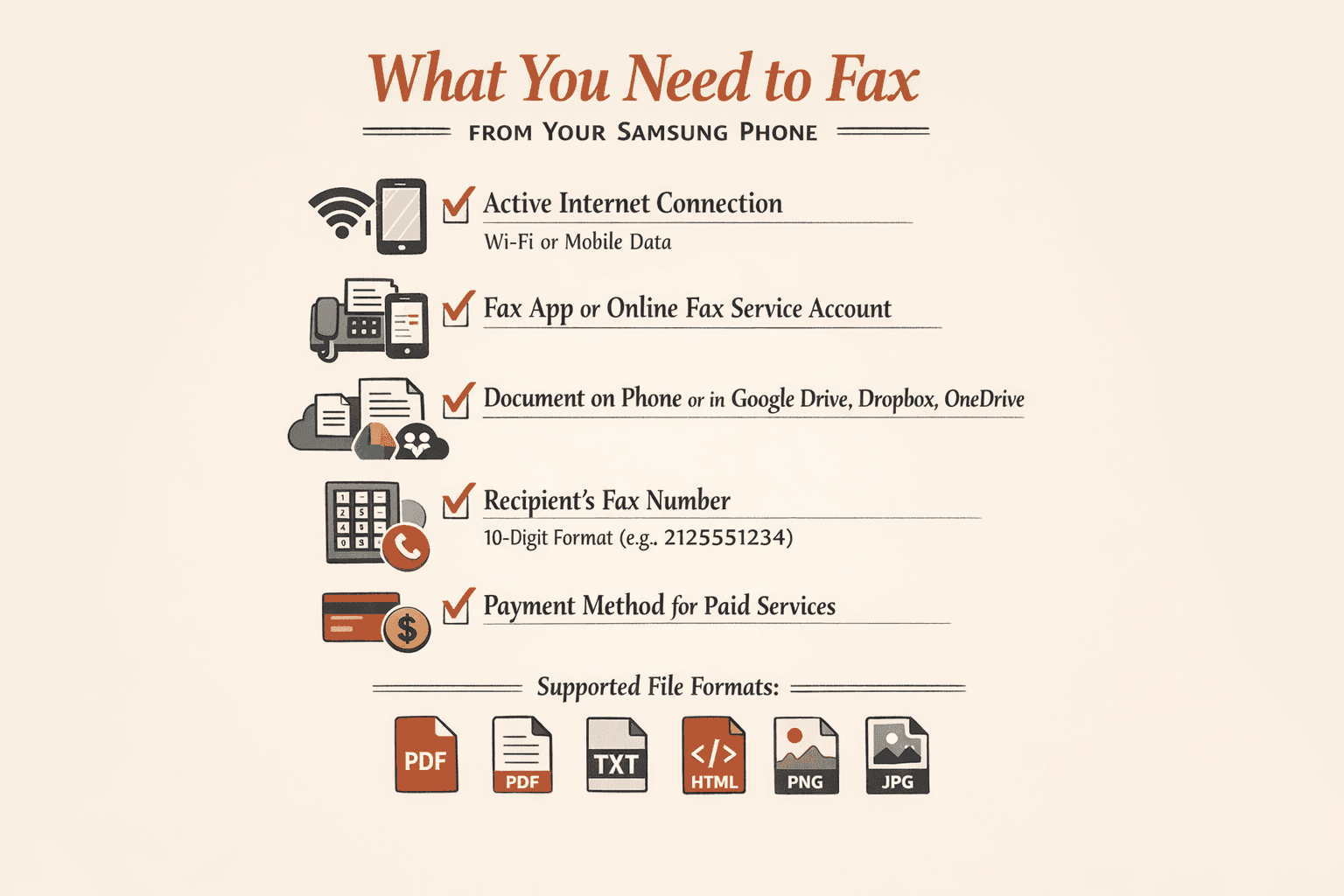
What You Need to Fax From Your Samsung Phone
Here’s everything required to send a fax from a Samsung phone:
- Active internet connection (Wi-Fi or mobile data) — Fax apps transmit over the internet, so you need a stable connection. Wi-Fi is recommended for larger files.
- Fax app or online fax service account — You’ll need to download an app from the Google Play Store or sign up for an email-to-fax service. Most offer free trials.
- Document stored on your phone — The file can be a photo from your gallery, a PDF from your Downloads folder, or a file from Google Drive, Dropbox, or OneDrive. Supported formats include PDF, TXT, HTML, PNG, and JPG.
- Recipient’s fax number including area code — You’ll need the full 10-digit number (for US/Canada) or international format. Format it as 2125551234, not (212) 555-1234.
- Payment method if using a paid service — Free trials usually require a credit card. One-time services like ThirtyFax accept payment upfront with no recurring charges.
Recommended Fax Apps for Samsung Phones
| App Name | Free Trial/Credits | Starting Price | Key Features | Best For |
|---|---|---|---|---|
| Faxify | 25 free pages/month (no trial, no card) | Free tier sufficient for most | Truly free monthly pages, upgrades remove ads and add receiving | Low-volume senders who fax a few times per month |
| Fax.Plus | 10 pages total | $8.99/mo (200 pages) | Clean UI, cloud integrations, HIPAA-compliant on paid plans | SMBs wanting modern design and compliance options |
| Genius Fax | Credit-based (varies) | Pay-per-fax credits | Simple credit model, no forced subscription, optional receiving plans | Occasional senders who don’t want monthly billing |
| Tiny Fax | Varies by plan | ~$10-15/mo | Supports Dropbox, Google Drive, Box, OneDrive, multi-format support | Users who store documents in cloud services |
If you only need to send one fax and don’t want to manage an account or subscription, ThirtyFax is the simplest option—send up to 5 pages free (no account required) or pay €4.99 flat for up to 20 pages with no recurring charges.
Troubleshooting Common Issues
Fax Failed to Send
If your fax won’t go through, try these fixes:
- Double-check the fax number format — US/Canada numbers should be 10 digits with no spaces or special characters. International numbers need the country code prefix (e.g., +44 for UK).
- Verify your internet connection — Switch between Wi-Fi and mobile data to see if the issue is network-related. Faxes won’t send without active internet.
- Check file format compatibility — Most apps support PDF, PNG, and JPG. If you’re sending a DOCX or other format, convert it to PDF first.
- Restart the app — Force close and reopen the fax app. If that doesn’t work, restart your phone.
- Confirm the recipient’s fax machine is on — Some faxes fail because the receiving machine is powered off or out of paper. Try resending during business hours.
Poor Image Quality
Blurry or unreadable faxes usually happen when scanning with your camera or sending low-resolution images:
- Recapture the document with better lighting — Use natural light or a desk lamp. Avoid shadows and glare. Scan to PDF with your mobile camera for best results.
- Use PDF instead of photos — PDFs preserve formatting and text clarity better than JPG or PNG files. If your original is a photo, convert it to PDF in the fax app before sending.
- Preview before sending — Tap “Preview” to check readability. If text looks faint or cropped, rescan the document.
App Not Working on Samsung Device
If the fax app crashes, won’t open, or fails mid-send:
- Update the app — Open the Google Play Store, search for the app, and tap “Update” if available. Restart your phone after updating.
- Check Android version compatibility — Some apps require specific Android versions. If your Galaxy runs an older OS, the app may not function properly. Check the app’s Play Store listing for minimum requirements.
- Clear app cache — Go to Settings > Apps > [App Name] > Storage > Clear Cache. If that doesn’t work, try “Clear Data” (you’ll need to log in again).
- Try an alternative app — If one app consistently fails on your Samsung device, switch to a different fax app. Fax.Plus, Genius Fax, and Tiny Fax all have strong compatibility across Galaxy models.


Written by
Bernard Bado
I created ThirtyFax after needing to send a single fax and refusing to pay for a monthly subscription to do it. I write here about faxing, document workflows, and the surprisingly stubborn role fax still plays in modern business.
View author profile