
How to Send a Fax From iPhone for Free
You don't need a fax machine to send faxes from your iPhone. Use free apps like Faxify (25 pages/month) or FaxBurner (5 pages/month) without entering payment info.
Quick Verdict
Yes, you can send faxes from your iPhone for free using apps like Faxify (25 free pages/month), FaxBurner (5 free pages/month), or TigerFax (3 free faxes/month). These aren’t trials—they’re genuinely free allowances you can use without entering payment information.
Here’s the catch: completely unlimited free faxing doesn’t exist. But several apps provide real free pages each month without requiring a credit card upfront. That’s enough for most people who need to fax an occasional form or document.
This guide covers the best free methods, step-by-step instructions for sending your first fax, limitations you should know about, and strategies to maximize your free fax allowances when you need them most.
How to Fax From iPhone for Free: The Complete Method
The primary method is downloading a dedicated fax app from the App Store that offers free pages each month—no strings attached.
Here are the apps that offer genuinely free fax pages from iPhone:
- Faxify - 25 free pages every month (no trial required)
- FaxBurner - 5 free sent pages + 25 received pages per month
- TigerFax - 3 free faxes every month
- FaxDrop - 2 free faxes every month
- PC-FAX FreeFax - 1 free fax page per day to 50 countries
“Free” in this context means limited monthly allowances—not unlimited faxing forever. Some services require a credit card for free trials (which auto-renew), but the apps above don’t. You get your free pages, use them, and that’s it.
Requirements for Free iPhone Faxing
Before you start, make sure you have:
- iOS 12 or later - Most fax apps require relatively recent iOS versions
- Internet connection - WiFi or cellular data for transmission
- PDF or image files - Most apps accept PDF, JPG, PNG, Word, and Excel formats
- Recipient’s fax number - In standard format including area code
- Document scanning capability - Built into iPhone via Notes or Files app
Step-by-Step: Sending Your First Free Fax From iPhone
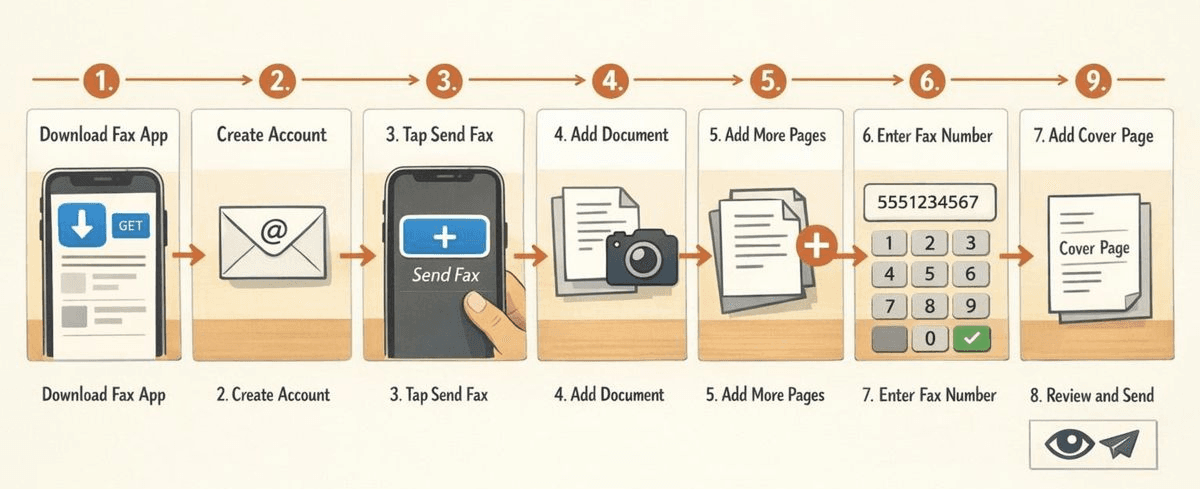
Here’s how to send your first free fax using FaxBurner as an example (other apps follow similar patterns):
- Download a free fax app (2 minutes): Open the App Store and search for “FaxBurner” or any app from the list above. Tap “Get” to install.
- Create your account (3 minutes): Open the app and sign up with your email. No credit card required for FaxBurner’s free tier.
- Tap the send button: Look for a “+” symbol or “Send Fax” button on the main screen.
- Add your document: Tap “Scan Document” to use your iPhone camera, or tap “Choose from Photos” to upload an existing PDF or image from your Files app.
- Scan additional pages if needed: After scanning the first page, tap the “+” beside “Pages to fax” to add more pages to the same transmission.
- Enter the recipient’s fax number: Type the 10-digit fax number including area code. Don’t add dashes or parentheses—just numbers.
- Add a cover page (optional): Most apps let you include a simple cover page with recipient name and message.
- Review and send: Check the preview to ensure pages are clear and in the right order, then tap “Send.”
- Confirm transmission: Wait for the confirmation screen. Most apps show “Fax sent successfully” within 30-60 seconds.
Make sure your document is clear and properly cropped before sending—failed faxes waste your limited free pages. Good lighting and a steady hand when scanning help avoid retransmission.
Best Free Fax Apps for iPhone in 2026
We evaluated these apps based on how many truly free pages they offer, whether they require payment information upfront, ease of use, and reliability.
| App Name | Free Pages Offered | Credit Card Required | Document Limits | Best For |
|---|---|---|---|---|
| Faxify | 25 pages/month | No | Common formats (PDF, Word, Excel, images) | Regular occasional users |
| FaxBurner | 5 sent + 25 received/month | No | PDF, images | Balanced send/receive needs |
| TigerFax | 3 faxes/month | No | PDF, images | Simple one-off faxes |
| FaxDrop | 2 faxes/month | No | PDF, photos from camera roll | Quick simple sends |
| PC-FAX FreeFax | 1 page/day | No | PDF, images to 50 countries | International faxing |
App Option 1: Faxify
Faxify offers 25 free pages every month without requiring a trial subscription—making it the most generous free option for iPhone users who fax occasionally but regularly.
Key features:
- Works on iPhone, iPad, Mac, PC, Android, and web browsers
- 256-bit SSL encryption for secure transmission
- No credit card required for the free tier
- Supports PDF, Word, Excel, PNG, and JPG files
Best for: Users who need to send 5-10 documents per month and want one reliable app rather than juggling multiple services.
App Option 2: FaxBurner
FaxBurner lets you send up to 5 pages and receive up to 25 pages each month for free—making it ideal if you occasionally receive faxes too.
Key features:
- In-app document scanning with automatic border detection
- Send multiple pages in one fax transmission
- Receive faxes to your dedicated free fax number
- Simple interface designed for mobile use
Best for: People who need a dedicated fax number to receive documents occasionally, with light outbound faxing needs.
App Option 3: TigerFax
TigerFax provides 3 free faxes every month with no credit card required—straightforward and hassle-free for minimal faxing needs.
Key features:
- No payment information needed to access free tier
- Clean, simple interface
- Quick setup process
- Reliable transmission
Best for: Users who fax 1-3 times per month and want zero risk of accidentally signing up for a paid plan.
How to Send a Fax From Your iPhone for Free Using the Notes App
You can’t send faxes directly through Apple’s native Notes app, but you can use Notes to scan and prepare documents before sending them through a free fax app.
Here’s how to scan documents using Notes, then export to a fax app:
- Open Notes and create a new note: Tap the compose icon in the bottom right corner.
- Tap the camera icon: Look for the attachment button (camera icon) above the keyboard.
- Select “Scan Documents”: This activates your iPhone camera in document-scanning mode.
- Position your document: Hold your iPhone over the document. The camera will automatically detect the page and capture it when properly aligned. You can also manually adjust the corners if needed.
- Scan additional pages: After capturing the first page, repeat for additional pages. They’ll all save as one multi-page PDF in the same note.
- Tap “Save” when finished: Your scanned document is now stored as a PDF in Notes.
- Share to your fax app: Tap the scanned PDF, tap the share icon, and select your fax app from the share sheet. The PDF will open in the fax app ready to send.
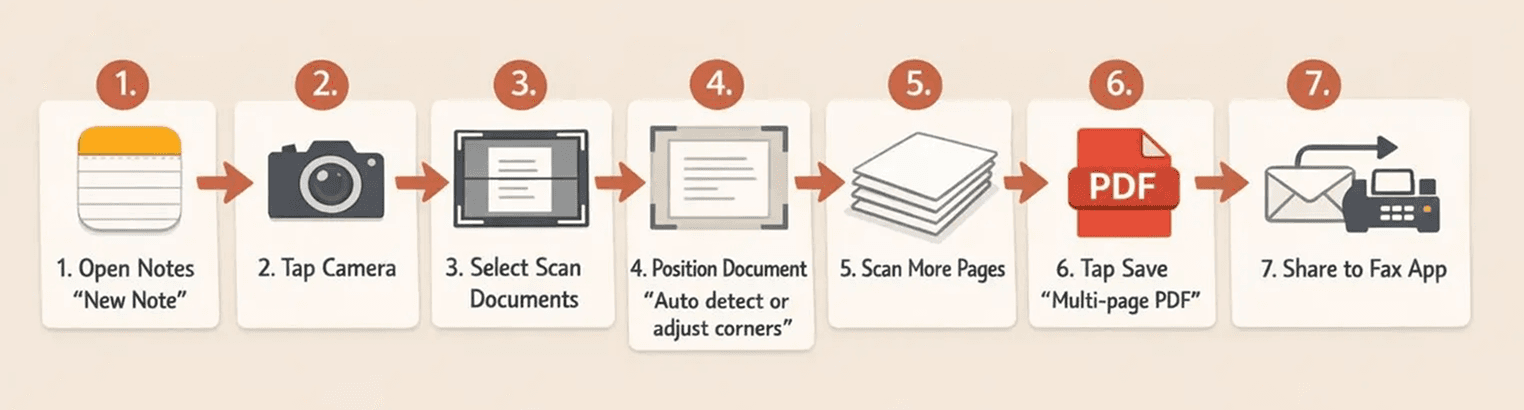
This workflow is perfect for preparing documents with good quality scans before using your limited free fax pages.
Maximizing Your Free iPhone Fax Pages
You only get a handful of free fax pages each month—here’s how to make them count.
Strategies to stretch your free allowances:
- Combine pages into single documents - Send one 5-page fax instead of five 1-page faxes
- Use multiple apps - Stack free allowances from FaxDrop (2 pages), TigerFax (3 pages), and FaxBurner (5 pages) for 10 total monthly faxes
- Double-check before sending - Preview documents carefully to avoid wasting pages on failed transmissions
- Scan in good lighting - Poor scans = retransmissions = wasted free pages
- Save urgent faxes for paid services - Don’t risk using free pages on time-sensitive documents where failure isn’t an option
- Prioritize no-credit-card apps first - Use TigerFax and Faxify before trying trial-based services
- Time your faxes during business hours - Faxing at 2am to a powered-off machine wastes a page when it fails
- Keep documents under 10 pages - Most free services work best with shorter documents
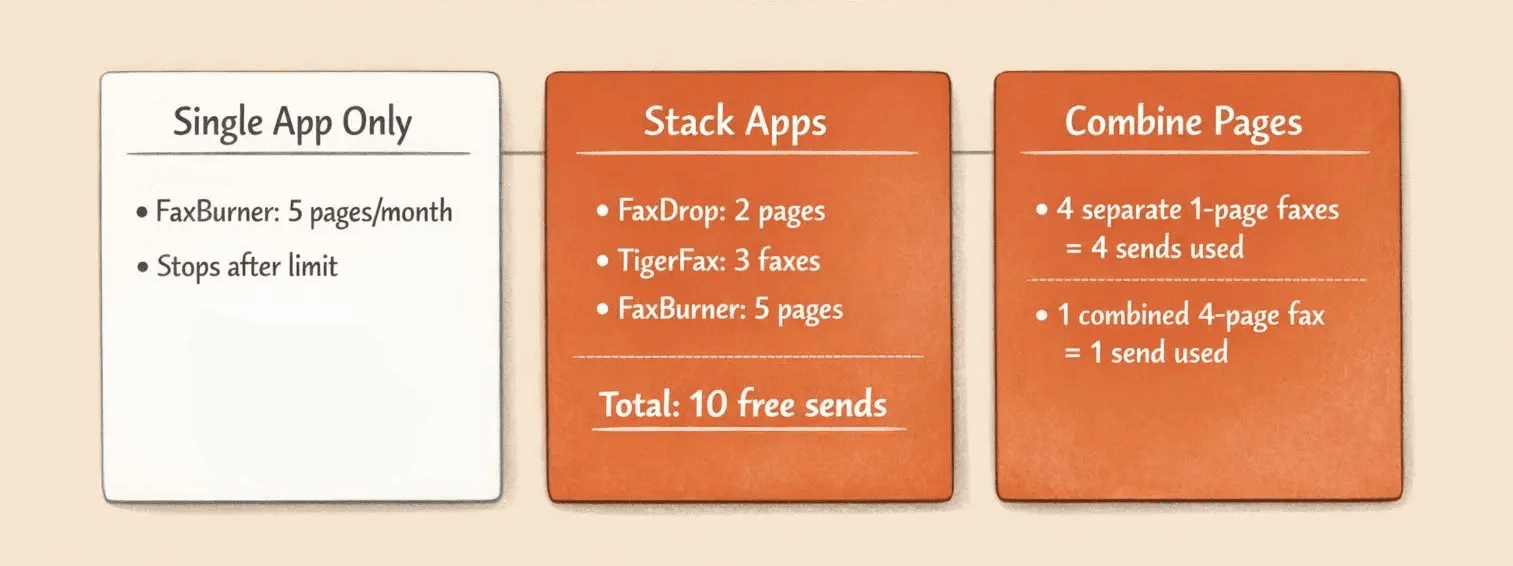
Creating Multi-Page Documents to Save Free Faxes
Combining multiple pages into one PDF before faxing conserves your free-page allowances—sending one 4-page fax instead of four separate 1-page faxes.
Here’s how to combine documents using the Files app:
- Open the Files app and navigate to the folder containing your scanned PDFs.
- Tap “Select” in the top right corner, then select all the PDF files you want to combine.
- Tap the three-dot menu (•••) and choose “Create PDF.”
- Rearrange pages if needed by dragging thumbnails into the correct order.
- Tap “Done” to save your combined multi-page PDF, then share it to your fax app.
You can also scan multiple pages directly in Notes—each additional page gets added to the same PDF automatically. Tap “Keep Scan” after each page, then tap “Save” when you’ve captured everything.
Limitations of Free iPhone Faxing You Need to Know
Let’s be realistic: most free options cap you at 5-10 total pages, not 5-10 pages per month forever.
Key limitations of free iPhone faxing:
- Tight page caps - Expect 2-5 faxes per month maximum on truly free plans
- Domestic-only faxing - Most free tiers don’t support international fax numbers
- No toll-free number support - Faxing to 1-800 numbers often requires paid plans
- Occasional watermarks - Some free services add small promotional marks to your faxes
- Limited customer support - Free users typically don’t get priority help with technical issues
- Quality restrictions - Free tiers may compress images more aggressively than paid plans
- No dedicated inbound number - Receiving faxes usually requires upgrading to a paid plan (FaxBurner is an exception)
Free faxing works great for sending an occasional medical form, signing a lease document, or submitting a school permission slip. But if you’re faxing 3+ documents per week, upgrading to a paid plan ($10-15/month) makes more sense than juggling multiple free services.
Alternative: Free Faxing Using iPhone Web Browsers
Some web-based fax services work through Safari and may offer free pages separate from their iOS apps—effectively doubling your free allowances if you use both.
Web services that work on iPhone Safari:
- FaxDrop - 2 free faxes/month via web (same as app, but worth noting for occasional users)
- FaxZero - Up to 3 pages plus cover page, 5 faxes per day per email address
- FlashFax - Occasional free promotional offers (check current availability)
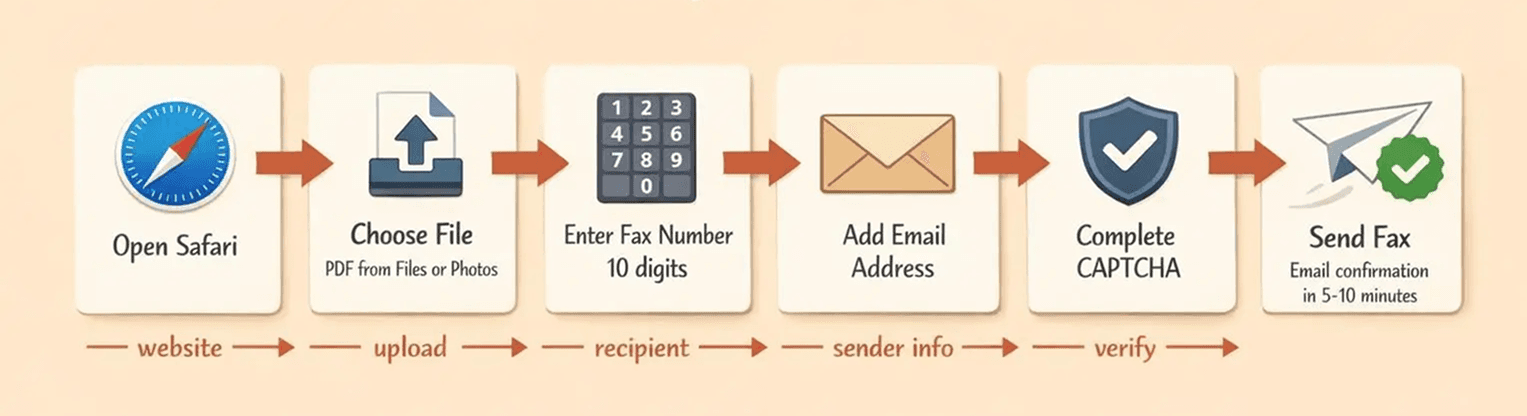
Here’s how to use web-based free fax services through iPhone Safari:
- Open Safari and navigate to the fax service website (example: faxdrop.com/free-fax).
- Tap “Choose File” or “Upload Document” and select your PDF from Files or Photos.
- Enter recipient’s fax number in the provided field (10 digits for US numbers).
- Fill in required sender information - Most free web services require your email address for confirmation.
- Complete any verification - Some services use CAPTCHA to prevent abuse.
- Review and send - Check the preview if available, then tap “Send Fax” or equivalent button.
Web-based services typically email you a confirmation once the fax transmits successfully—usually within 5-10 minutes.
Troubleshooting Common Free iPhone Fax Issues
Free services sometimes have more technical hiccups than paid versions—here’s how to fix the most common problems.
Fax Failed to Send
Common causes and fixes:
- Wrong number format - Remove dashes, spaces, and parentheses. Just type the 10-digit number: 5551234567
- Poor internet connection - Switch from cellular to WiFi, or move to an area with better signal
- File size too large - Compress your PDF or reduce image quality before uploading
- Recipient’s fax machine offline - Try sending during business hours (9am-5pm) when machines are powered on
- App glitch - Force quit the app completely, then reopen and try again
Document Quality Problems
Tips for better scans:
- Use bright, even lighting - Natural daylight works best; avoid harsh shadows
- Hold iPhone steady - Use both hands or prop your phone against something stable
- Place document on contrasting background - White paper on a dark surface makes edges easier to detect
- Manually adjust corners - Don’t rely on auto-detection; drag corner points to crop precisely
Free Pages Not Appearing in Account
Common reasons and solutions:
- Account not verified - Check your email for a verification link and click it
- Monthly reset hasn’t occurred yet - Free pages typically refresh on the 1st of each month
- Used a different email - Verify you’re logged into the correct account
- App needs updating - Check the App Store for available updates
Conclusion: Making Free iPhone Faxing Work for You
The most practical approach for occasional faxing: use 2-3 apps to stack their free allowances. Start with Faxify’s 25 pages/month for regular light use, then keep TigerFax (3 pages) and FaxDrop (2 pages) as backups when you need extra.
Free iPhone faxing is perfect for sending occasional medical forms, signed leases, school documents, or contracts a few times per month. But if you’re faxing weekly—or need a dedicated number to receive faxes—upgrading to a paid plan makes more sense than managing multiple free accounts.
Key takeaways:
- Download Faxify first - Its 25 free pages/month covers most occasional users
- No credit card required - Stick with TigerFax and Faxify to avoid accidental paid subscriptions
- Prepare documents in Notes - Scan everything with good lighting before uploading to conserve free pages
- Stack multiple apps - Combine free allowances from different services for 10+ monthly faxes
Start by downloading one of the free apps above, scan your document in Notes, and send your first free fax today.
FAQ: Sending Free Faxes From iPhone
Can I Fax From My iPhone for Free?
Yes, several iPhone apps offer genuinely free fax pages each month without requiring payment information upfront. You won’t get unlimited faxing, but you can send 2-25 pages per month depending on which service you choose.
Apps with confirmed free pages:
- Faxify - 25 free pages/month
- FaxBurner - 5 free sent pages/month
- TigerFax - 3 free faxes/month
- FaxDrop - 2 free faxes/month
Can You Fax From iPhone for Free Without a Credit Card?
Yes. TigerFax and Faxify both offer free monthly fax pages without requiring a credit card at signup. FaxBurner and FaxDrop also don’t require payment information for their free tiers.
This is different from “free trial” offers that require a credit card and automatically charge you after 7-30 days. The apps above give you free pages every month, period.
Can I Send a Free Fax From My iPhone to International Numbers?
Most free iPhone fax services only support domestic faxing within the US and Canada. International faxing typically requires a paid plan.
The exception is PC-FAX FreeFax, which allows 1 free fax page per day to 50 countries—but that’s very limited for regular international faxing needs.
How Many Free Faxes Can I Send From My iPhone?
You can typically send 3-10 free pages total across popular apps, depending on which services you use.
| App | Free Page Limit | Frequency |
|---|---|---|
| Faxify | 25 pages | Monthly |
| FaxBurner | 5 pages (sent) | Monthly |
| TigerFax | 3 faxes | Monthly |
| FaxDrop | 2 faxes | Monthly |
| PC-FAX FreeFax | 1 page | Daily (to 50 countries) |
If you strategically use multiple apps, you could send 10+ pages per month without paying anything.
Can I Receive Faxes on My iPhone for Free?
Receiving faxes typically requires a dedicated fax number, which most free plans don’t include. The main exception is FaxBurner, which lets free users receive up to 25 pages monthly.
Most other free fax apps are send-only. If you need regular inbound faxing, you’ll need a paid plan that includes a dedicated fax number (usually $10-15/month).

Written by
Bernard Bado
I created ThirtyFax after needing to send a single fax and refusing to pay for a monthly subscription to do it. I write here about faxing, document workflows, and the surprisingly stubborn role fax still plays in modern business.
View author profile