
How to Send a Fax From Android
You don't need a fax machine to send faxes from Android. Use mobile apps to scan, upload, and transmit documents over the internet. This guide covers free and paid options.
Quick Verdict
You can send faxes from your Android phone using mobile fax apps. No traditional fax machine or phone line required. These apps turn your phone into a portable fax machine that works entirely over your internet connection.
Here’s how it works: You upload or scan a document from your phone, enter the recipient’s fax number, and hit send. The app transmits your document over the internet to the recipient’s traditional fax machine or fax service. It’s like email, but formatted to work with old-school fax technology.
This guide covers everything you need to know—step-by-step instructions for sending faxes from Android, both free and paid app options, and how to choose the right service for your needs.
How to Fax From Your Android Phone
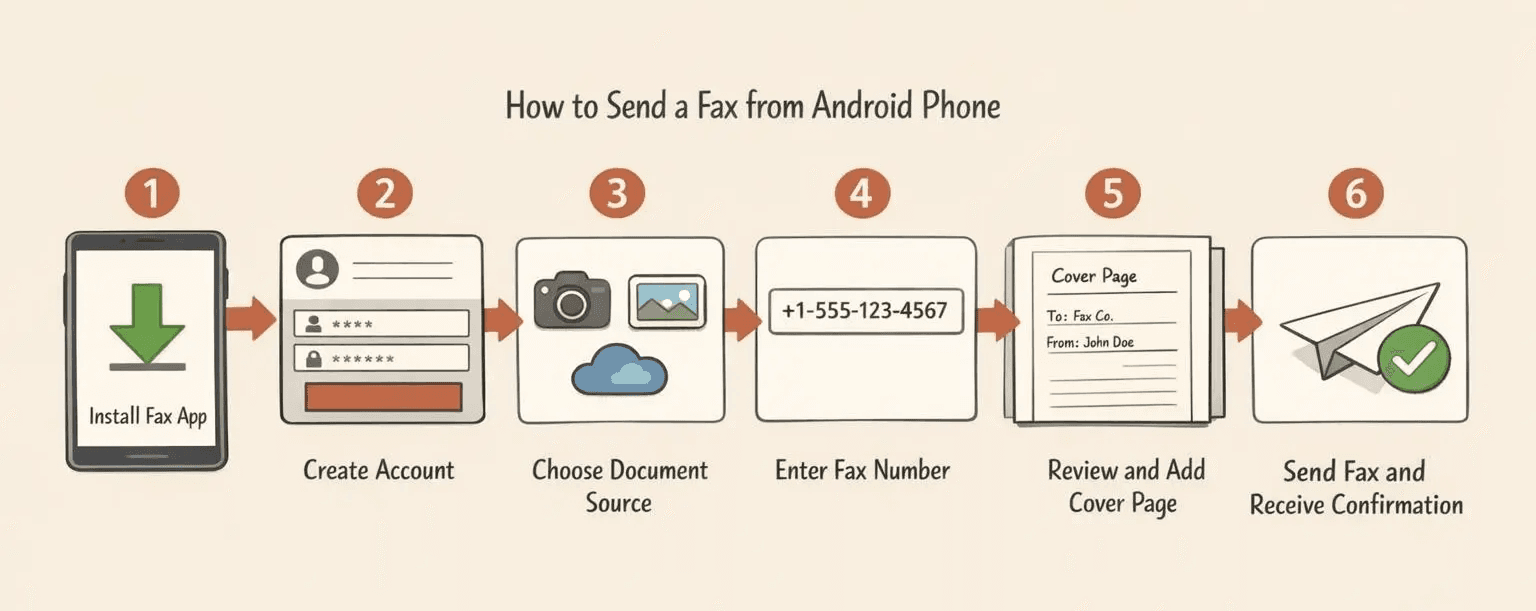
The basic process is straightforward: download a fax app from Google Play, upload or scan your document, enter the recipient’s fax number, and send.
Here’s the complete process:
- Download a fax app (2 minutes): Install a fax app from Google Play Store—popular options include eFax, FAX.PLUS, iFax, or Faxify. Most offer free trials or limited free pages.
- Create an account: Sign up with your email and create a password. Some apps let you sign in with Google for faster setup.
- Choose your document source: Tap the send button and select where your document is coming from. You can take a photo with your camera, select an existing file from your gallery, or import from Google Drive or Dropbox.
- Enter the recipient’s fax number: Type the full fax number including country code (for the US, that’s +1 before the 10-digit number). Double-check—wrong numbers mean failed transmissions.
- Add a cover page (optional): Most apps let you include a cover page with a message, your contact info, and the recipient’s name. Useful for business faxing, but not required.
- Review your document: Preview the fax before sending. Check that pages are in the right order, text is readable, and nothing got cut off at the margins.
- Send the fax: Tap send and wait for confirmation. The app converts your document and transmits it to the recipient’s fax machine.
- Get your confirmation: You’ll receive a notification when the fax goes through successfully. Most apps also show delivery status in your sent fax history.
You’ll need a stable internet connection—Wi-Fi or cellular data both work. Most faxes transmit in 1-2 minutes, though longer documents or slower connections can take longer.
Preparing Your Document for Faxing
Android fax apps accept PDFs, images (JPG/PNG), and documents you’ve scanned with your phone’s camera. Getting documents onto your phone is easy—most apps integrate directly with the file sources you already use.
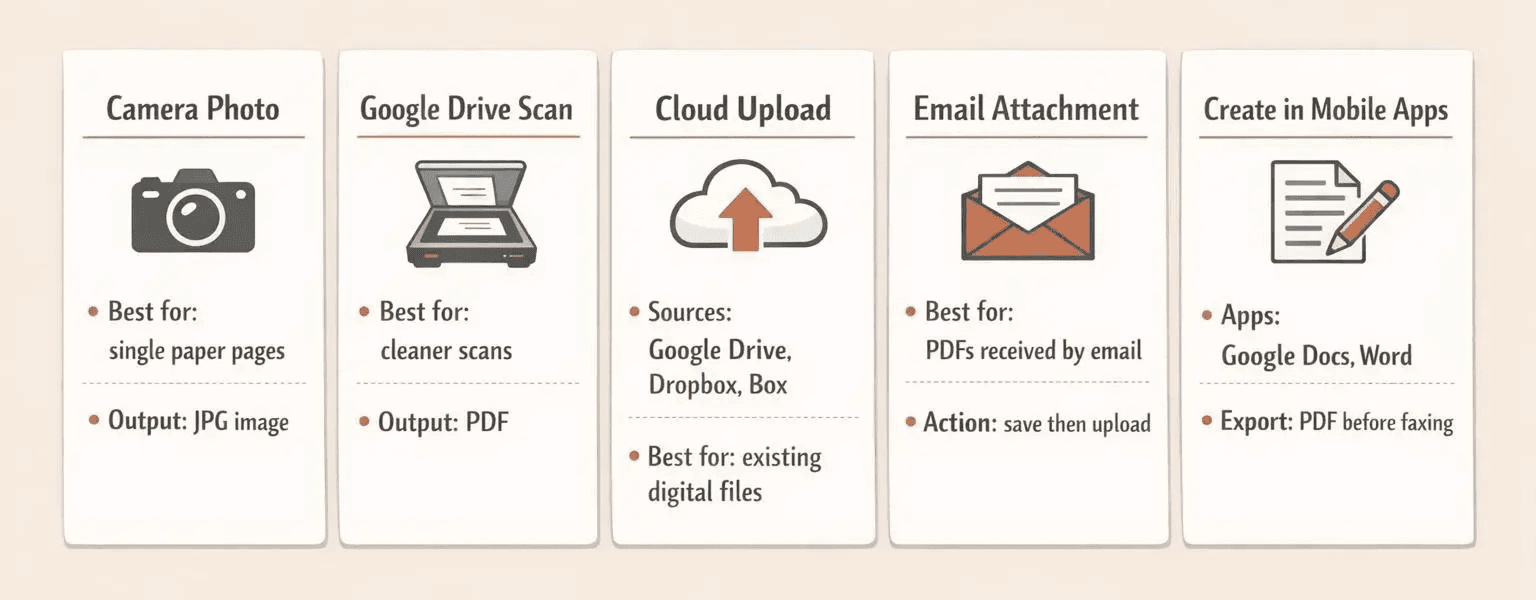
Five ways to prepare documents for faxing:
- Take a photo with your camera: Point your phone at a paper document and shoot. The app will convert it into a fax-ready file. Works great for contracts, forms, or receipts.
- Scan with Google Drive: Use the Google Drive app to scan documents directly to PDF, then import into your fax app. Produces cleaner results than camera photos.
- Upload from cloud storage: Pull files from Google Drive, Dropbox, or Box directly within the fax app. Perfect if you’ve already digitized your documents.
- Forward from email: If someone emailed you a PDF, save it to your phone and upload it through the fax app’s file picker.
- Create in mobile apps: Draft documents in Google Docs, Microsoft Word, or similar apps, export to PDF, and fax from there.
Pro tip: Dropbox’s mobile app can scan multipage documents directly to PDF, which is handy if you’re faxing a 5-page contract and don’t want to photograph each page individually.
What Happens After You Send
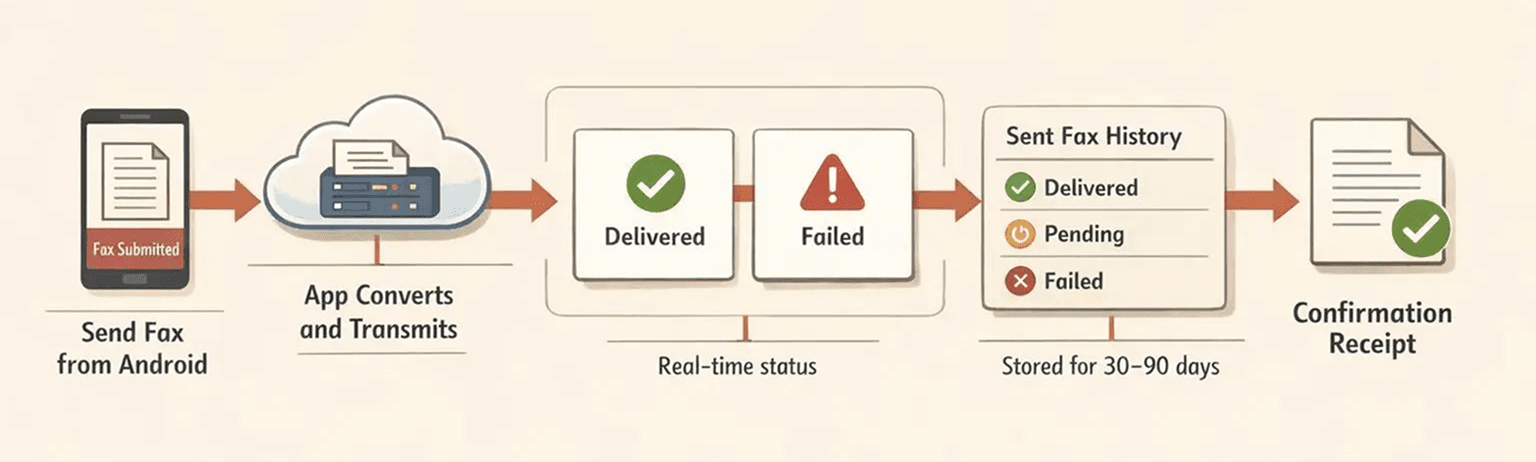
After you hit send, the fax app gives you real-time status updates as your document transmits. You’ll know immediately whether it went through or failed.
What to expect after sending:
- Delivery confirmation: A notification confirming your fax reached the recipient’s machine. Most apps include this in your fax history with timestamps.
- Failed transmission alerts: If the recipient’s fax line is busy, disconnected, or out of paper, you’ll get an error message. You can retry immediately.
- Transmission logs: Your sent fax history shows all past faxes with status indicators—delivered, pending, or failed. Useful for record-keeping or proving you sent something on a specific date.
- Received confirmation page: Some recipients fax back a confirmation sheet. You’ll get it as an incoming fax in your app’s inbox.
Most apps store your fax history for 30-90 days, though paid plans often include longer retention.
How to Fax for Free From Android
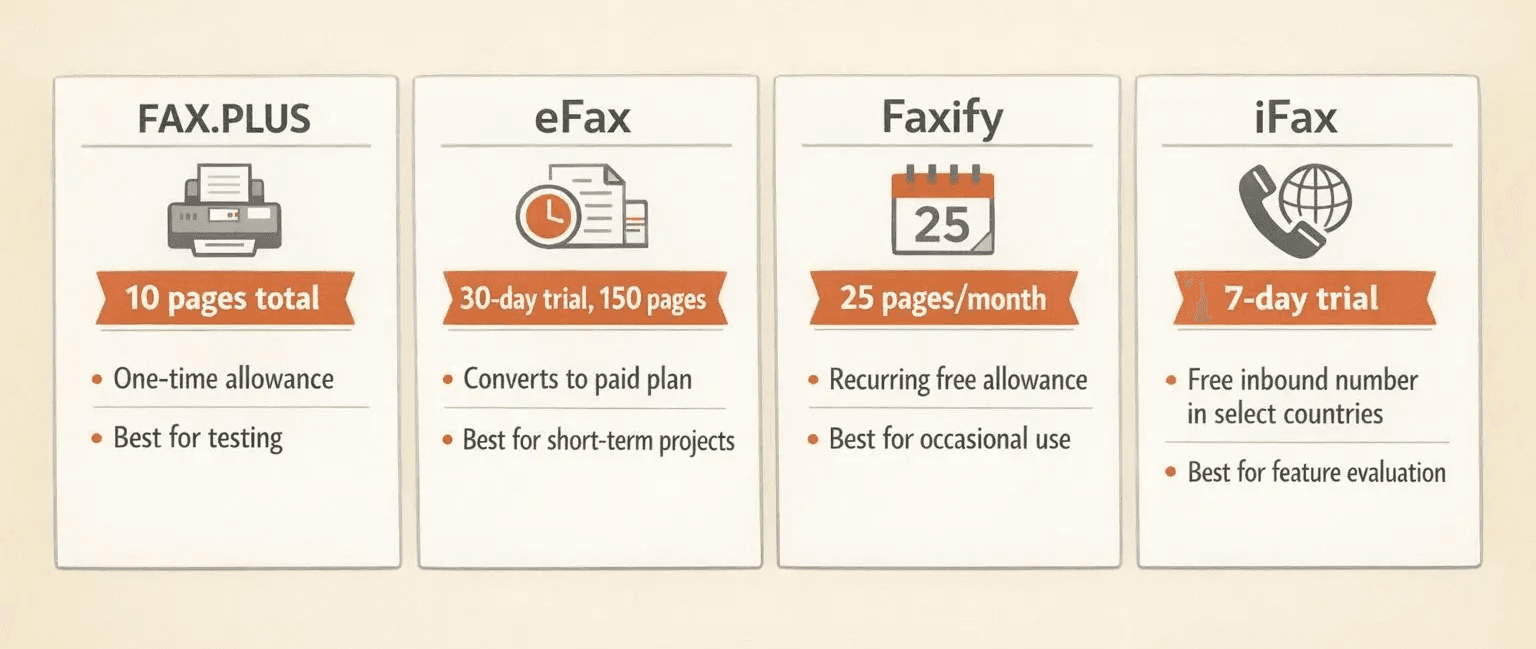
Several Android fax apps offer free pages—typically between 5 and 30 pages depending on the service. Free tiers usually come with limitations like daily sending caps or mandatory trial periods.
| App Name | Free Pages Offered | Limitations | Best For |
|---|---|---|---|
| FAX.PLUS | 10 pages total | One-time allowance, no recurring pages | Testing before committing |
| eFax | 150 pages (30-day trial) | Trial converts to paid plan after 30 days | Short-term projects |
| Faxify | 25 pages/month | Recurring monthly allowance | Occasional users |
| iFax | 7-day trial | Time-limited, free inbound number in select countries | Evaluating features |
Best Free Fax Apps for Android
These apps have the highest ratings on Google Play and offer genuine free options—not just demo modes that expire after one fax.
Top free fax apps for Android:
- FAX.PLUS: Solid option with 10 free pages total. Includes camera scanning, cloud imports from Google Drive and Dropbox, and encrypted storage. Interface is clean and beginner-friendly.
- Faxify: Best for occasional users—you get 25 pages every month for free. No trial conversion, no credit card required. Just download and fax when you need to.
- eFax: Industry leader with a generous 30-day trial (150 send + 150 receive pages). Great for evaluating whether online faxing works for you before committing to a paid plan.
- iFax: 7-day free trial with full feature access including HIPAA-compliant transmission, electronic signatures, and form filling. Good for healthcare or legal professionals testing the waters.
- WiseFax: Pay-per-fax model with no subscription required. First fax is usually discounted. Best if you only fax once every few months and don’t want recurring charges.
Limitations of Free Fax Services
Free fax apps get you started, but they come with restrictions that can be frustrating if you’re trying to use them for business or high-volume sending.
Common limitations you’ll hit:
- Monthly or total page caps: FAX.PLUS gives you 10 pages total, not per month. Once you use them, you’re done unless you upgrade.
- Trial-only free access: eFax’s free tier is a 30-day trial that automatically converts to a paid plan. You’re not actually getting a permanent free service.
- Limited destinations: iFax’s free inbound numbers are only available in select countries. International faxing often requires paid plans.
- Daily sending limits: Some apps cap you at 2-5 faxes per day on free tiers, even if you have pages remaining.
- No inbound fax numbers: Free plans usually let you send faxes but don’t give you a dedicated number for receiving faxes.
- Ads and watermarks: Some free apps display ads or add watermarks to your faxed documents—not ideal for professional use.
When to Upgrade to a Paid Plan
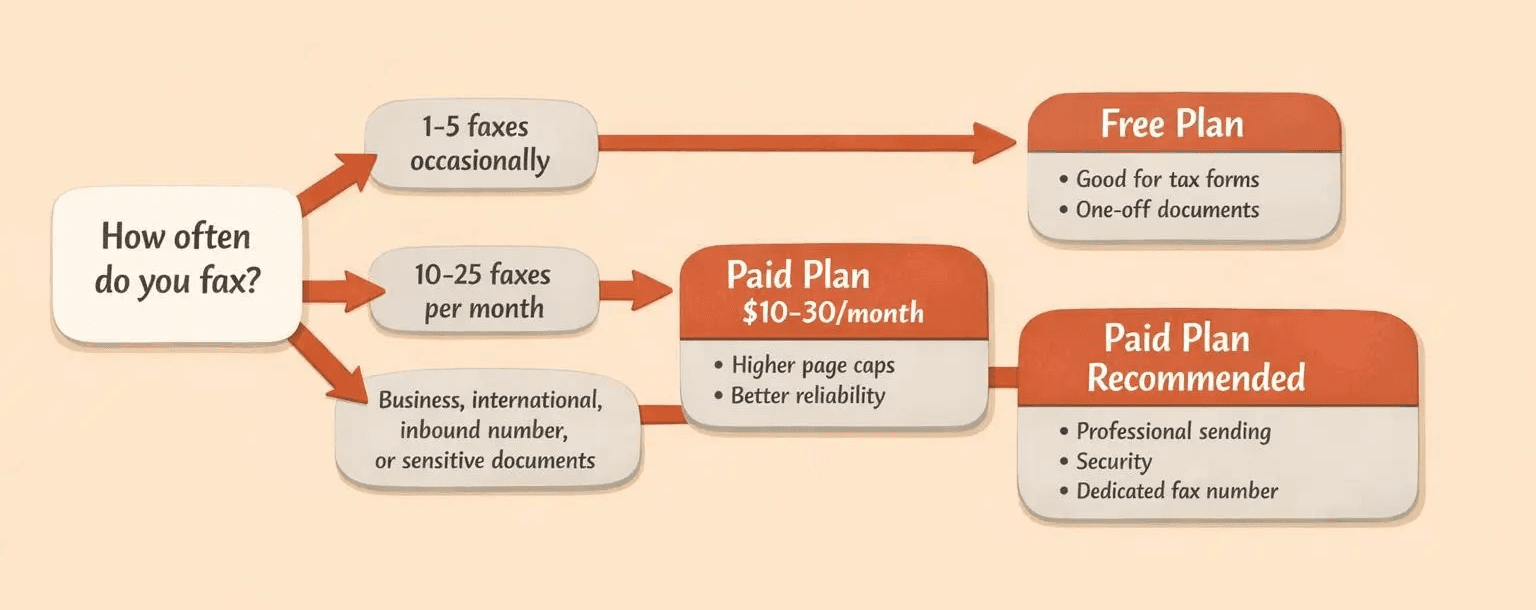
Free plans work fine if you’re faxing a lease agreement or a tax form once in a while. But certain situations make paid plans worth the $10-30/month cost.
Upgrade to paid if you’re:
- Sending more than 10-25 faxes per month: You’ll burn through free allowances quickly. Paid plans start around $10/month with higher page caps.
- Faxing for business: Clients and vendors won’t take you seriously if your faxes have watermarks or come from trial accounts. Paid plans look professional.
- Sending international faxes: Free plans often exclude international destinations or charge per-page for them. Paid plans include more countries.
- Needing a dedicated fax number: If people need to fax things back to you, you need an inbound number—almost always a paid feature.
- Faxing sensitive documents: Paid plans typically include better security, longer storage retention, and compliance features like HIPAA.
Pro tip: If you’re faxing for a business, the $15-20/month cost is negligible compared to maintaining a physical fax machine with phone line fees, paper, toner, and maintenance.
FAQ: Faxing From Android
Can I Fax From My Android Phone?
Yes. Android phones can send faxes through dedicated mobile apps available on Google Play Store. You don’t need a physical fax machine, fax modem, or traditional phone line—just the app and an internet connection.

Written by
Bernard Bado
I created ThirtyFax after needing to send a single fax and refusing to pay for a monthly subscription to do it. I write here about faxing, document workflows, and the surprisingly stubborn role fax still plays in modern business.
View author profile