
How to Receive a Fax on iPhone for Free
Receive faxes on your iPhone for free using apps like FaxBurner or iFax—you get a dedicated number, and faxes arrive as PDFs with push notifications.
Quick Verdict
You can receive a fax on iPhone for free using online fax apps like FaxBurner or iFax, which assign you a dedicated fax number that receives incoming faxes as PDF files directly in the app. When someone sends a fax to your number, you get a push notification and can open, download, or forward the PDF right from your iPhone—no physical fax machine required.
How to Receive a Fax on iPhone
Yes, you can receive faxes on your iPhone using any online fax app from the App Store.
Here’s how:
- Download a fax app (2 minutes): Open the App Store and search for “fax app.” Popular options include FaxBurner, iFax, Faxify, or mFax. Most offer free receiving options or trials.
- Create a free account: Open the app and sign up with your email or Apple ID. Most apps walk you through setup in under a minute.
- Get assigned a fax number: The app will either assign you a local or toll-free fax number automatically, or let you choose from available area codes. This becomes your receiving number.
- Share your fax number with senders: Give this number to anyone who needs to fax you. It works just like a traditional fax line—they dial it from their fax machine or service.
- Receive faxes as push notifications: When someone sends you a fax, you’ll get an iPhone notification. The fax arrives as a PDF file stored in the app.
- Open the app to view the fax: Tap the notification or open the app to see your received fax. Most apps include a built-in PDF viewer.
- Download, forward, or share: Save the PDF to your Files app, email it to yourself, or share it directly from the fax app to other apps like Dropbox or Google Drive.
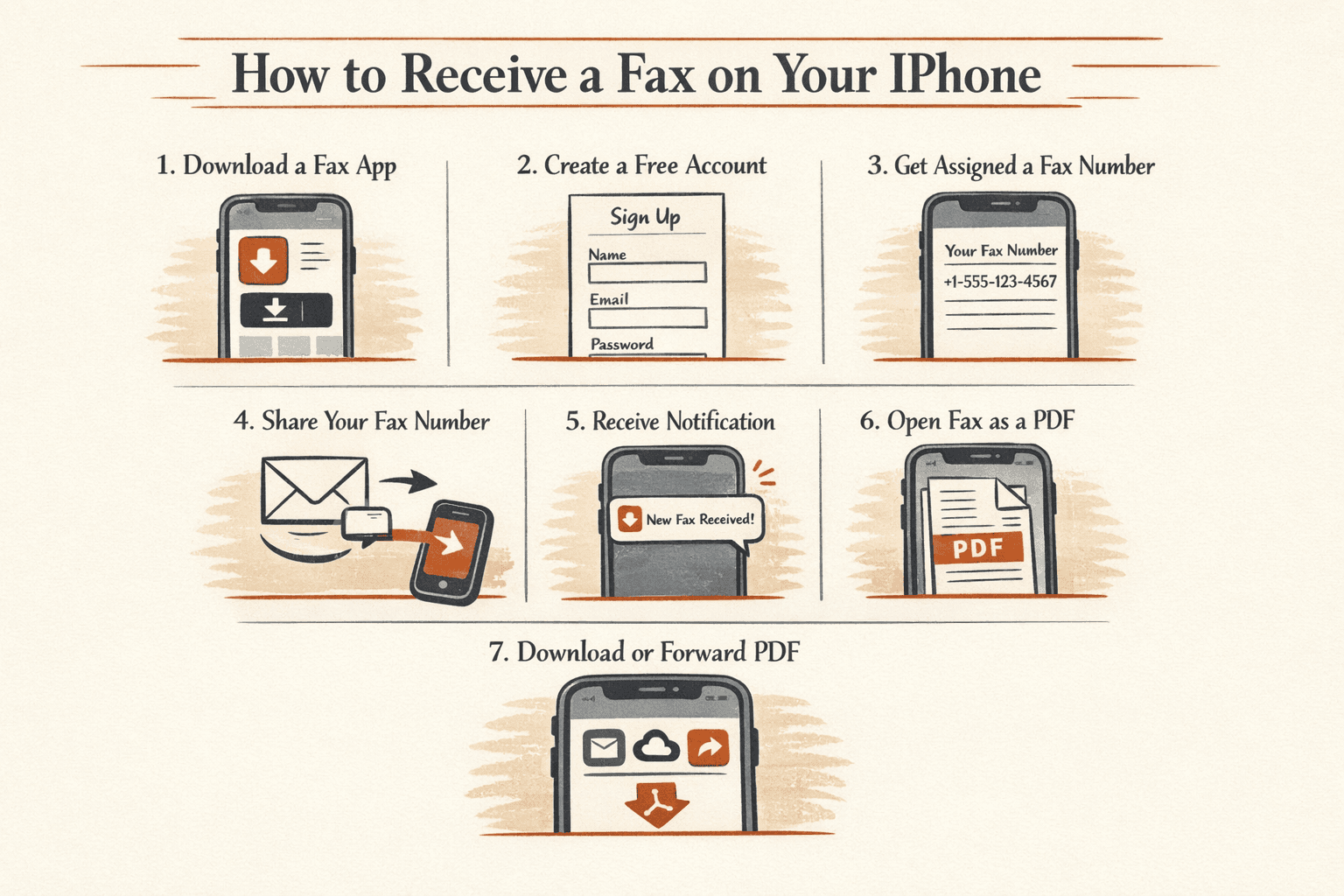
What happens when someone sends you a fax: The sender dials your fax number from their end. Your fax app receives the transmission over the internet, converts it to a PDF, and pushes a notification to your iPhone. The entire process takes seconds—you don’t need to do anything until you’re ready to open and read the fax.

How to Receive Fax on iPhone Free
Several fax apps let you receive faxes for free, though most free plans come with limits on how many pages you can receive per month or require you to upgrade for a dedicated receiving number.
Here’s a comparison of genuinely free receiving options:
| App | Free Pages/Month | Fax Number Type | Key Limitation |
|---|---|---|---|
| FaxBurner | Unlimited receiving | Local (U.S./Canada) | Free number expires after inactivity |
| iFax | 10 total faxes | Local (varies by plan) | Free faxes shared between sending and receiving |
| Faxify | 25 pages | None (paid plans only) | Free plan is send-only—no receiving number |
| mFax | 3-day trial | Local or toll-free | Trial only—receiving requires paid plan after |
To maximize free plans:
- Monitor your monthly page count if you’re on a limited plan—most apps show this in settings
- Use FaxBurner for one-time receiving—it’s the best option if you only need to receive a single fax and don’t want to pay
- Check rollover policies—some apps (like iFax) don’t roll over unused pages, so you lose them at the end of the month
- Keep your number active—some free numbers expire after 30-60 days of inactivity, so send a test fax occasionally if you need to keep it

What You Need to Receive a Fax on iPhone
You need five things to receive a fax on your iPhone:
- iPhone running iOS 12 or later: Most fax apps require a relatively recent iOS version. Check the App Store listing for the specific app to confirm compatibility.
- Internet connection (WiFi or cellular): Faxes are delivered over the internet, not through a phone line. You need an active connection to receive the fax file and get notifications.
- Fax app installed: Download any fax app from the App Store—installation takes under a minute and most apps are under 50MB.
- Active fax number provided by the app: The app assigns you a dedicated fax number when you sign up. This is what senders dial to reach you.
- Sender has your correct fax number: Give the sender your exact fax number including area code. Wrong numbers are the #1 reason faxes don’t arrive.
Troubleshooting Common Issues
Most issues with receiving faxes on iPhone come from app notification settings, storage problems, or sender errors.
Fax Not Arriving
If a fax isn’t showing up in your app:
- Verify the sender dialed the correct number—double-check you gave them the right fax number including area code
- Check notification settings—go to Settings > Notifications > [your fax app] and make sure “Allow Notifications” is turned on
- Confirm your storage isn’t full—if your iPhone storage is maxed out, the app may fail to download the PDF (check Settings > General > iPhone Storage)
- Ask the sender to retry—transmission errors happen, especially if the sender’s machine is old or misconfigured
Can’t Open Received Fax
If the fax shows up but won’t open:
- Update your fax app—open the App Store, tap your profile icon, and check for pending updates
- Try opening in a different PDF viewer—tap “Share” and open the fax in Apple Books, Adobe Acrobat, or another PDF app
- Delete and re-download the fax—some apps let you re-sync received faxes from their servers if the local file is corrupted
Free Limit Reached
If you’ve hit your monthly free page limit:
- Wait for the next billing cycle—most apps reset on the 1st of the month or 30 days after sign-up
- Upgrade to a paid plan—if you need to receive faxes regularly, paid plans start around $10-15/month for 200-300 pages
- Use a different app temporarily—download a second fax app with its own free tier to receive urgent faxes while waiting for your primary app to reset

FAQ
Can I Receive a Fax on My iPhone?
Yes, you can receive faxes on your iPhone by installing a fax app like FaxBurner, iFax, or Faxify. These apps give you a dedicated fax number and deliver received faxes as push notifications with attached PDF files you can view, download, or forward.

Written by
Bernard Bado
I created ThirtyFax after needing to send a single fax and refusing to pay for a monthly subscription to do it. I write here about faxing, document workflows, and the surprisingly stubborn role fax still plays in modern business.
View author profile