
How to Fax From a Printer Without a Phone Line
Faxing without a phone line works two ways: online fax services (works with any printer, ready in 5 minutes) or WiFi printers with internet fax. Most people should use online services.
Quick Verdict
Yes, you can fax from a printer without a phone line—and it’s simpler than you think. You have two options: use an online fax service that works with any printer, or use a WiFi-enabled printer with built-in internet fax capability. For most people, online fax services are the easier route—they work with the printer you already own and require no special hardware.
How to Fax From a Printer Without a Phone Line
The traditional fax machine is dead—and good riddance. Today, you can send faxes entirely over the internet using either an online fax service or a WiFi printer with internet fax features. No phone line required.
Method 1: Using an Online Fax Service
Online fax services let you send faxes from any device—computer, phone, or tablet—without connecting your printer to a phone line. The service converts your document to fax format and transmits it over the internet to the recipient’s fax machine or fax number.
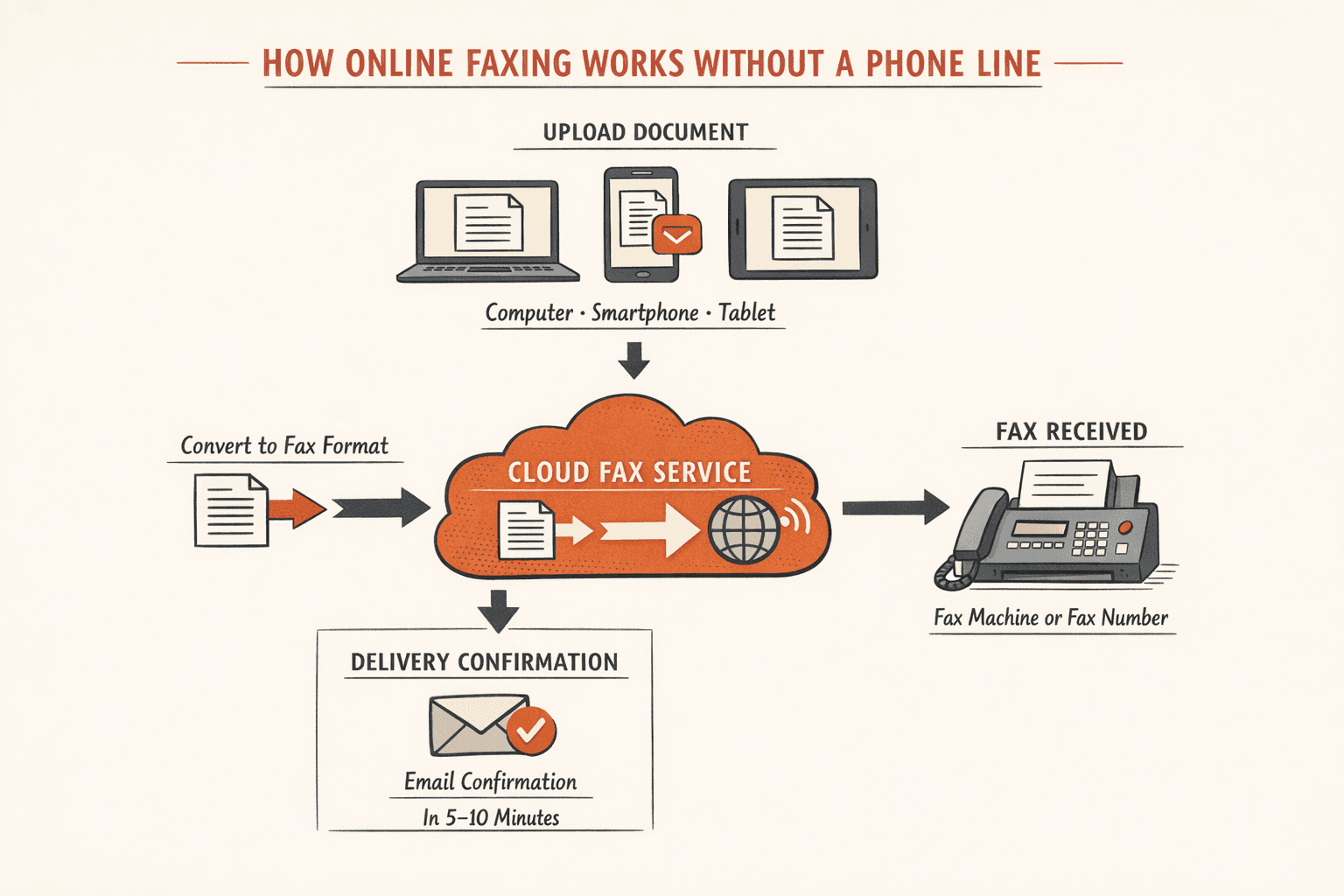
Here’s how it works:
- Choose an online fax service (5 minutes): Popular options include eFax, Fax.Plus, and Dropbox Fax. Most offer free trials or free tiers—Fax.Plus gives you 10 pages total, Dropbox Fax offers 5 pages free. If you only need to send one fax, ThirtyFax lets you send 1 fax (up to 5 pages) free with no account required.
- Sign up or start sending: Most services require creating an account. The exception: ThirtyFax and FaxZero let you send immediately without signing up, though FaxZero adds branding to your cover page on free faxes.
- Upload your document: Click “Send Fax” and upload the file you want to send. PDF works best for preserving formatting. Some services let you scan directly from your phone’s camera.
- Enter the recipient’s fax number: Type the 10-digit fax number (or international format if sending abroad). Most services auto-format as you type.
- Send and confirm delivery: Hit send. You’ll get a delivery confirmation by email—usually within 5-10 minutes. Keep this confirmation for your records.
Pro tip: Some online services can’t send to VoIP numbers, so if your fax fails to deliver, ask the recipient if they’re using a VoIP-based fax line.
| Service | Best For | Cost | Free Option |
|---|---|---|---|
| ThirtyFax | One-time faxing | €4.99 (up to 20 pages) | Yes (1 fax, 5 pages) |
| Fax.Plus | Regular faxing, modern UI | $8.99/mo (200 pages) | Yes (10 pages total) |
| Dropbox Fax | Dropbox users | $0.99/fax (up to 10 pages) | Yes (5 pages) |
| eFax | Businesses needing HIPAA | $18.99/mo (170 pages) | 14-day trial |
Method 2: Using a WiFi-Enabled Printer With Internet Fax
Some business-class multifunction printers have built-in internet fax capabilities—often called I-Fax, eFax, or Internet FAX (SMTP). These printers send faxes over your WiFi network without needing a phone line.

Here’s the setup:
- Verify your printer supports internet fax (5 minutes): Check your printer’s manual or settings menu for “Internet Fax,” “I-Fax,” or “Email to Fax.” Most consumer printers don’t have this feature—it’s typically found on business models like Canon’s imageCLASS series or Brother multifunction printers.
- Connect your printer to WiFi: Follow your printer’s WiFi setup process. This is usually under Network or Wireless settings on the printer’s display panel.
- Configure internet fax settings (10-20 minutes): This is the technical part. You’ll need to enter your email server’s SMTP and POP3 settings—essentially teaching your printer how to send and receive email-based faxes. Your IT department or email provider can give you these details.
- Scan your document: Place your document in the printer’s scanner or auto-feeder, just like you would for a regular scan or copy.
- Enter recipient information: On the printer’s display, select the fax or I-Fax option, then enter the recipient’s fax number or email address (depending on your setup).
- Send and confirm: Hit send. Depending on your printer, you’ll get confirmation on the display screen, via email, or both.
Printer brands with internet fax support:
- Canon imageCLASS multifunction printers (MF series)
- Brother MFC and DCP business models
- Epson WorkForce Pro series
- HP OfficeJet Pro models (via HP’s Mobile Fax app)
The catch: internet fax on printers is usually limited to business-class models and requires technical setup most consumers won’t want to deal with.
Comparison: Which Method Should You Choose?

| Factor | Online Fax Service | WiFi Printer Internet Fax |
|---|---|---|
| Setup complexity | Very easy (5 minutes) | Technical (requires SMTP/POP3 config) |
| Cost | €5-25/month or pay-per-fax | Hardware cost ($300-800 printer) |
| Works with existing printer | Yes, any printer | No, need compatible model |
| Best for | Occasional faxing, one-off documents | Offices with regular fax volume |
| Can receive faxes | Yes (on paid plans) | Yes (if configured) |
Here’s my recommendation: If you’re sending fewer than 10 faxes per month, use an online service. ThirtyFax is perfect for one-time faxing—no subscription, no account. If you fax occasionally but regularly, Fax.Plus or Dropbox Fax make more sense.
If you’re a business sending 50+ faxes per month and you already have a compatible printer, internet fax might save you money long-term. But be ready for the setup headache.

Conclusion
Faxing without a phone line is not only possible—it’s often easier than the old phone-line method. Online fax services work with any printer and require zero technical setup, making them the smart choice for most people. WiFi-enabled printers with internet fax capability exist, but they’re typically business-class models that require SMTP configuration.
For one-time faxing, ThirtyFax is the fastest option—no account, no subscription, just send. For regular business faxing, Fax.Plus or eFax make more sense. Choose based on how often you fax and whether you already own compatible hardware.
Frequently Asked Questions
Can I Fax From My Printer Over the Internet?
Yes, but only if your printer has internet fax capability or you use an online fax service. Most consumer printers require a traditional phone line for their built-in fax features. The workaround is either using an online service that works with any printer, or buying a business-class multifunction printer with I-Fax or SMTP-based fax support—like Canon’s imageCLASS or Brother’s MFC models.
Can I Fax From My Printer Using WiFi?
Yes, but WiFi alone isn’t enough. You need either an online fax service (which uses WiFi to upload your document) or a printer with built-in internet fax capability. Most consumer printers with WiFi still require a phone line for their fax hardware to work. HP explicitly states that fax-capable printers typically need a landline unless you’re using a separate service like HP’s Mobile Fax app.

Written by
Bernard Bado
I created ThirtyFax after needing to send a single fax and refusing to pay for a monthly subscription to do it. I write here about faxing, document workflows, and the surprisingly stubborn role fax still plays in modern business.
View author profile