
How to Fax From a Canon Printer
Canon MAXIFY and imageCLASS printers fax directly through a phone line. Most PIXMA models need an online fax service instead—no fax hardware included.
Quick Verdict
The method depends on whether your Canon printer has built-in fax capability. Canon’s MAXIFY, imageCLASS, and some PIXMA TR-series printers (like the TR4720 and TR4522) include fax hardware and can send faxes directly through a phone line. Models without built-in fax—most standard PIXMA printers—need a workaround like an online fax service.
Most PIXMA models are print-and-scan oriented. If your printer has a “Fax” button or phone line ports labeled “LINE” and “TEL,” you’re good to go. If not, you’ll need an alternative method.
How to Setup Fax on Canon Printer
Setup requires connecting a phone line and configuring fax settings through the printer’s control panel. The process takes about 10 minutes for most Canon MAXIFY and imageCLASS models.
- Connect the phone line (1 minute): Plug your phone cord into the printer’s LINE port. If you’re sharing a line with a regular phone, plug the phone into the printer’s TEL port—never split the line before it reaches the printer.
- Power on and access fax settings (2 minutes): Turn on the printer and press the “Fax” button on the control panel. Most models will launch an Easy Setup wizard automatically on first use.
- Enter your fax header (2 minutes): The printer will prompt you for your name or company name and fax number. This appears at the top of every fax you send. Use the keypad or touchscreen to enter the information.
- Choose your receive mode (2 minutes): Select based on your setup. FAX Only auto-answers every call. Manual requires you to press Start. Fax/Tel Auto Switch detects whether incoming calls are fax or voice. If you’re only sending faxes and the line is shared with voice calls, set it to Manual—otherwise the printer will answer your phone calls.
- Set the date and time (1 minute): The printer uses this for transmission logs. Most models auto-detect daylight saving time.
- Test the connection (2 minutes): Send a test fax to your own number or a known working fax machine. Confirm you receive a transmission report showing “OK” status.

Common setup issue: If the printer won’t detect the phone line, verify you’re using an analog landline—74% of U.S. adults live in wireless-only households, and most VoIP or internet phone services don’t work reliably with built-in fax hardware. If you’re using VoIP, ask your provider if they support T.38 fax protocol.
How to Send a Fax From a Canon Printer
Once setup is complete, sending a fax takes about 2-3 minutes per document.
Using the Control Panel Method
- Load your document (30 seconds): Place pages face-up in the automatic document feeder (ADF) or face-down on the flatbed glass. The ADF handles multi-page documents faster.
- Access fax mode (10 seconds): Press the “Fax” button on the control panel. The screen should show “Fax standby” or a similar ready message.
- Enter the recipient’s fax number (20 seconds): Use the numeric keypad to dial. Include the area code if it’s long distance. The printer will automatically redial if the line is busy.
- Adjust resolution if needed (10 seconds): Most Canon printers default to Standard quality. Press “Resolution” or “Options” to choose Fine (better for small text) or Photo (grayscale images). Higher resolution sends slower.
- Press Start (1-2 minutes): The printer dials, negotiates with the receiving fax machine, and transmits. You’ll hear the connection handshake. Multi-page documents prompt you to load the next page if you’re using the flatbed.
- Confirm transmission (10 seconds): The printer displays “Transmission OK” or prints a confirmation report showing the time, recipient number, page count, and result status.

Using the Canon Fax Utility (PC Fax)
This method lets you send faxes directly from your computer without printing—saves paper and is faster for documents already saved digitally.
- Install the fax driver (5 minutes, one-time): Download the Canon fax driver from the support page for your printer model. Run the installer and follow the prompts. Your printer must already be connected to your network or USB.
- Open your document (10 seconds): Any application that supports printing works—Word, Excel, PDF reader, browser. Open the file you want to fax.
- Select the Canon FAX driver (20 seconds): Choose File > Print. In the printer dropdown, select “Canon FAX” instead of your regular printer.
- Enter the recipient and send (30 seconds): A fax dialog appears. Enter the fax number, add a cover page if needed, and click “Transmit.” The driver sends the document through your printer’s fax hardware.
Important limitation: PC Fax only supports black-and-white transmission. Color documents automatically convert to grayscale. Also, PC Fax is send-only—you can’t receive faxes through the computer interface.
How to Fax From My Canon Pixma Printer
Most Canon Pixma models do not have built-in fax capability and require an alternative method. Pixma printers are designed primarily for photo printing and home document scanning—fax hardware is only included in specific business-oriented sub-lines.
The Pixma TR-series (like the TR4720, TR4522, and TR8622a) do include fax features—these are marketed as “home office” 4-in-1 printers. You can tell if your Pixma supports faxing by checking for LINE and TEL ports on the back panel and a “Fax” button on the control panel.
Standard Pixma models like the TR160 portable printer or most photo-focused Pixma lines have no fax hardware at all.
Alternative Methods for Canon Pixma Printers Without Fax
- Use an online fax service with your printer as a scanner: Scan your document to PDF using your Pixma’s scan features (most support multi-page PDF creation). Upload the PDF to an online fax service like ThirtyFax—no subscription required, one fax for free—or Fax.Plus or Dropbox Fax if you need regular sending. This is the most practical workaround for occasional users.
- Connect an external fax adapter: Devices like the HP Digital Fax Accessory work with some printers via USB or network connection. Check compatibility before buying—most consumer Pixma models don’t support third-party fax adapters.
- Use a separate multifunction device: If you fax regularly, consider upgrading to a Canon imageCLASS or MAXIFY model with built-in fax, or buy a dedicated fax machine. A used business-grade multifunction printer costs $100-200 and handles higher volumes.
Pro tip: Check your printer’s model number against Canon’s support page. The specifications section lists whether fax is included. If you see features like Memory Transmission, Redial, or Answering Machine Connectivity, your model supports faxing.

Troubleshooting Common Canon Printer Fax Issues
The most frequent problems are connection failures, missed incoming faxes, and recipient number errors.
| Issue | Likely Cause | Resolution |
|---|---|---|
| Fax won’t send—displays “No dial tone” or “Line error” | Phone line disconnected or incompatible | Verify the line is plugged into the LINE port. Test by plugging a regular phone into the same jack—if you don’t hear a dial tone, the line itself is dead. VoIP lines often fail unless they support T.38 protocol. |
| Transmission fails—“Communication error” or no response from recipient | Wrong number, busy signal, or recipient’s machine offline | Re-check the fax number for typos. Try calling the number first—if you don’t hear a fax tone, the recipient may require manual reception or their machine is off. Canon printers auto-redial up to 3 times if the line is busy. |
| Printer answers voice calls when you only want to send faxes | Receive mode set to FAX Only or Fax/Tel Auto Switch on a shared line | Switch to Manual receive mode so the printer never auto-answers. You can still send faxes normally—this only affects incoming calls. |
| Incoming faxes aren’t printing | No paper loaded or receive mode not configured | Load plain paper and check the receive mode on the fax standby screen. FAX Only auto-receives and prints. Manual requires you to press Start when the phone rings. If the paper tray is empty, the fax goes into memory and prints once you reload. |
| Fax quality is poor—recipient reports blurry or cut-off pages | Resolution too low or document not aligned properly | Switch to Fine or Super Fine resolution in the fax settings before sending. Make sure documents are loaded straight in the ADF with no skew. Clean the scanner glass if scanning from the flatbed. |
Pro tip: If you’re using an internet phone line and faxes fail randomly, the issue is likely VoIP incompatibility. Fax transmissions require stable analog signals, and most VoIP providers compress voice calls in ways that break fax protocols. Ask your provider to enable T.38 support, or switch to a traditional landline for faxing.
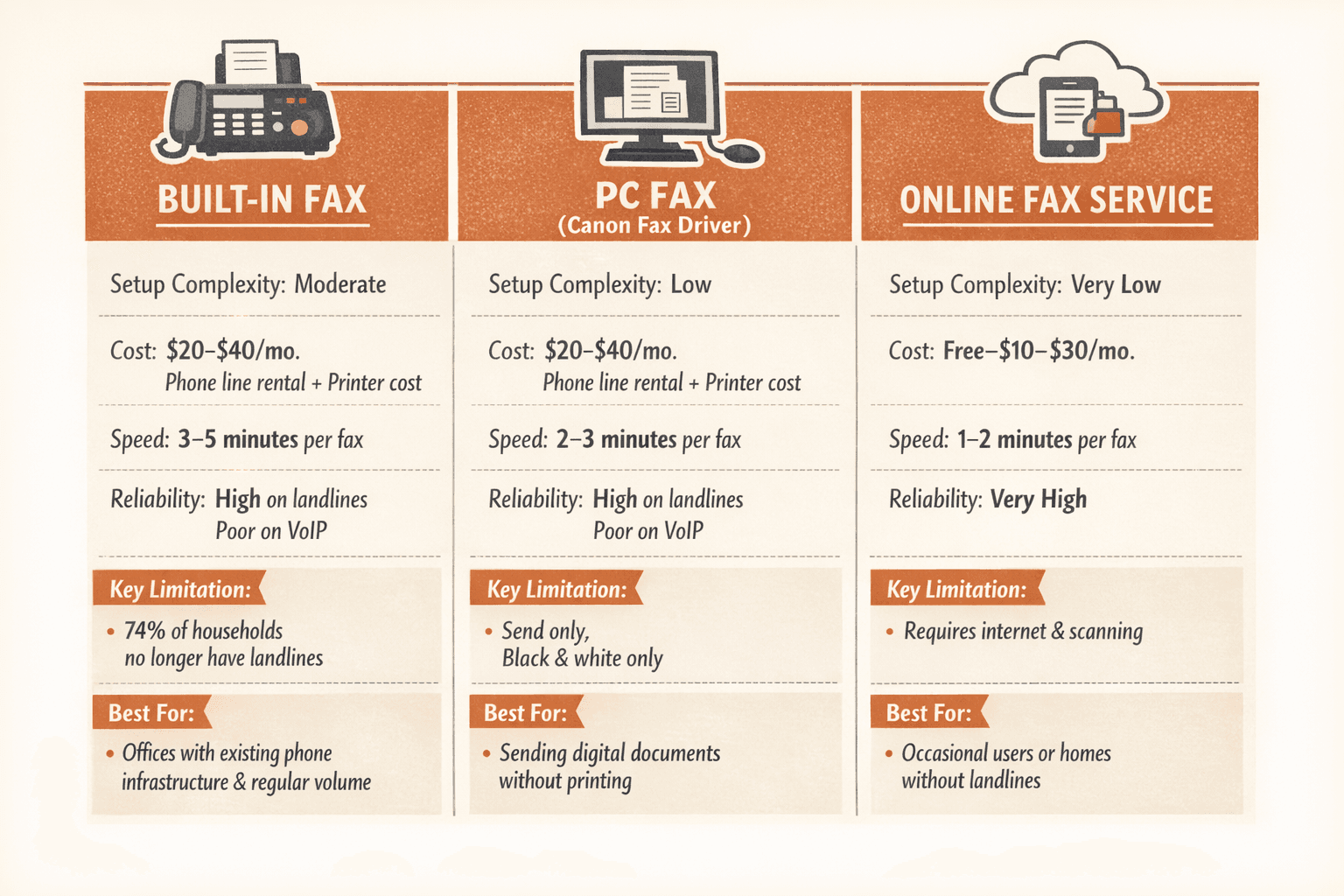
Comparing Canon Printer Fax Methods
| Criteria | Built-In Fax (Phone Line) | PC Fax (Canon Fax Driver) | Online Fax Service |
|---|---|---|---|
| Setup complexity | Moderate—requires phone line connection and control panel configuration | Low—install driver once, send from any application | Very low—no hardware setup, works immediately |
| Cost | Phone line rental ($20-40/month) + initial printer cost | Same as built-in fax (uses printer’s hardware) | Free to $10-30/month depending on volume |
| Speed | 3-5 minutes per fax including dial time | 2-3 minutes (skips printing step) | 1-2 minutes (instant upload and send) |
| Reliability | High on analog landlines; poor on VoIP | Same as built-in fax | Very high—no phone line dependency |
| Key limitation | 74% of households no longer have landlines | Send-only, black-and-white only | Requires internet connection and scanning |
| Best for | Offices with existing phone infrastructure and regular fax volume | Sending digital documents without printing | Occasional users or homes without landlines |
If you already have a phone line and fax regularly—more than 50 pages a month—built-in fax is the most cost-effective method long-term. The hardware cost spreads out, and you’re not paying per-page fees.
For one-time or occasional faxing, an online service like ThirtyFax is faster and simpler—scan your document, upload it, and send. No phone line required, and for single faxes, it’s free. If you don’t have a landline, online fax is your only practical option.
PC Fax sits in the middle—it’s great if you’re already set up for built-in fax and want the convenience of sending from your computer without printing. But it still requires the phone line infrastructure, so it doesn’t solve the landline problem.
FAQ
Can I fax from a Canon printer without a phone line?
No—Canon printers with built-in fax hardware require an analog phone line connected to the LINE port. If you don’t have a landline, use an online fax service instead. Scan your document with the printer and upload the PDF to a service like ThirtyFax or Fax.Plus.
Do all Canon printers support faxing?
No. Only Canon MAXIFY, imageCLASS, and some PIXMA TR-series models include fax capability. Check for LINE and TEL ports on the back of the printer. Standard PIXMA models do not support faxing.
Can I receive faxes on my Canon printer?
Yes, if your printer has built-in fax hardware and you’ve configured a receive mode. Set the mode to FAX Only for automatic reception, or Manual if you want to approve each incoming fax. PC Fax (fax driver) is send-only and does not support receiving.
Why does my Canon printer fax fail on my VoIP phone line?
Most VoIP services compress voice calls in ways that break fax transmission protocols. Fax machines expect stable analog signals. Ask your VoIP provider to enable T.38 fax support, which is designed specifically for faxing over internet lines.
How much does it cost to fax from a Canon printer?
If you already own a fax-capable Canon printer, the only ongoing cost is your phone line—typically $20-40/month for a landline. There are no per-page charges when using built-in fax. Online fax services range from free (ThirtyFax, 1 fax) to $10-30/month for unlimited plans.

Written by
Bernard Bado
I created ThirtyFax after needing to send a single fax and refusing to pay for a monthly subscription to do it. I write here about faxing, document workflows, and the surprisingly stubborn role fax still plays in modern business.
View author profile