
How to Send a Fax Without a Fax Machine
You don't need a fax machine to send faxes. Use online services, mobile apps, email-to-fax, or retail stores. This guide covers all methods with step-by-step instructions.
Quick Verdict
You can fax without a machine using online fax services, smartphone apps, email-to-fax services, or retail stores with fax capabilities. The process takes less than 10 minutes and often costs nothing for occasional use.
Fax is still required for legal, medical, and business documents. Healthcare providers can share patient information by fax under HIPAA, and the IRS still accepts faxed EIN applications with a 4-day turnaround. Even in 2026, fax remains the trusted method when signatures and audit trails matter.
This guide covers every method for faxing without owning a machine, from free options to professional services. You’ll get step-by-step instructions, cost comparisons, and tips for choosing the right solution.
How Can You Fax Without a Fax Machine?
You can fax without a machine through online services, mobile apps, email-to-fax, or retail stores like FedEx and UPS. All methods deliver to standard fax machines.
The four primary methods:
- Online fax services - Web-based platforms like eFax and Dropbox Fax that send faxes from your browser
- Mobile apps - Smartphone apps that let you scan and fax documents directly from your phone
- Email-to-fax - Send faxes by attaching a file to an email addressed to a special fax number
- Retail stores - In-person faxing at FedEx Office, UPS Store, Staples, and some libraries
| Method | Cost Range | Convenience | Speed | Best For |
|---|---|---|---|---|
| Online Services | Free–$25/month | High - work from anywhere | 1-5 minutes | Regular users, business workflows |
| Mobile Apps | $0.99–$20/month | Very high - fax on the go | 2-5 minutes | On-the-move professionals |
| Email-to-Fax | $0.99–$25/month | High - use existing email | 1-5 minutes | Occasional users who prefer email |
| Retail Stores | $1–$3 per page | Low - requires travel | 10-30 minutes | One-time urgent faxes, no tech setup |
Online Fax Services
Online fax services work through a web browser—upload your document, enter the recipient’s fax number, and hit send. No phone line or physical machine required.
Popular services and their standout features:
- eFax - Starts at $15.83/month for 170 pages, includes email-to-fax and mobile app
- Dropbox Fax - 5 free pages for new users, then $0.99 per fax up to 10 pages
- FaxZero - Completely free for U.S. and Canada (3 pages plus cover, up to 5 faxes daily)
- CocoFax - $9.99/month for 60 pages, includes unlimited storage and international coverage
- Fax.Plus - 10 free pages total, supports cloud storage integrations and API access
- eFax Protect - HIPAA-compliant with Business Associate Agreement, designed for healthcare and legal firms
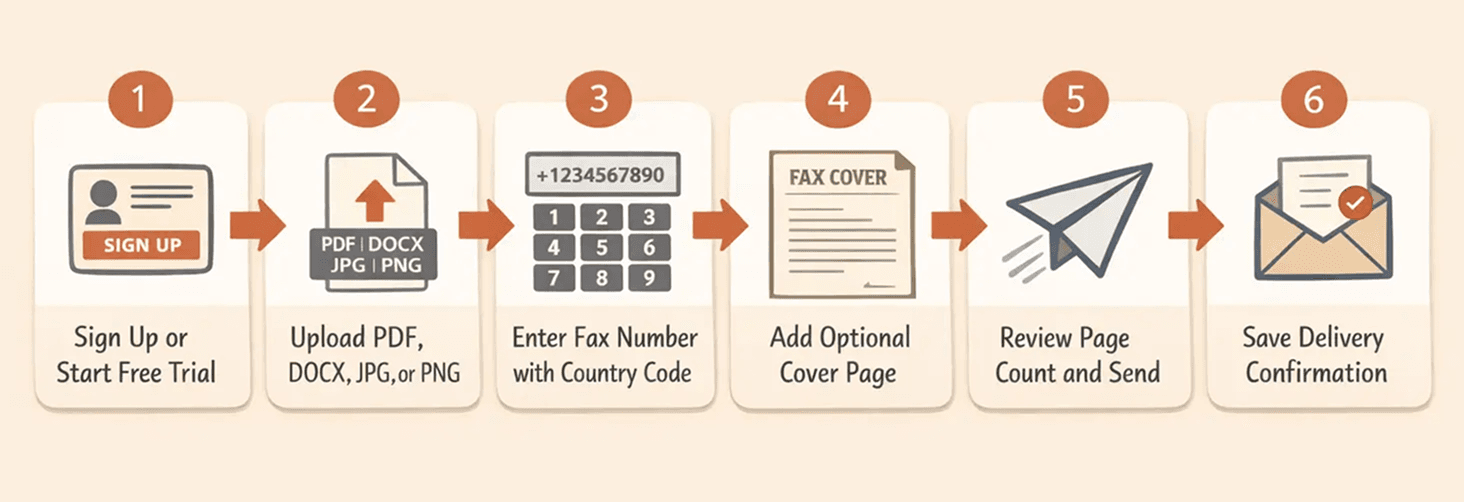
How to send a fax using an online service:
- Sign up for an account (2 minutes): Most services offer free trials—FaxZero needs no account, Dropbox Fax gives you 5 free pages, Fax.Plus includes 10 pages.
- Upload your document: Click “Send Fax” or similar. PDF works best for preserving formatting, but most services accept DOC, DOCX, JPG, and PNG.
- Enter the recipient’s fax number: Include country code for international faxes (1 for U.S./Canada). Double-check the number—mistyped digits can’t be recalled.
- Add a cover page (optional but recommended): Include your name, company, recipient details, and a brief message. Most services auto-generate cover pages.
- Review and send: Confirm the page count and number. Your fax typically transmits within 1-5 minutes.
- Save your confirmation: Online services email you delivery confirmation with timestamp and page count—keep it for your records.
Fax Apps for Smartphones
Mobile fax apps turn your iPhone or Android into a portable fax machine. Scan documents with your camera, add the fax number, and send from anywhere.
Top-rated fax apps:
- eFax Mobile - Available for iOS and Android, included with eFax subscriptions
- Fax.Plus Mobile - Official apps for both platforms with camera scanning built in
- CocoFax Mobile - Supports sending and receiving, syncs with web account
- Dropbox Fax (mobile browser) - No dedicated app, but works through your phone’s browser
How to send a fax from your smartphone:
- Download and install the app (3 minutes): Search your app store for your chosen service. Most are free to download but require credits or subscriptions to send.
- Create an account or sign in: Use the same credentials as your web account if you already have one.
- Scan or upload your document: Tap the camera icon to scan physical pages, or select files from your phone’s storage or cloud services.
- Enter the recipient’s fax number: Type carefully—the small screen makes typos easy.
- Add a cover page if needed: Fill in sender/recipient details and any message text.
- Send and confirm: Tap “Send” and wait for the delivery notification. Check your email for written confirmation.
Pro tip: Fax.Plus Android app includes camera scanning with auto-crop and contrast adjustment—great for photographing documents on the go.
Email-to-Fax Services
Email-to-fax lets you send faxes by composing a standard email with your document attached. The service converts your email and attachment into a fax transmission.
Services offering email-to-fax:
- Dropbox Fax - Send to
faxnumber@hellofax.comformat - eFax - Included on every plan at no extra charge
- CocoFax - Supports both email-to-fax and fax-to-email
How to send a fax via email:
- Get the email address format: Most services use
faxnumber@servicedomain.com—for example, to fax 555-1234 via Dropbox Fax, send to5551234@hellofax.com. - Compose your email: The subject line becomes the cover page title. Body text appears as the cover page message.
- Attach your document: Add your PDF, DOC, or image file as an attachment. Most services support multiple attachments sent as one fax.
- Send the email: Hit send like any normal email. Delivery confirmation arrives in your inbox within minutes.
- Check confirmation: The service emails you a delivery report with timestamp and success status.
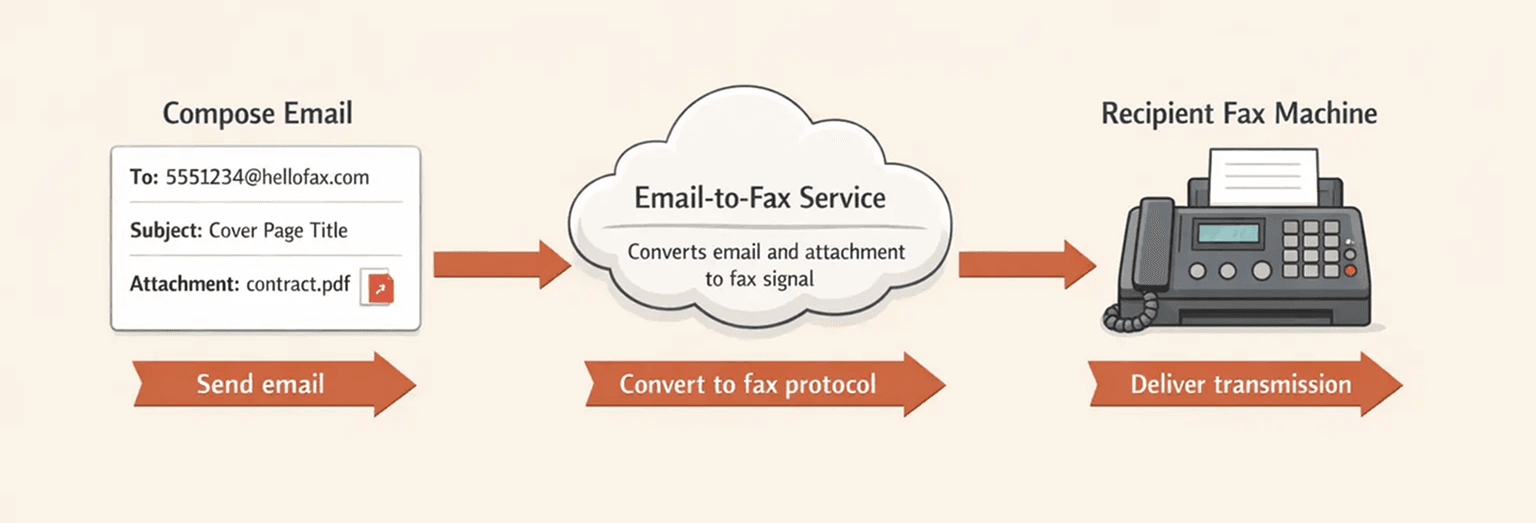
Pro tip: International faxes typically require including the country code before the number—to fax 44-20-1234-5678 in the UK, use 442012345678@domain.com.
Using Retail Store Fax Services
Retail stores offer in-person faxing through self-service copy machines or with staff assistance. No account setup or subscription required.
Locations offering fax services:
- FedEx Office - Self-service copiers with guided prompts, local and international faxing
- The UPS Store - Staff-assisted sending and receiving
- Staples - Self-service printers with printed confirmation
- Office Depot/OfficeMax - Similar self-service setup to Staples
- Public libraries - Some offer fax services—Richmond Public Library charges $0.50 per page for local faxes
- Hotels - Business centers often have fax machines for guest use
To use a retail store fax service, bring your document and the recipient’s fax number. At self-service stations, follow the screen prompts to select “Fax,” enter the number, place your pages in the feeder, and pay by card. Staff-assisted locations handle the process for you. All locations provide a printed confirmation with timestamp and page count—keep it as proof of transmission.
Pro tip: If your document isn’t already digital, ask about scanning services. FedEx Office offers scanning to email or USB at the same kiosks—you can scan first, review the digital file on your phone, and then fax it for cleaner transmission quality.
How to Fax Documents Without a Fax Machine
Prepare your document as a clean digital file—PDF format works best. Most services accept PDF, DOC, DOCX, JPG, and PNG files.
Document preparation tips:
- Use PDF for multi-page documents - Preserves formatting and page order perfectly
- Scan physical pages at 200-300 DPI - Higher resolution wastes transmission time, lower looks blurry
- Remove staples and tape - They interfere with scanning and can jam copy machines
- Keep file sizes under 10MB - Some services have upload limits
- Use black text on white background - Color and grayscale increase transmission time and cost
- Number pages if sending multiple files - Prevents confusion about document order
- Include a cover page with your contact info - Standard business practice, helps if transmission fails partway
- Save fillable PDFs directly - Forms like the IRS Form SS-4 can be completed digitally and faxed as-is
Required Information for Sending a Fax
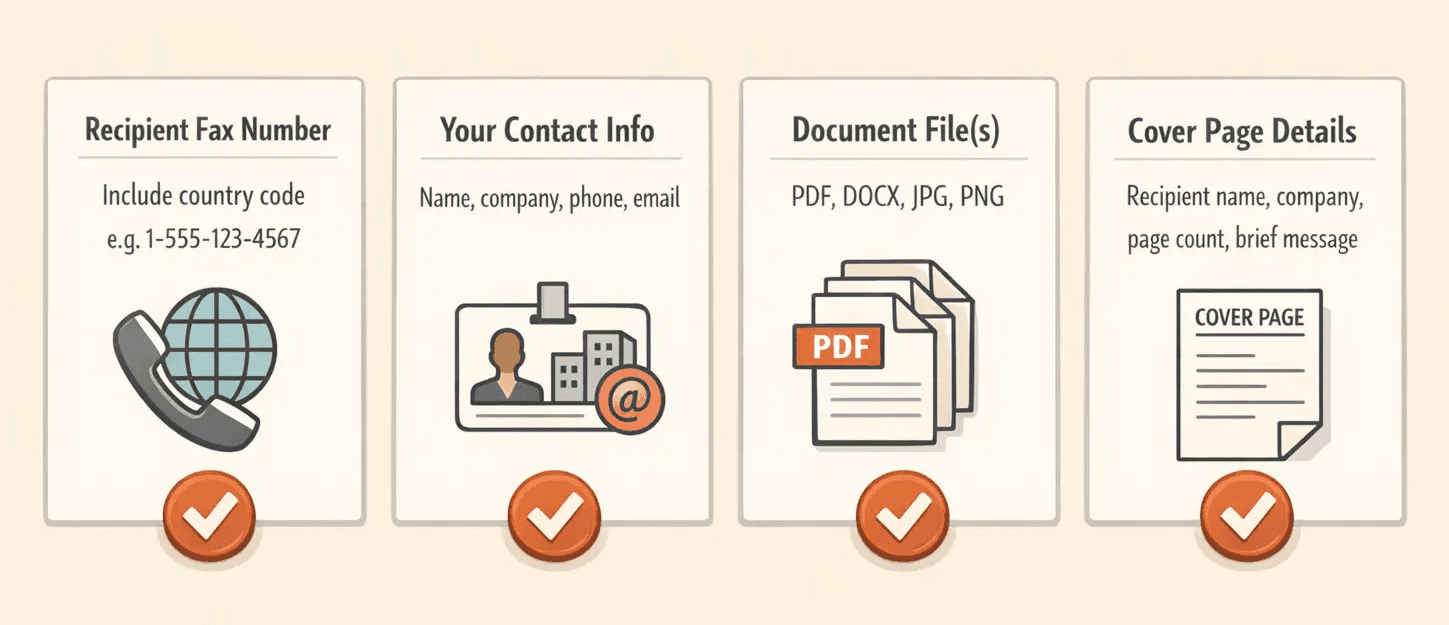
You’ll need four key pieces of information:
- Recipient’s fax number - Include country code for international (1 for U.S./Canada). Verify the number—one wrong digit sends your document to a stranger.
- Your contact information - Name, company, phone number, and email for callbacks
- Document file(s) - Your prepared PDF, Word doc, or image files
- Cover page details (recommended) - Recipient name, company, total page count including cover, and brief message
Pro tip: Services like FaxZero show you exactly which fields are required—typically sender name, sender email, sender phone, recipient name, recipient company, and fax number. Fill them all out even if some say “optional”—incomplete info causes delivery problems.
Document Formats That Work
Most fax services accept common file types, but PDF is the gold standard for reliability. FaxZero supports DOC, DOCX, and PDF, while mobile services often include Excel and image formats too.
| File Format | Compatibility | Quality | Best For |
|---|---|---|---|
| Universal - all services | Excellent | Multi-page documents, forms, contracts | |
| DOCX | Most services | Good | Text documents, letters, memos |
| DOC | Most services | Good | Legacy Word documents |
| JPG | Most services | Fair to good | Scanned photos, single-page scans |
| PNG | Most services | Good | Screenshots, simple images |
PDF preserves formatting across all platforms and produces the clearest output on the receiving fax machine. If you’re scanning a physical document, save it as PDF rather than multiple JPG files—easier to manage and better image quality.
Pro tip: FedEx Office scanning services can digitize your paper documents and send the files to your email before faxing. Scan first, review the digital version on your phone, then fax—catches errors before transmission.
How to Fax from a Copy Machine
Many office copiers have built-in fax capabilities. If you’re at a FedEx Office, UPS Store, or Staples, the self-service machines double as fax machines.
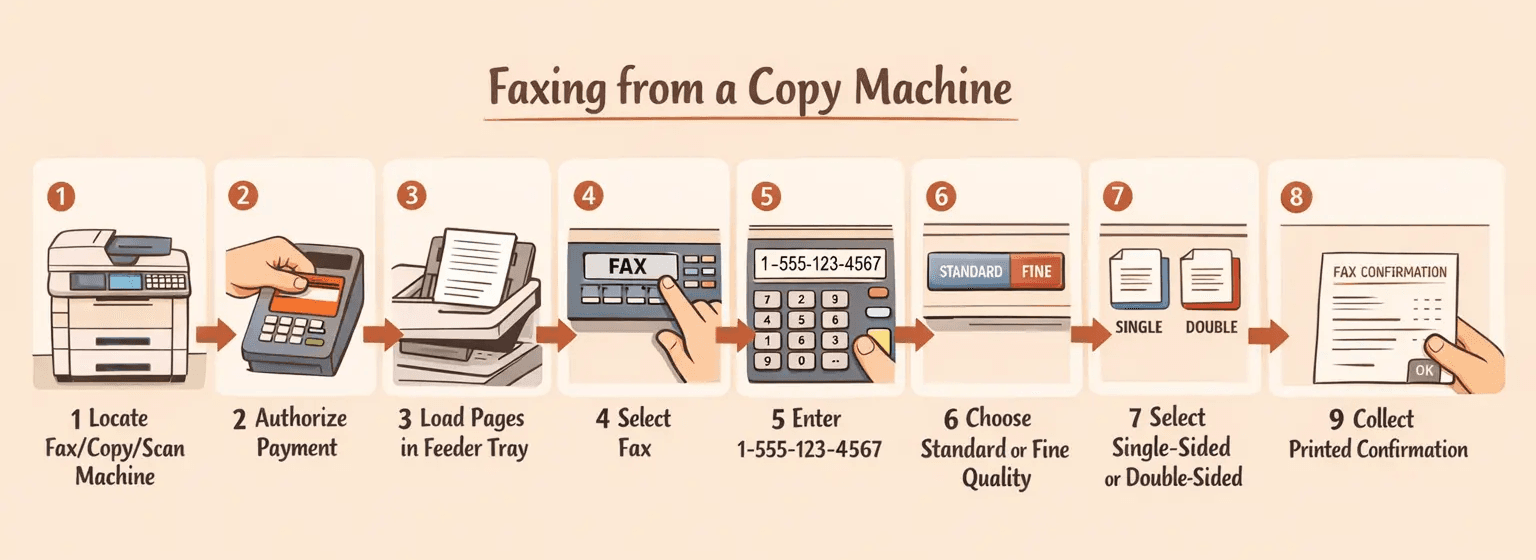
How to use a copy machine’s fax function:
- Locate a copy machine with fax capability (1 minute): Look for machines labeled “Fax/Copy/Scan” or ask staff. Self-service kiosks at FedEx Office and Staples include fax options.
- Prepare payment first: Most machines require credit card authorization before starting. Swipe your card and follow prompts to pre-authorize charges.
- Place your document in the feeder tray: Single-page documents go face-up in most machines. Multi-page documents use the auto-document feeder (ADF) on top.
- Select “Fax” from the touchscreen menu: Navigate past Copy and Scan options to find Fax. Some machines label it “Send Fax.”
- Enter the recipient’s fax number: Use the numeric keypad. For U.S. numbers, you typically need 1 + area code + number (1-555-123-4567). Double-check before proceeding.
- Adjust quality settings if needed: Most machines default to “Standard” quality. Use “Fine” for small text or detailed images—transmission takes longer but looks better.
- Choose single-sided or double-sided: Tell the machine whether your pages are printed on one side or both. This prevents blank pages from transmitting.
- Press “Send” or “Start”: The machine scans and dials. You’ll hear the fax handshake tone (that classic screeching sound).
- Wait for the confirmation printout: The machine prints a transmission report showing date, time, page count, and success status. Keep this as your proof of delivery.
Common locations with public copy/fax machines:
- FedEx Office - Self-service copiers at all locations
- Staples and Office Depot - Self-service printing centers
- UPS Store - Staff-assisted or self-service depending on location
- Hotel business centers - Usually free for guests
- Public libraries - Availability varies—call ahead to confirm
Pro tip: If the fax transmission fails (busy signal, no answer), most machines let you retry immediately. But if it fails twice, try a different time or method—the receiving machine might be offline or out of paper.
Choosing the Best Method for Your Needs
Pick your method based on how often you fax, your budget, and whether you need advanced features. One-time faxes call for free services, regular use justifies subscriptions, and business requirements need compliance features.
For One-Time Faxes
Best options for occasional users:
- FaxZero - Completely free for 3 pages plus cover, up to 5 faxes per day (U.S. and Canada only)
- Dropbox Fax - 5 free pages for new users, then $0.99 per fax up to 10 pages
- Retail stores - $1-3 per page at FedEx Office or UPS Store for immediate service with no account setup
- Public libraries - Some charge as little as $0.50 per page for local faxes
For Regular Fax Users
Best options for frequent faxing:
- eFax Plus - $15.83/month for 170 pages, includes email-to-fax and mobile app
- CocoFax - $9.99/month for 60 pages, scales to $24.99 for 400 pages with lower overage costs
- Fax.Plus - Flexible page packages with API access for integration workflows
- Monthly subscriptions - Better economics than pay-per-fax once you exceed 10-15 faxes monthly
For Business Use
Best professional solutions:
- eFax Protect - HIPAA-compliant with Business Associate Agreement, supports team members and audit trails
- Fax.Plus - API access for CRM integration, multiple fax numbers, cloud storage sync
- CocoFax Business - International coverage, team accounts, unlimited storage
- RingCentral Fax - Integrates with business phone systems and collaboration tools
Cost Comparison: Faxing Without a Machine
| Method | Cost Per Page | Monthly Fees | Best For |
|---|---|---|---|
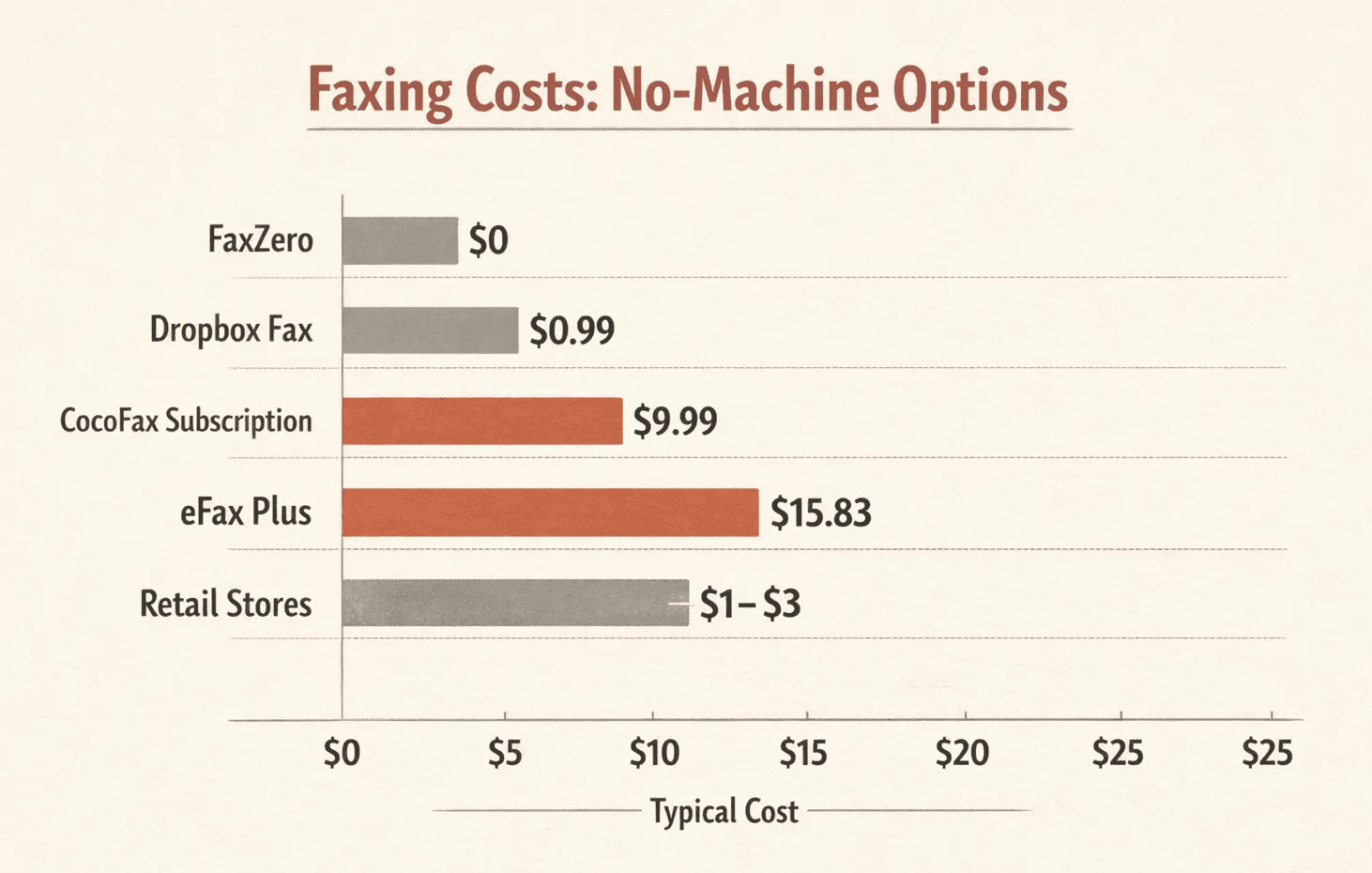
| FaxZero (free) | $0 | $0 | 1-5 pages daily, U.S./Canada only |
| Dropbox Fax | $0.10 (after first 5 pages) | $0 (pay as you go) | Occasional users, 5-20 pages monthly |
| CocoFax subscription | $0.17 | $9.99 (60 pages) | Regular users, predictable volume |
| eFax Plus | $0.09 | $15.83 (170 pages) | Frequent users, 50-150 pages monthly |
| Retail stores | $1-3 per page | $0 | One-time urgent faxes |
The math changes at around 10-15 faxes per month. If you’re sending 20 pages monthly at $0.99 per fax through Dropbox Fax, you’ll pay roughly $20/month. An eFax Plus subscription at $15.83 gives you 170 pages for less money and adds email-to-fax, mobile access, and a dedicated fax number for receiving.
For high-volume users, CocoFax becomes cost-effective—their $24.99/month tier includes 400 pages, dropping the per-page cost to about $0.06 (plus lower overage charges for pages beyond the included amount).
Pro tip: Start with a free or pay-per-fax option to gauge your actual usage before committing to a subscription. Most people overestimate how often they’ll fax.
Conclusion
Faxing without a machine is easier, cheaper, and often more convenient than owning physical equipment. Online services work from any browser, mobile apps turn your phone into a portable fax, email-to-fax integrates with your existing workflow, and retail stores provide immediate walk-in access.
Start with free options like FaxZero or Dropbox Fax’s 5-page trial to test the workflow. If you find yourself faxing more than 10-15 times monthly, upgrade to a subscription service for better economics and added features. Most services offer free trials—experiment before committing.
FAQ: Sending Faxes Without a Fax Machine
Can I Fax Something Without a Fax Machine?
Yes, you can fax without owning a machine. Online services like eFax and Dropbox Fax work entirely through web browsers or email, mobile apps turn your smartphone into a fax device, and retail stores offer walk-in faxing at self-service kiosks. All these methods deliver to standard fax machines just like traditional faxing.
Can You Fax Without a Fax Machine?
Absolutely—modern digital alternatives are legitimate and widely accepted. Healthcare providers use online fax services for HIPAA-compliant transmissions, law firms rely on email-to-fax for contract delivery, and government agencies like the IRS accept faxes sent from online services. The receiving end can’t tell whether you used a physical machine or a digital service.
Do I Need a Fax Machine to Send a Fax?
No, you don’t need a physical fax machine. Traditional machines are expensive to buy ($100-300), require phone line installation ($40/month), need maintenance, and eat desk space. Digital alternatives cost $0-30/month with no equipment, no phone line, and work from anywhere with internet.

Written by
Bernard Bado
I created ThirtyFax after needing to send a single fax and refusing to pay for a monthly subscription to do it. I write here about faxing, document workflows, and the surprisingly stubborn role fax still plays in modern business.
View author profile