
How to Send a Fax From Your Computer
You don't need a fax machine to send faxes from your computer. Use online services, fax software with a modem, or connect a physical fax machine. This guide covers all three methods.
Quick Verdict
You can send a fax from your computer using online fax services (upload and send via browser or email), fax software with a modem (requires phone line), or by connecting a physical fax machine to your computer. Most people choose online services because they’re faster and don’t need any hardware.
Computer faxing has largely replaced traditional fax machines—no bulky equipment, no dedicated phone line, and you can send faxes from anywhere with internet access. Online fax services run entirely in the cloud with no special hardware required.
This guide covers all three methods with step-by-step instructions so you can choose the approach that fits your situation.
How to Send a Fax From Your Computer Using Online Fax Services
Online fax services are the easiest way to fax from your computer—upload your document, enter the recipient’s fax number, and click send. The whole process takes about two minutes.
RingCentral Fax and similar services work entirely through your internet connection, so there’s no hardware or phone line to set up.
Step-by-Step Process for Online Fax Services
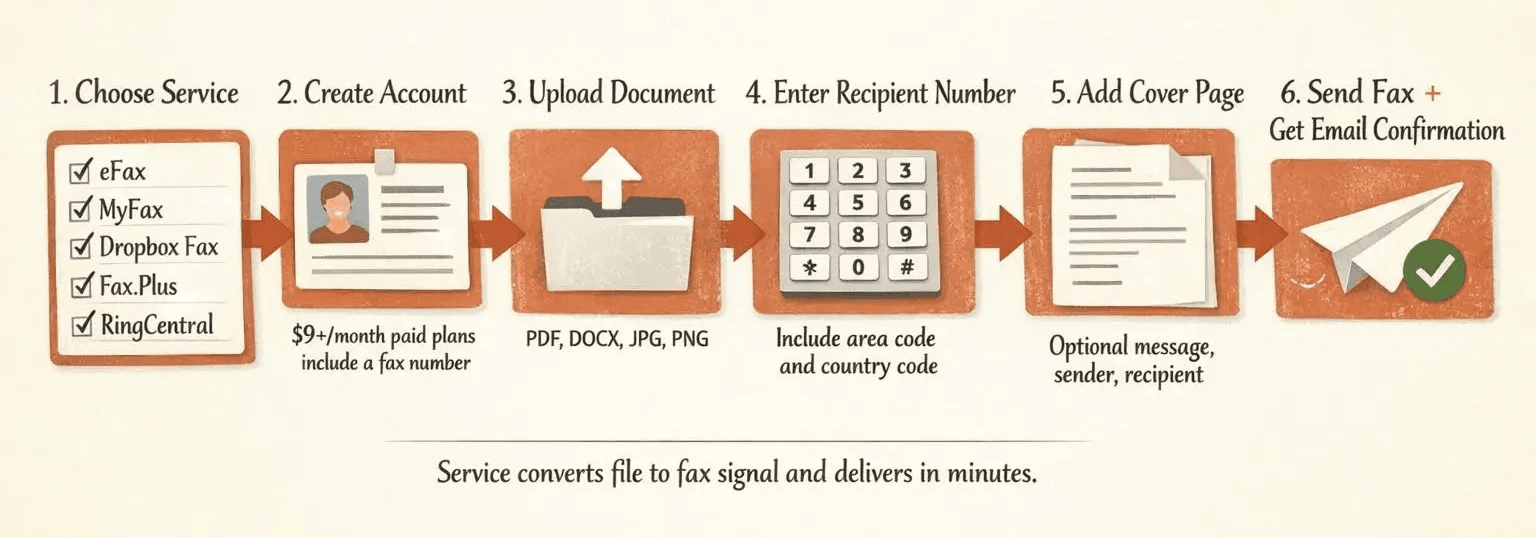
- Choose a service (5 minutes): Popular options include eFax, MyFax, Dropbox Fax, Fax.Plus, and RingCentral. Most offer free trials—Dropbox Fax gives new users 5 free pages, while Fax.Plus has a permanent free tier with 10 total pages.
- Create your account: Sign up with your email. Paid plans (starting around $9/month) include a dedicated fax number for receiving faxes; free tiers typically only let you send.
- Upload your document: Click “Send Fax” or “New Fax” and upload your file. Most services accept PDF, Word docs, JPGs, and other common formats—Dropbox Fax supports PDF, DOCX, JPG, PNG, and more.
- Enter the recipient’s fax number: Include the area code and country code if sending internationally. Many services let you send to multiple recipients at once—RingCentral supports up to 50 recipients per fax.
- Add a cover page (optional): Most services have built-in cover page templates. You can add a message, sender info, and recipient details.
- Send your fax: Click “Send.” The service converts your document to fax format and transmits it over phone lines to the recipient’s fax machine.
- Receive confirmation: You’ll get an email notification confirming delivery, usually within a few minutes. Fax.Plus sends detailed transmission status updates.
Popular Online Fax Service Options
- eFax - Long-established service supporting send, edit, and receive from anywhere with internet access; good for high-volume users
- MyFax - Cloud-based option with no hardware requirements; straightforward pricing for small businesses
- Dropbox Fax - Email-to-fax integration; incoming faxes show up in your inbox like regular emails
- Fax.Plus - Free plan available (10 pages total); integrates with cloud storage and offers mobile apps
- RingCentral Fax - Part of broader communications platform; includes desktop, web, and mobile access with detailed fax logs
Here’s how the top services compare:
| Service | Pricing | Pages/Month | Key Features | Free Trial |
|---|---|---|---|---|
| Fax.Plus | Free-$35/month | 10-1,000 | Free tier available, cloud integrations, HIPAA-compliant options | Free plan (permanent) |
| Dropbox Fax | Pay-per-page | Variable | Email-to-fax, inbox delivery, existing Dropbox integration | 5 free pages (one-time) |
| RingCentral | Part of plans | Varies by plan | 50-recipient sending, number porting, desktop/mobile/web access | Trial varies by plan |
| eFax | ~$17-35/month | 150-200+ | Editing tools, mobile apps, long-standing provider | 30-day trial common |
How to Fax a Document From Your Computer Using Fax Software
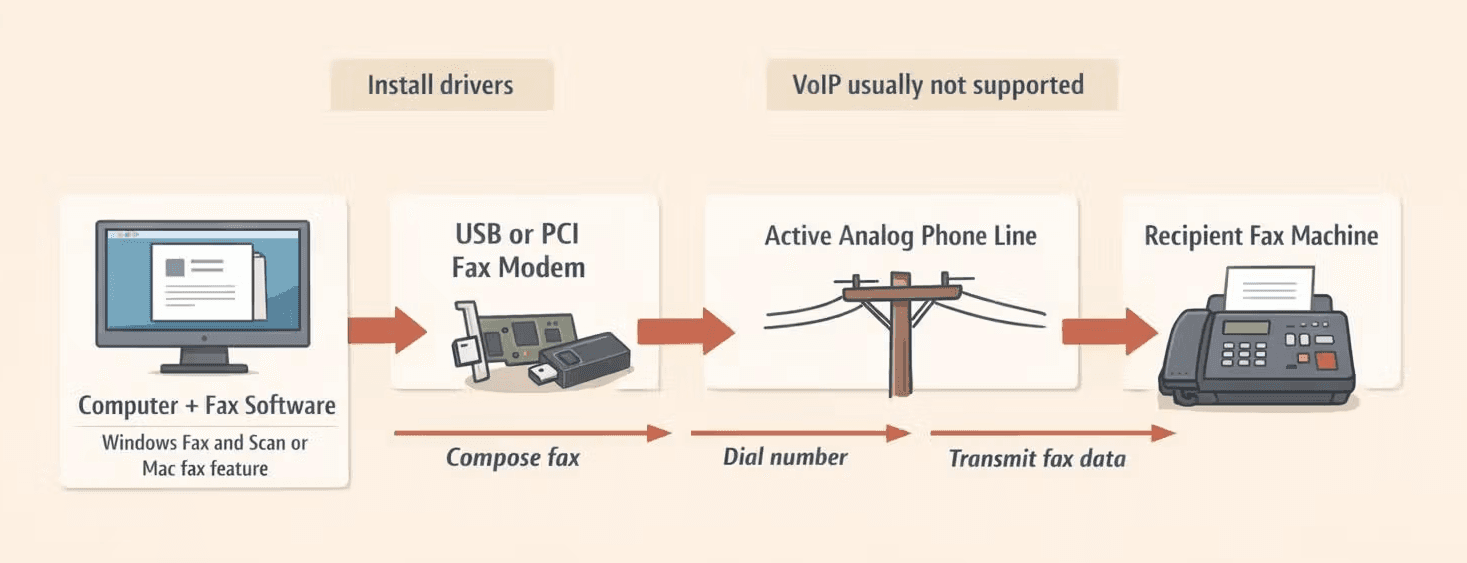
Fax software like Windows Fax and Scan or Mac’s built-in fax feature lets you send faxes directly from your computer—but you need a fax modem and an active phone line. This isn’t internet faxing; it’s traditional analog faxing through your computer.
This method makes sense if you already have fax infrastructure in place or send high volumes regularly. For occasional faxing, online services are simpler.
Requirements for Computer Fax Software
- Fax modem (internal PCI card or external USB) - Your regular home internet modem won’t work for faxing
- Active analog phone line - VoIP and digital phone systems typically don’t support fax modems
- Compatible operating system - Windows Fax and Scan is only available in certain Windows editions; Mac requires a multifunction printer with fax capability
- Fax software - Built into Windows or Mac, or provided by your modem/printer manufacturer
- Proper drivers - Installed for your specific modem or fax-enabled printer
Using Windows Fax and Scan
- Enable Windows Fax feature (5 minutes): Go to Control Panel → Programs and Features → Turn Windows features on or off. Check “Windows Fax and Scan” if available. Not all Windows editions include this feature.
- Connect your fax modem: Plug your modem into a USB port (external) or install it in a PCI slot (internal). Connect the modem to an active phone line.
- Install drivers: Windows usually detects and installs modem drivers automatically. If not, use the installation disc or download drivers from the manufacturer.
- Open Windows Fax and Scan: Search for it in the Start menu or find it under Windows Accessories.
- Create a new fax: Click “New Fax” in the toolbar. A fax composition window opens.
- Enter recipient and attach document: Type the fax number in the “To:” field. Click the “Insert” menu to attach your document, or type your message directly.
- Configure fax settings: Set resolution (standard or high quality), page orientation, and whether to include a cover page.
- Send your fax: Click “Send.” Your computer dials the recipient’s fax number through the phone line and transmits the document.
Using Mac Fax Functionality
- Connect a fax-capable printer (10 minutes): Mac faxing requires a multifunction printer that supports faxing. Connect it via USB or network.
- Open System Settings: Go to System Settings → Printers & Scanners (or System Preferences → Printers & Scanners on older macOS versions).
- Configure fax settings: Select your printer and look for fax options. Enter your outgoing fax number and configure dialing preferences (tone vs. pulse, dialing prefix if needed).
- Open your document: Open the document you want to fax in any application (Pages, Word, Preview, etc.).
- Access Print menu and select Fax: Go to File → Print, then click the dropdown menu and select “Fax PDF” or “Send Fax.”
- Enter recipient’s fax number: Type the fax number, add a cover page if desired, and click “Fax.” Your Mac sends the document through the connected printer’s fax modem.
Pro tip: Apple suggests internet fax services as a simpler alternative if you don’t have fax-capable hardware—online services work with any Mac and don’t require special printers.
How to Connect a Fax Machine to Your Computer
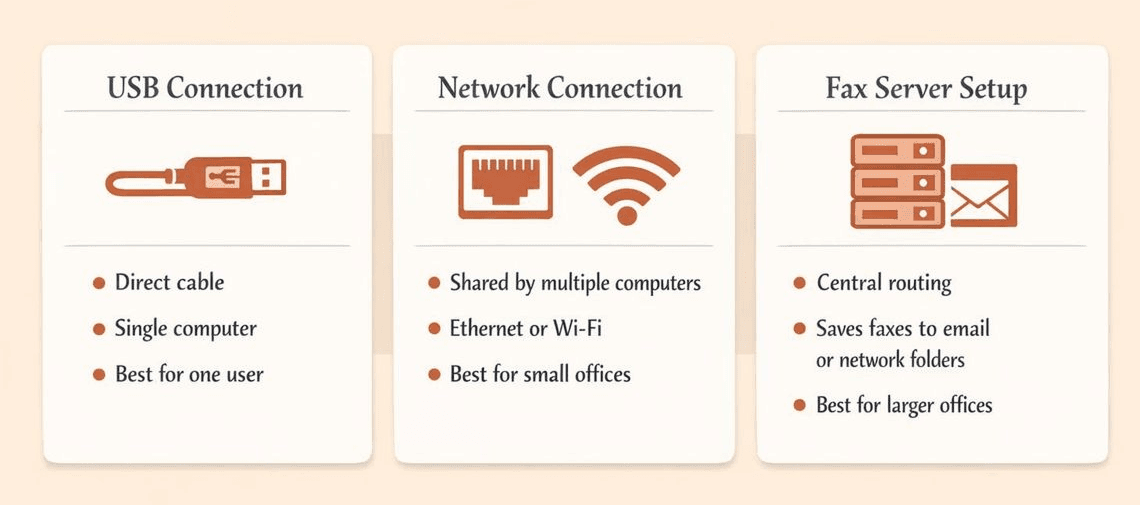
You can connect a physical fax machine to your computer via USB cable, network connection (ethernet or WiFi), or through a fax server setup for offices. This lets you control the fax machine from your computer or route received faxes to your computer automatically.
This is different from computer-based faxing—you’re still using a physical fax machine, but your computer acts as the control point and document source.
Physical Connection Methods
- USB connection (direct cable) - Simplest method; plug your fax machine into your computer’s USB port and install manufacturer software. Works for single-user setups.
- Network connection (ethernet/WiFi-enabled fax machines) - Modern multifunction printers can connect to your office network, letting multiple computers send faxes through the same machine.
- Fax server setup - For larger offices, a dedicated fax server routes all outgoing faxes through one or more physical machines and can save incoming faxes to network folders or email.
Setup Process for USB-Connected Fax Machine
- Install manufacturer software first (10 minutes): Download and install the fax machine’s software package from the manufacturer’s website before connecting. Brother recommends installing drivers before plugging in USB to prevent setup issues.
- Connect USB cable: Plug the USB cable into both your computer and the fax machine. Make sure the machine is powered on.
- Configure PC-FAX settings: Open the manufacturer’s software (like Brother’s PC-FAX or HP’s Fax software). Enable the PC-FAX feature and select USB as the connection method.
- Set as default fax device: In your computer’s fax settings or printer preferences, set the connected fax machine as your default fax device for sending.
- Test the connection: Send a test fax to your own fax number or a free test service. Verify the fax transmits successfully and appears in your sent logs.
How to Send and Receive Fax From Your Computer
Receiving faxes on your computer requires either an online fax service with a dedicated inbox (easiest) or a fax modem setup configured to answer incoming calls. Sending is straightforward with any method, but receiving depends on your setup.
Receiving Faxes With Online Services
Online fax services give you a dedicated fax number—incoming faxes arrive as PDFs in your email or web inbox. No physical fax machine or printouts involved.
Here’s how it works:
- Get your assigned fax number: When you sign up for a paid plan, you choose a local or toll-free number. RingCentral lets you port an existing number if you’re switching from a traditional fax line.
- Share your number with senders: Give your new fax number to anyone who needs to send you faxes—it works just like a regular fax number.
- Receive notification: When a fax arrives, you get an email alert with the fax attached as a PDF. Services like Fax.Plus send detailed transmission status updates.
- Access from inbox or dashboard: Download received faxes from your email, web dashboard, or mobile app. Most services store faxes in the cloud for easy retrieval.
Receiving Faxes With Fax Modem
If you’re using Windows Fax and Scan or a Mac with a fax-capable printer, your computer must be on and configured to answer incoming calls—the modem picks up like a traditional fax machine.
- Configure auto-answer settings: Open your fax software and enable automatic answering. Set the number of rings before the computer answers (typically 2-4 rings).
- Keep your computer powered on: Unlike online services, your computer must be running to receive faxes. The modem can’t answer calls when the computer is off or asleep.
- Ensure the phone line is available: Don’t use the phone line for voice calls while waiting for faxes—the modem needs exclusive access to answer incoming fax calls.
- Access received faxes: Incoming faxes are saved to a designated folder on your computer (usually Documents/Faxes or a custom location you specify). Some manufacturer software can route faxes to network folders or email automatically.
How to Fax a Scanned Document From Your Computer
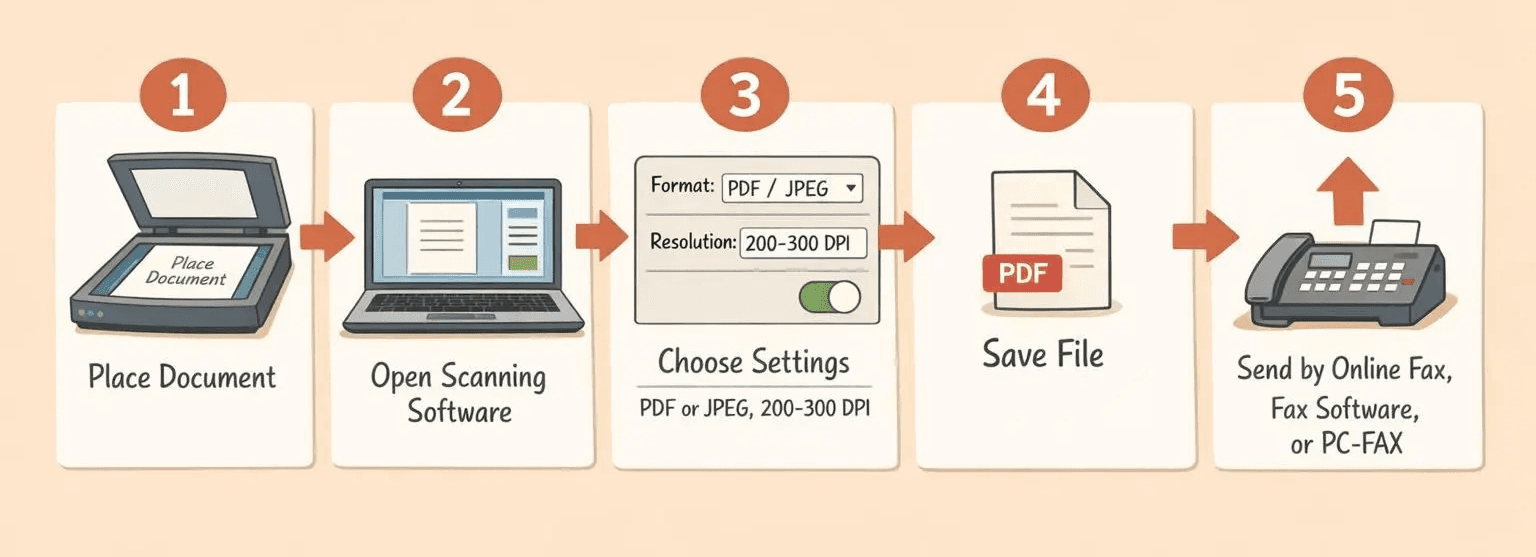
Scan your document first, save it as a PDF or image file on your computer, then send it using any of the faxing methods above. The scanning step adds one extra minute to the process.
Scanning Process
- Place document in scanner (1 minute): Put your paper document face-down on the scanner glass or face-up in the document feeder if your scanner has one.
- Open scanning software: Use your scanner manufacturer’s software, Preview on Mac, or the Windows Scan app.
- Scan to PDF or image format: Select PDF for multi-page documents or JPEG for single pages. Set resolution to 300 DPI for clear fax transmission—higher resolution creates larger files without much quality improvement.
- Save to your computer: Name the file descriptively and save it somewhere easy to find (like your Desktop or Documents folder).
- Send using your preferred faxing method: Upload the scanned file to your online fax service, attach it in Windows Fax and Scan, or send via your connected fax machine’s PC-FAX software.
Best File Formats for Faxing
- PDF (most reliable) - Best format for faxing; preserves formatting, works with all online fax services, and creates reasonably-sized files. Ideal for multi-page documents.
- TIFF (fax standard) - Traditional fax machines use TIFF format internally. Some older systems prefer TIFF, but PDF is more universally compatible now.
- JPEG (for images) - Fine for single-page image-based faxes like signed forms or diagrams. Not ideal for text-heavy documents—text may blur if you compress the JPEG too much.
- Document size considerations - Most services cap file size at 30 MB per fax. If your scanned PDF is larger, reduce scan resolution or split it into multiple faxes.
Pro tip: Scan documents at 200-300 DPI for faxing—600 DPI scans create unnecessarily large files. Fax machines transmit at 200 DPI resolution anyway, so higher-resolution scans don’t improve the received fax quality.
How to Fax From Computer to Fax Machine
All computer faxing methods send to traditional fax machines without any special setup—the recipient’s machine receives your fax normally. Fax protocol is standardized across internet-based and modem-based systems.
Traditional fax machines use phone lines to transmit electronic data, and online fax services bridge the gap by converting your digital document to fax signals that work with any recipient fax number.
Here’s what works universally:
- No special recipient setup needed - The person receiving your fax doesn’t need to know you sent it from a computer. Their fax machine answers the call and prints your document like any other fax.
- Appears as a normal fax - The received fax includes your sender information (name and fax number) just like a machine-to-machine transmission.
- Includes standard transmission data - The recipient sees date, time, page count, and sender ID at the top of each page—exactly what they’d see from a regular fax machine.
- Follows the same fax standards - Whether you send via online service, fax modem, or connected hardware, the recipient’s fax machine receives standard fax signals over their phone line.
The recipient doesn’t need internet access, special software, or any knowledge that you’re faxing from a computer—it works with any working fax number.
Choosing Your Computer Faxing Method
Online fax services are the best choice for most people—no hardware to buy, no phone line needed, and setup takes minutes instead of hours. Fax software with modems makes sense only if you already have the equipment and phone line in place. Connecting a physical fax machine works well for offices with existing multifunction printers.
Here’s a quick comparison:
| Method | Ease of Use | Cost | Setup Time | Best For |
|---|---|---|---|---|
| Online service | Very easy | $9-35/month | 5 minutes | Most users, remote work, occasional faxing |
| Fax software/modem | Moderate | $50-150 hardware + phone line | 30-60 minutes | Existing fax infrastructure, high-volume users |
| Connected fax machine | Moderate | Varies (if you own machine) | 20-45 minutes | Offices with multifunction printers, shared faxing |
For most readers, we recommend starting with an online fax service. Try Fax.Plus’s free plan (10 pages) or Dropbox Fax’s 5 free pages to test the process. If you send faxes regularly, upgrade to a paid plan for a dedicated fax number and unlimited sending.
The modem-based and physical-connection methods are increasingly niche—useful if you already have the hardware, but rarely worth buying equipment specifically for faxing when internet-based services work better for less money.
FAQ: Sending Faxes From Your Computer
Can you fax something from your computer to a traditional fax machine?
Yes, computer-sent faxes work with any traditional fax machine. The fax protocol is standardized, so whether you send via online service or modem-based software, the recipient’s fax machine receives and prints your document normally.
Is there a way to send a fax from my computer immediately?
Yes, online fax services set up in minutes and send faxes almost instantly. Typical delivery takes 1-5 minutes depending on recipient machine availability and page count—much faster than walking to a physical fax machine.
Is it possible to fax from a computer for free?
Yes, with limitations. Fax.Plus offers a free plan with 10 total pages, while Dropbox Fax gives new users 5 free one-time pages. Free tiers typically only let you send faxes, not receive them—you need a paid plan ($9-35/month) for a dedicated fax number and inbox.
Can you fax from a computer without a phone line?
Yes, online fax services work entirely over the internet with no phone line required. Services like eFax, Dropbox Fax, and RingCentral transmit your fax over the internet to reach the recipient’s phone-line-connected fax machine.
Can I fax a document from my computer?
Yes—you can fax from your computer using online fax services (easiest), fax software with a modem, or by connecting a physical fax machine to your computer. Online services work entirely in the cloud and only require an internet connection.

Written by
Bernard Bado
I created ThirtyFax after needing to send a single fax and refusing to pay for a monthly subscription to do it. I write here about faxing, document workflows, and the surprisingly stubborn role fax still plays in modern business.
View author profile