
How to Send a Fax From Outlook
You can use email-to-fax services or add-ins to send documents directly from your Outlook inbox. This guide shows you how.
Quick Verdict
You can’t send faxes directly from Outlook, but you can send them using an online fax service that integrates with your Outlook email. There are two main methods:
- email-to-fax services (where you send an email to recipientfaxnumber@service.com)
- Outlook add-ins that add fax functionality to your ribbon.
Outlook doesn’t have built-in fax functionality—Microsoft removed native fax support years ago. But online fax services bridge the gap by converting your emails into fax transmissions.
This guide covers exactly how to send faxes from Outlook using both methods, including how to attach documents and what to watch out for.
How to Fax From Outlook
You fax from Outlook by using an online fax service’s email-to-fax feature—compose an email in Outlook, address it to recipientfaxnumber@service.com (using your service’s format), attach your document, and hit send.
Here’s the step-by-step process:
- Sign up for an email-to-fax service (5 minutes): Choose a service like Fax.Plus (10 free pages) or Dropbox Fax (5 free pages). Most offer free trials. If you just need to send one fax and don’t want a subscription, ThirtyFax lets you send a fax with no account required.
- Get your email-to-fax address format (1 minute): Your service will provide a format like
recipientfaxnumber@fax.plusor5551234567@dropboxfax.com. The recipient’s fax number goes before the @ symbol—no spaces, no dashes, just digits and country code. - Open Outlook and compose a new email: Click “New Email” in Outlook. This works in Outlook desktop, Outlook on the web, and the mobile app.
- Enter the fax number in the To: field: Type the recipient’s fax number using your service’s format. For example, to fax to +1 (555) 123-4567, you’d enter
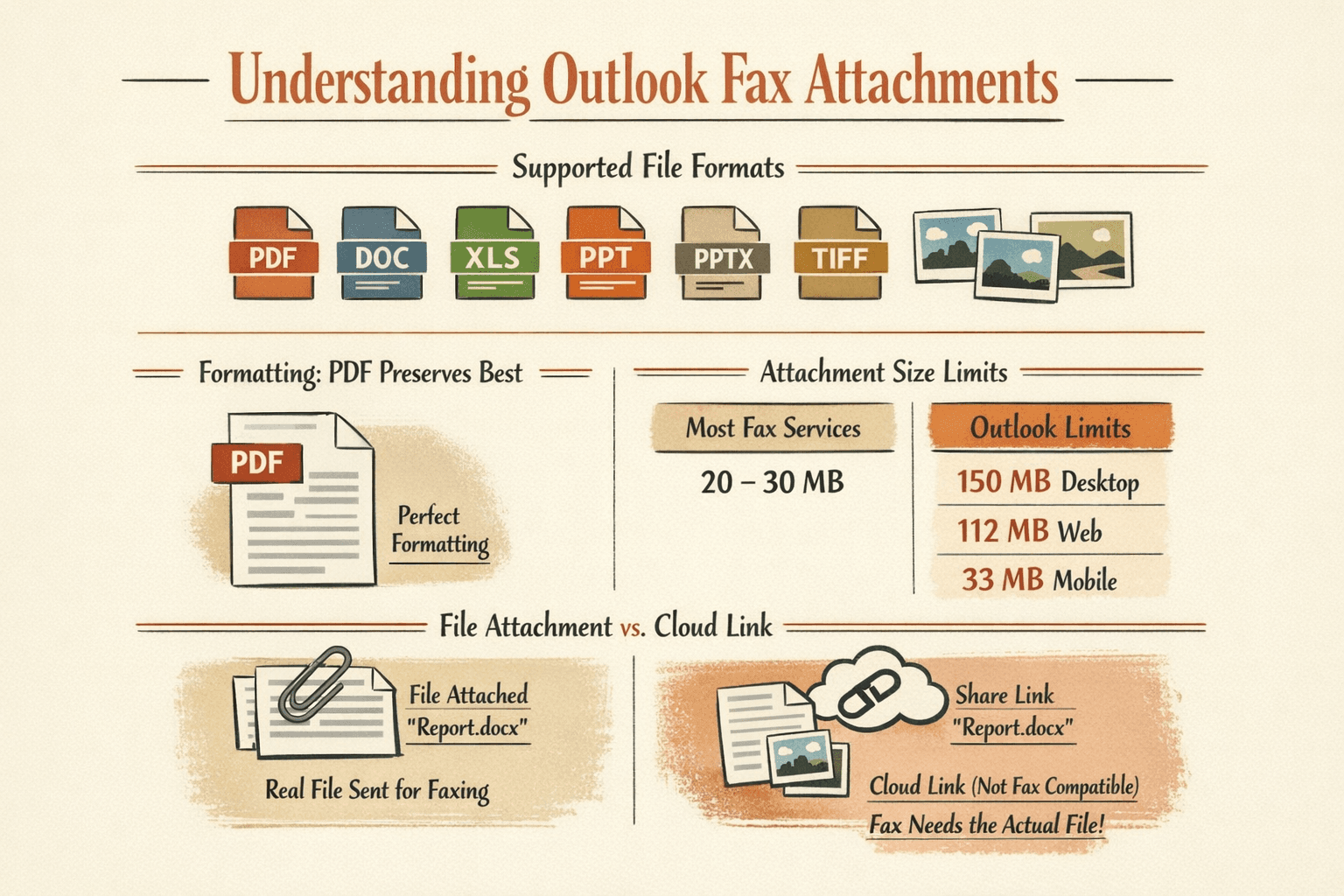
15551234567@fax.plus. - Attach your document: Click “Attach File” and select your document. Most services support PDF, Word, Excel, and common image formats. Attach the actual file—not a cloud link—because fax services can’t convert shared OneDrive or SharePoint links.
- Add a subject line (optional): Some services use the subject line as a cover page. If your service does this, write something like “Contract for signature” or leave it blank.
- Send: Click Send. The fax service receives your email, converts your attachment into a fax, and transmits it. You’ll typically get a delivery confirmation email within a few minutes.

How to Fax From Email Outlook With Attachments
You attach files to your Outlook email the same way as any email, then send to the fax service’s email address. Most services support PDF, Word, Excel, and image files—your attachments get converted into fax pages automatically.
Here’s what you need to know about attachments:
- Supported formats: PDF, DOC/DOCX, XLS/XLSX, PPT/PPTX, TIFF, JPG, and PNG work with most services. PDF preserves formatting best.
- File size limits: Most fax services handle files up to 20-30 MB. Outlook itself limits attachments to 150 MB (desktop), 112 MB (web), or 33 MB (mobile), but your fax service’s limit matters more.
- Multiple attachments: You can attach multiple files to one email—they’ll fax as one transmission in the order attached.
- How they appear: The receiving fax machine prints your attachments as standard fax pages. Complex layouts (like multi-column spreadsheets) may not fax cleanly, so stick to simple formats when possible.
Specific steps for sending faxes with attachments:
- Compose your email to the fax number: Use your service’s email-to-fax format (e.g.,
15551234567@fax.plus). - Click “Attach File” in Outlook: In desktop Outlook, click “Attach File” on the ribbon. In Outlook on the web, click the paperclip icon.
- Select your documents: Choose files from your PC, recent files, or cloud storage. If attaching from OneDrive or SharePoint, make sure you select “Attach as copy” rather than “Share link”—fax services need the actual file.
- Send the email: Click Send. The service converts all attachments into a single fax transmission.
How to Fax From Outlook for Free
Free fax options from Outlook are limited—most services offer free trials with capped pages, but permanent free tiers are rare. Fax.Plus has a free plan with 10 pages total, and Dropbox Fax gives you 5 free pages. ThirtyFax lets you send one fax (up to 5 pages) with no account required—good for truly one-off sending.
Your free and trial options:
- Fax.Plus Free: 10 pages total lifetime, no credit card required. Works with email-to-fax from Outlook.
- Dropbox Fax Free: 5 pages, then $0.99/fax up to 10 pages. Good if you’re already using Dropbox.
- ThirtyFax Free: One fax, up to 5 pages, no account needed. Best for one-time sending.
- Free trials: Most services offer 7-30 day trials with 50-300 pages, but require a credit card and cancel if you don’t want to continue.
Free options work when you need to send a short document once or twice. But if you’re faxing regularly—even just a few times per month—a paid service makes more sense. Free tiers run out fast, and managing trial cancellations gets tedious.

How to Add Fax to Outlook
You add fax capability to Outlook by either installing an Outlook add-in from Microsoft’s app store or setting up an online fax service that works with your Outlook email address. Add-ins appear in your Outlook ribbon; email-to-fax services require no installation.

Adding an Outlook Fax Add-in
Installing an add-in gives you a dedicated fax button in Outlook, along with features like scheduling and delivery tracking.
- Open the Outlook add-in store (1 minute): In Outlook on the web or new Outlook, click “More apps” in the toolbar, then “Add apps.” In classic Outlook for Windows, click “All Apps” (replaces the old “Get Add-ins” button).
- Search for a fax add-in (1 minute): Type “fax” in the search box. You’ll see options like Retarus Fax, Fax.Plus, and others.
- Review the add-in details: Click on an add-in to see its features, pricing, and privacy policy. Most require an active account with the fax service—the add-in is just the interface.
- Click Add: Outlook installs the add-in. If the icon doesn’t appear immediately, check under “More Apps” in your toolbar.
- Sign in and configure: Open the add-in, sign in to your fax service account, and follow the setup prompts. You’ll typically connect it to your fax number and set preferences.
Note: If you’re using a work or school Outlook account, your IT admin may control which add-ins you can install. You might need approval or find that your organization has already deployed a fax add-in.
Setting Up Email-to-Fax Service
Email-to-fax requires no add-in installation—you just need an account with a fax service that supports it.
- Sign up for an online fax service (5 minutes): Create an account with a service like Fax.Plus, Dropbox Fax, or eFax. Most offer free trials. If you don’t want a subscription and only need to send one fax, skip the account and use ThirtyFax.
- Get your email-to-fax address format (1 minute): Your service will tell you how to format fax addresses—usually
recipientfaxnumber@service.com. Save this format somewhere you can reference it. - Save the format to Outlook contacts (optional, 2 minutes): If you fax the same numbers regularly, save them as Outlook contacts using the email-to-fax format. For example, create a contact named “John Doe Fax” with email
15551234567@fax.plus. Now you can just type the contact name when composing.
That’s it. You’re ready to fax by sending a normal email from Outlook.
FAQ
Can You Fax From Outlook?
You cannot fax directly from Outlook itself—Microsoft doesn’t include native fax functionality. But you can send faxes using Outlook email through an online fax service that converts your emails into fax transmissions.
Can Outlook Send a Fax?
Outlook cannot send faxes natively—it’s an email client, not a fax client. But Outlook works with third-party online fax services through email-to-fax or add-ins, letting you send faxes without leaving Outlook.

Written by
Bernard Bado
I created ThirtyFax after needing to send a single fax and refusing to pay for a monthly subscription to do it. I write here about faxing, document workflows, and the surprisingly stubborn role fax still plays in modern business.
View author profile