
How to Send a Fax From an iPad
Sending a fax with your iPad is easy. Download a fax app, upload your document, and transmit it in 5-10 minutes using just your tablet.
Quick Verdict
You can send a fax from an iPad using online fax apps available in the App Store. Popular options include eFax, iFax, and Fax.Plus—all designed specifically for iPhone and iPad. These apps turn your iPad into a portable fax machine without requiring a physical fax line or dedicated hardware.
The process takes 5-10 minutes and requires only the recipient’s fax number and the document you want to send. You can upload files from your iPad’s storage, scan paper documents with your camera, or pull from cloud services like iCloud Drive.
How to Fax From an iPad
This step-by-step method works for all iPad models running a current version of iPadOS.
- Download a fax app from the App Store (2 minutes): Open the App Store and search for “fax.” Popular choices include eFax (29K ratings, 4.7 stars), iFax (35K ratings, 4.5 stars), and Fax.Plus. Most apps are free to download.
- Create an account (2 minutes): Open your chosen app and sign up with your email. Some apps like ThirtyFax let you skip this step entirely—you can send a fax without creating an account. Most subscription-based apps require sign-up before sending.
- Tap the send/new fax button: Look for a “+” button, “New Fax,” or “Send Fax” in the app. This opens the fax composition screen.
- Enter the recipient’s fax number: Type the full fax number including area code. For international faxes, include the country code (e.g., +44 for UK). Double-check the number—there’s no “undo” once a fax is sent.
- Attach your document: Tap “Attach” or the paperclip icon. You can upload from Files, select from Photos, or scan a document directly with your iPad’s camera. Most apps accept PDF, JPG, PNG, and common document formats.
- Add a cover page (optional): Many apps let you include a quick cover sheet with your name, company, and a message. Some automatically generate one; others make it optional.
- Review your fax: Preview the document to confirm formatting looks correct. Check that all pages are included and readable—especially if you scanned a physical document.
- Send: Tap “Send” or “Fax Now.” The app transmits your document over the internet to the recipient’s fax machine or fax service.
- Receive confirmation: Most apps show a delivery confirmation within minutes. Check your fax history or email for a transmission report confirming the fax went through successfully.

Preparing Your Document
Your document needs to be in a digital format the fax app can read—typically PDF, JPG, or PNG. On iPad, you can source documents from multiple locations: the Files app (for PDFs and documents), Photos (for images and scanned receipts), or iCloud Drive (for files synced across your Apple devices).
If you’re faxing a paper document, use your iPad’s built-in scanning feature in Notes or directly in most fax apps:
- Files app – Access documents saved locally on your iPad or in cloud storage like Dropbox, OneDrive, or Box
- Photos/camera roll – Upload images or photos you’ve already taken
- iCloud Drive – Pull files synced from your Mac or other Apple devices
- Scan with iPad camera – Most fax apps let you scan paper documents directly in the app; alternatively, use Notes to scan, then share the PDF to your fax app

Entering the Fax Number
Fax numbers follow standard phone number formatting, but there are a few rules to avoid transmission failures:
- Include area code – Always enter the full 10-digit number for U.S. faxes (e.g., 555-123-4567)
- Add country code for international faxes – Use the + symbol followed by the country code (e.g., +1 for U.S., +44 for UK)
- Extensions usually don’t work – Unlike phone calls, fax machines can’t dial extensions automatically. If the recipient has an extension, contact them for the direct fax line instead
Most apps format the number as you type, but double-check before sending—incorrect numbers mean your fax goes to the wrong recipient or fails entirely.
Best Fax Apps for iPad
Choosing the right app depends on how often you fax and whether you need to receive faxes or just send them. Here’s a comparison of the top iPad fax apps:
| App | Free Faxes | Paid Plan Cost | Key Features | Best For |
|---|---|---|---|---|
| ThirtyFax | 1 fax (5 pages) | €4.99 one-time (20 pages) | No account required, no subscription, transparent pricing | One-time faxing, no ongoing need |
| eFax | 14-day trial | $18.99-$49.99/month | Email/web/mobile faxing, HIPAA on $49.99+ tiers, dedicated fax number | Regular business faxing, compliance needs |
| iFax | 10 faxes | $12.49-$33.33/month | HIPAA on paid tiers, no overage fees, cross-platform | Healthcare teams, avoiding overage surprises |
| Fax.Plus | 10 pages total | $8.99-$99.99/month | Modern UI, Google/Microsoft/Slack integrations, HIPAA with BAA | SMBs wanting integrations and clean UX |
Pro tip: If you’re only faxing once or twice a year (like sending a signed contract or medical form), ThirtyFax is the most straightforward option—pay once, no account, no subscription. If you fax regularly or need a dedicated fax number, subscription services like Fax.Plus or eFax make more sense.
Free vs Paid Fax Apps
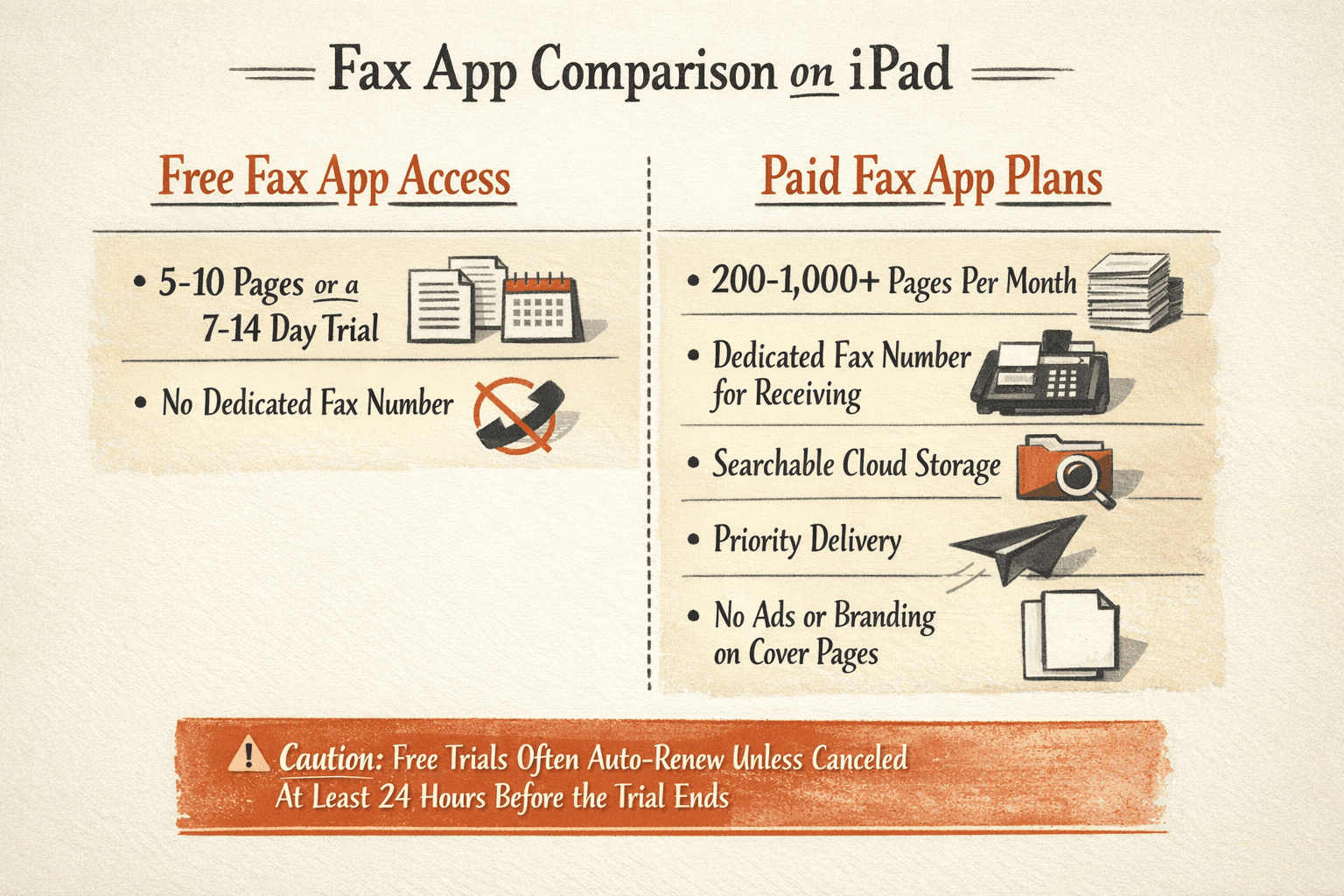
Free plans typically include a limited number of pages (often 5-10) or a short trial period. They’re designed to let you test the app or handle occasional one-off faxes. Most free tiers don’t include a dedicated fax number for receiving faxes.
When you upgrade to a paid plan, you unlock:
- Higher page limits – 200-1,000+ pages per month depending on the tier
- Receiving capability – A dedicated fax number where others can fax you
- Searchable storage – Keep faxes organized and accessible for months or years
- Priority delivery – Your faxes are transmitted faster and retried automatically if they fail
- No branding – Remove ads or “sent via [app name]” footers from your cover pages

One important note: many apps offer “free trials” that automatically convert to paid subscriptions unless you cancel at least 24 hours before the trial period ends. If you’re testing an app, set a reminder to cancel if you don’t plan to keep the subscription.
FAQ
Can I fax from iPad?
Yes. iPad fax apps like eFax, iFax, and ThirtyFax let you send faxes directly from your device using an internet connection—no physical fax machine required.
Can I fax from my iPad?
Yes, all iPad models support fax apps from the App Store. As long as your iPad can run current apps and connect to the internet, you can send faxes.
Can I send a fax from my iPad?
Yes. Download a fax app from the App Store, upload your document, enter the recipient’s fax number, and send. The app transmits your fax over the internet to the recipient’s fax machine.
Can I send a fax from my iPad for free?
Yes, but with limits. Some apps like Fax.Plus offer 10 free pages total, while others provide free trials (typically 7-14 days). ThirtyFax lets you send one fax of up to 5 pages free with no account required. If you need to send more pages or fax regularly, you’ll need a paid plan.
Can you fax from an iPad?
Yes. Faxing from iPad is common for both business and personal use—contracts, medical forms, invoices, and signed documents are the most typical use cases. The process works the same whether you’re sending to a traditional fax machine or another online fax service.

Written by
Bernard Bado
I created ThirtyFax after needing to send a single fax and refusing to pay for a monthly subscription to do it. I write here about faxing, document workflows, and the surprisingly stubborn role fax still plays in modern business.
View author profile