
How to Send a Fax From a Laptop - PC & Windows
You can use online services, Windows Fax and Scan, or a USB modem to send faxes from your laptop. This guide covers all three methods.
Quick Verdict
You can send a fax from your laptop or PC in three ways:
- Use an online fax service (no phone line needed)
- Connect a fax modem to a phone line
- Use Windows Fax and Scan (a built-in feature for Windows users with a modem).
Most people should use an online fax service—it’s faster, requires no hardware, and works from any laptop.
For occasional faxing, ThirtyFax is worth considering. You can send one fax (up to 5 pages) for free with no account required. If you need to fax regularly, a subscription service like Fax.Plus or eFax makes more sense.
This guide covers step-by-step instructions for all three methods, with specific focus on Windows 10 users who want to use the built-in fax feature.
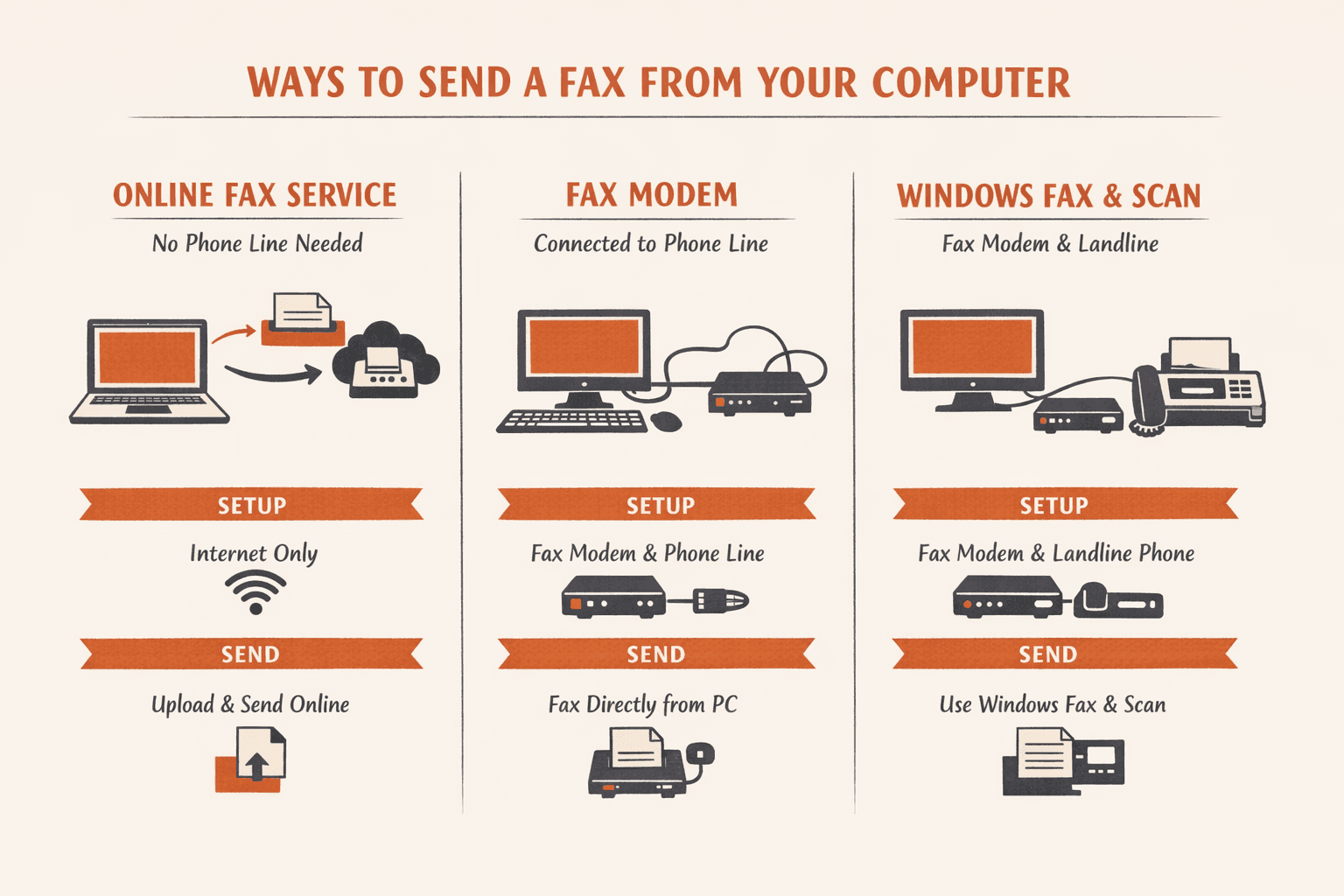
How to Send a Fax From Your PC Using an Online Fax Service
Online fax services let you send faxes through a web browser or mobile app without needing a phone line, fax machine, or any hardware. You upload your document, enter the recipient’s fax number, and click send.
Step-by-step:
- Choose a service (5 minutes): Popular options include Fax.Plus (free tier with 10 pages), Dropbox Fax ($0.99 per fax), and eFax ($18.99/month for 170 pages). If you’re sending just one fax, ThirtyFax offers a free option (up to 5 pages, no account needed) or €4.99 for up to 20 pages with no branding.
- Sign up or skip it: Most services require an account. ThirtyFax and FaxZero don’t—you can send immediately.
- Upload your document: Click “Send Fax” and upload your file. PDF preserves formatting best, but Word docs and images work too.
- Enter the recipient’s fax number: Use the format shown (usually country code + area code + number). For U.S. numbers, that’s 1-555-123-4567.
- Add a cover page (optional): Most services auto-generate one. You can customize the message or skip it entirely.
- Click Send: The service transmits your document over the internet to the recipient’s fax machine or fax number.
- Get confirmation: You’ll receive a delivery confirmation by email—usually within 2-5 minutes.
Most online fax services deliver in under 5 minutes. Keep the confirmation email as proof of transmission.

Pro tip: Navigate directly to the fax provider’s website rather than clicking promotional links in emails. According to FTC phishing guidance, verifying the site URL before uploading sensitive documents adds an extra layer of security.
How to Fax From Windows 10 Using Windows Fax and Scan
Windows 10 includes a built-in feature called Windows Fax and Scan that lets you send faxes if you have a fax modem connected to a phone line. It’s free to use but requires hardware and a landline connection.
Important note: Windows 10 support ended on October 14, 2025. Your PC still works, but Microsoft no longer provides security updates. For ongoing use, online fax services are a safer bet.
Requirements for Windows Fax and Scan
You’ll need:
- Fax modem — Internal PCI card or external USB modem. Windows Fax and Scan doesn’t work with standalone fax machines or most multifunction printers’ fax ports.
- Active phone line — Connected directly to the modem.
- Windows 10 — Home, Pro, or Enterprise editions all include the feature.
- Document ready to send — PDF, Word, or any printable file format.
Some USB fax modems require manual driver installation even though Windows 10 usually auto-detects USB peripherals.
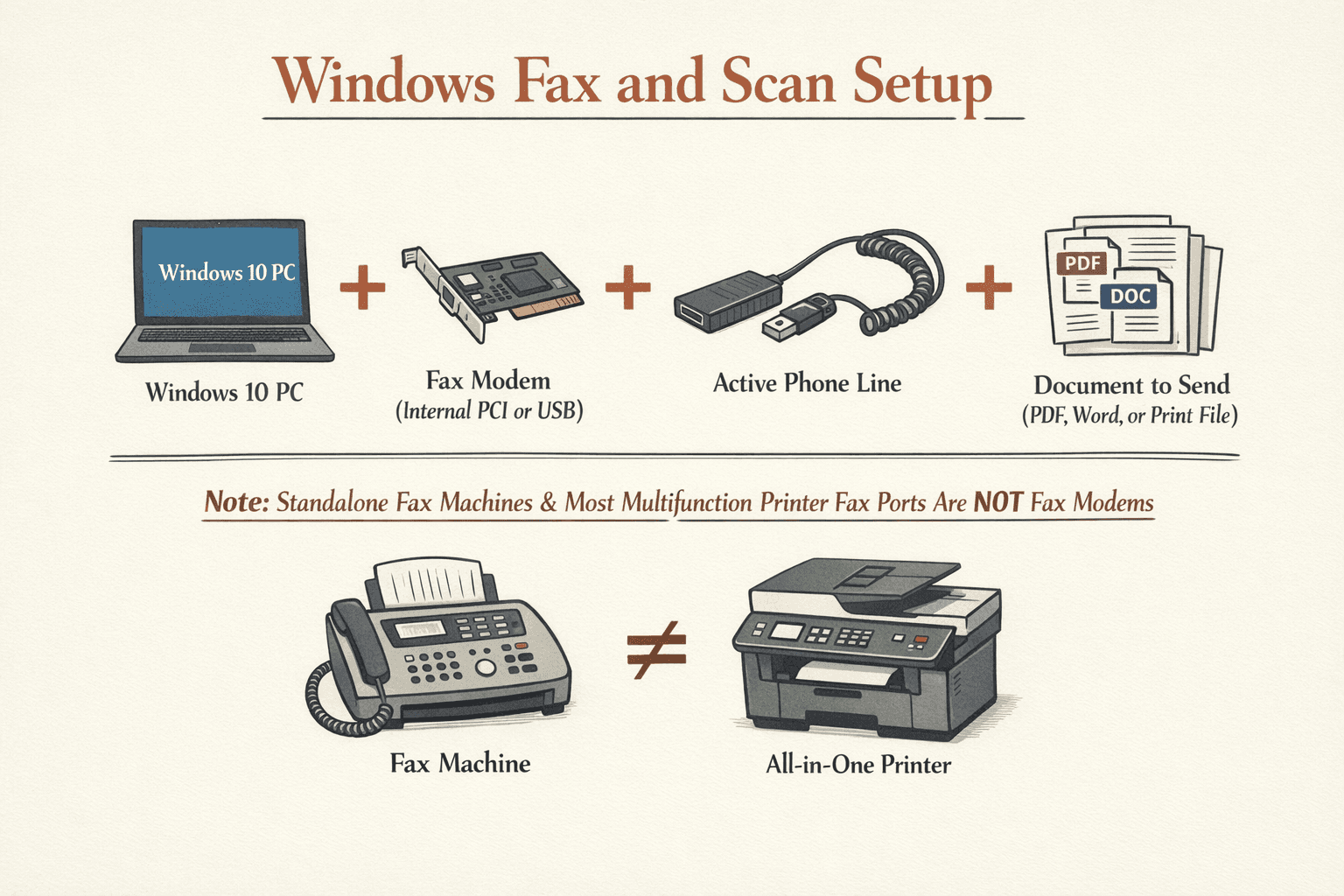
Step-by-Step Instructions for Windows Fax and Scan
Setup (one-time):
- Connect your fax modem (10 minutes): Plug the modem into your PC (internal PCI slot or USB port). Connect the phone line from the wall jack to the modem’s “Line” port. If Windows doesn’t automatically install drivers, download them from the modem manufacturer’s website.
- Open Windows Fax and Scan: Press the Windows key, type “Windows Fax and Scan,” and press Enter. If it doesn’t appear, you may need to enable the Fax service in Windows Features.
Sending a fax:
- Click “New Fax” in the toolbar: This opens a new fax window similar to an email compose screen.
- Enter the recipient’s fax number: Type the full fax number with area code. For long distance, include 1 before the area code (e.g., 1-555-123-4567).
- Add a cover page (optional): Click “Cover Page” and choose a template. Fill in the subject and notes if needed.
- Attach your document: Click “Insert” → “File as Attachment” or type your message directly into the body. You can also paste images.
- Click “Send”: Windows transmits the fax through your modem and phone line. You’ll hear the fax handshake tones if your speakers are on.
- Check the outbox for confirmation: After a minute or two, the fax should move from “Outbox” to “Sent Items.” If it gets stuck, the recipient’s fax machine may be off or busy.
Troubleshooting note: If sending fails or the fax doesn’t appear in the outbox, Microsoft has documented issues with draft faxes and cover pages. Try rebuilding the fax from scratch or removing the cover page before assuming your phone line is the problem.

How to Fax From a Laptop With a Fax Modem and Phone Line
Laptops can send faxes using an external USB fax modem connected to a phone line. The process is identical to desktop PCs—you just need a USB modem instead of an internal one.
Step-by-step:
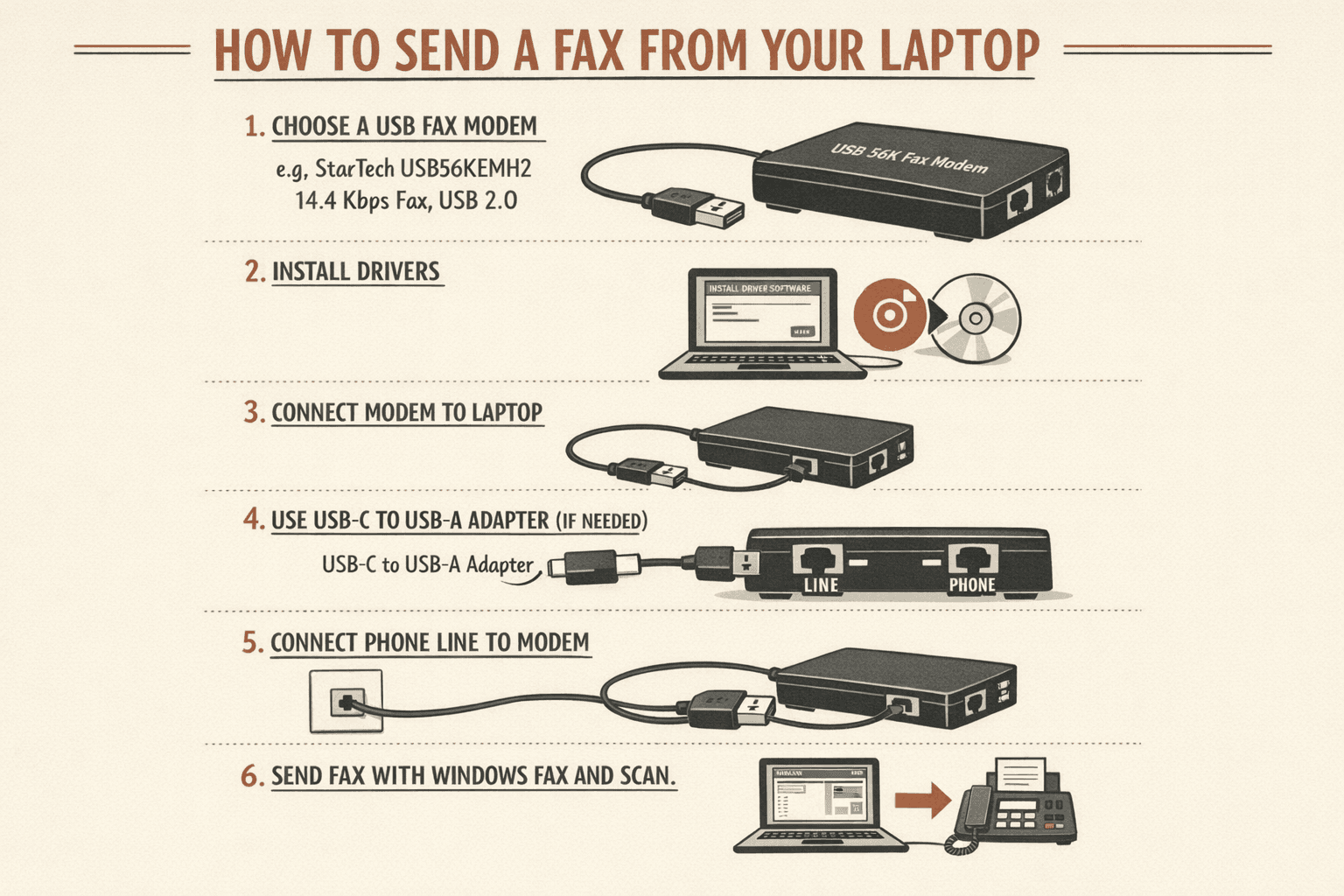
- Purchase a compatible USB fax modem (one-time): Look for models explicitly labeled “Windows 10 compatible.” StarTech’s USB56KEMH2 is a current example that supports 14.4 Kbps fax speeds and works over USB 2.0.
- Install modem drivers (5-10 minutes): Most USB fax modems install automatically when you plug them in. If Windows doesn’t recognize it, download drivers from the manufacturer’s site. StarTech’s setup guide shows extra configuration steps sometimes required.
- Connect the modem to your laptop: Plug the USB cable into any available USB port. USB-A ports are most common—use an adapter if your laptop only has USB-C.
- Connect the phone line to the modem: Run a standard phone cable from the wall jack to the modem’s “Line” port. Don’t use the “Phone” port—that’s for connecting a telephone handset.
- Follow Windows Fax and Scan instructions: Open Windows Fax and Scan and follow the same steps outlined in the previous section.
Make sure your laptop has an available USB port—some ultra-thin models only include USB-C. You’ll need a USB-C to USB-A adapter if your modem uses the older USB-A connector.
FAQ
Can I Send a Fax From My Laptop?
Yes. You can send a fax from any laptop using an online fax service (no phone line needed) or by connecting an external USB fax modem to a phone line. Online fax services are faster—you upload your document through a web browser or app and it’s delivered within minutes.
Can I Fax From My PC?
Yes. Windows 10 includes a built-in fax feature called Windows Fax and Scan that works if you have a fax modem and phone line. Alternatively, online fax services work on any PC with internet access and require no additional hardware. Keep in mind that Windows 10 is no longer supported as of October 2025, so built-in features no longer receive security updates.
Can You Fax From a Laptop Without a Phone Line?
Yes. Online fax services and internet fax apps let you send faxes over the internet without a phone line. You upload your document through a web portal or mobile app, and the service transmits it to the recipient’s fax machine. Services like ThirtyFax (free for up to 5 pages), Fax.Plus (10 free pages), and Dropbox Fax ($0.99 per fax) all work without any hardware or phone line connection.

Written by
Bernard Bado
I created ThirtyFax after needing to send a single fax and refusing to pay for a monthly subscription to do it. I write here about faxing, document workflows, and the surprisingly stubborn role fax still plays in modern business.
View author profile