
How to Fax Without a Landline
You don't need a landline to send faxes. Use online services, mobile apps, or connect your old fax machine via VoIP. This guide covers all three methods.
Quick Verdict
Yes—you can fax without a landline using online fax services, mobile fax apps, or email-to-fax. All three methods work entirely over your internet connection.
Traditional fax machines required dedicated phone lines, but modern solutions eliminated that requirement. You just need internet access.
This guide covers step-by-step instructions for each method and which option works best for different situations—whether you’re faxing from home, using a Mac, or trying to keep costs at zero.
How to Fax Without a Landline Using Online Fax Services
Online fax services let you send and receive faxes through a web browser or mobile app using only your internet connection. No phone line, no fax machine required.
Here’s how it works:
- Sign up and choose a plan (5 minutes): Most services offer free trials. Pick based on volume—Fax.Plus starts at $8.99/month for 200 pages, while MetroFax offers 550 pages for $11.95/month.
- Get your fax number: You’ll receive a dedicated fax number immediately. Most services let you choose your area code or port an existing number.
- Upload your document: Click “Send Fax” and upload your file. PDFs work best, but most services accept Word docs, images, and other formats.
- Enter the recipient’s fax number: Type it in with the area code (no dashes needed). For international faxes, include the country code.
- Add a cover page (optional): Most services include basic cover page templates. Fill in recipient info and any notes.
- Review and send: Double-check the fax number and page count. Hit send.
- Receive confirmation: You’ll get an email or dashboard notification confirming delivery. Most services show transmission time and page count.
- Access received faxes: Incoming faxes arrive as PDFs in your online inbox. Check them from any device.
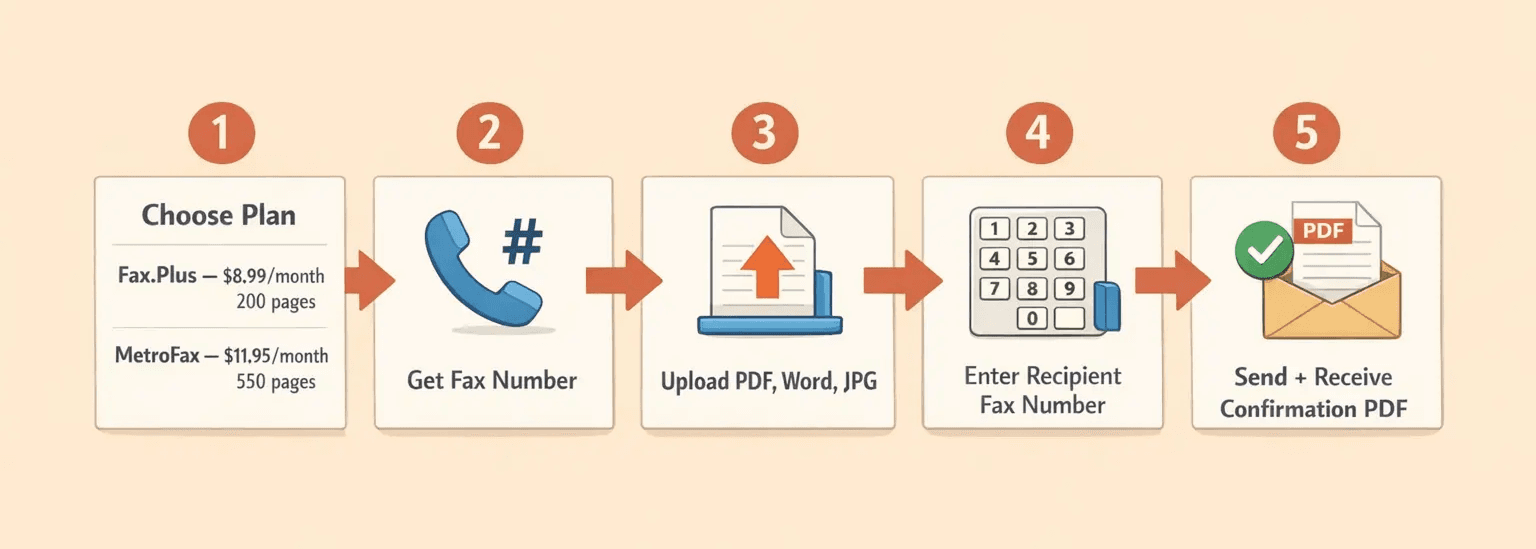
Top services to consider: eFax offers cloud storage and mobile apps. Dropbox Fax integrates with Google Drive, Dropbox, and OneDrive—useful if you already store documents in the cloud. MetroFax includes email-to-fax on all plans.
How to Fax from a Computer Without a Phone Line
You can fax directly from your computer using online fax software or email-to-fax. Both methods work through your browser or email client—no additional hardware.
Via web portal:
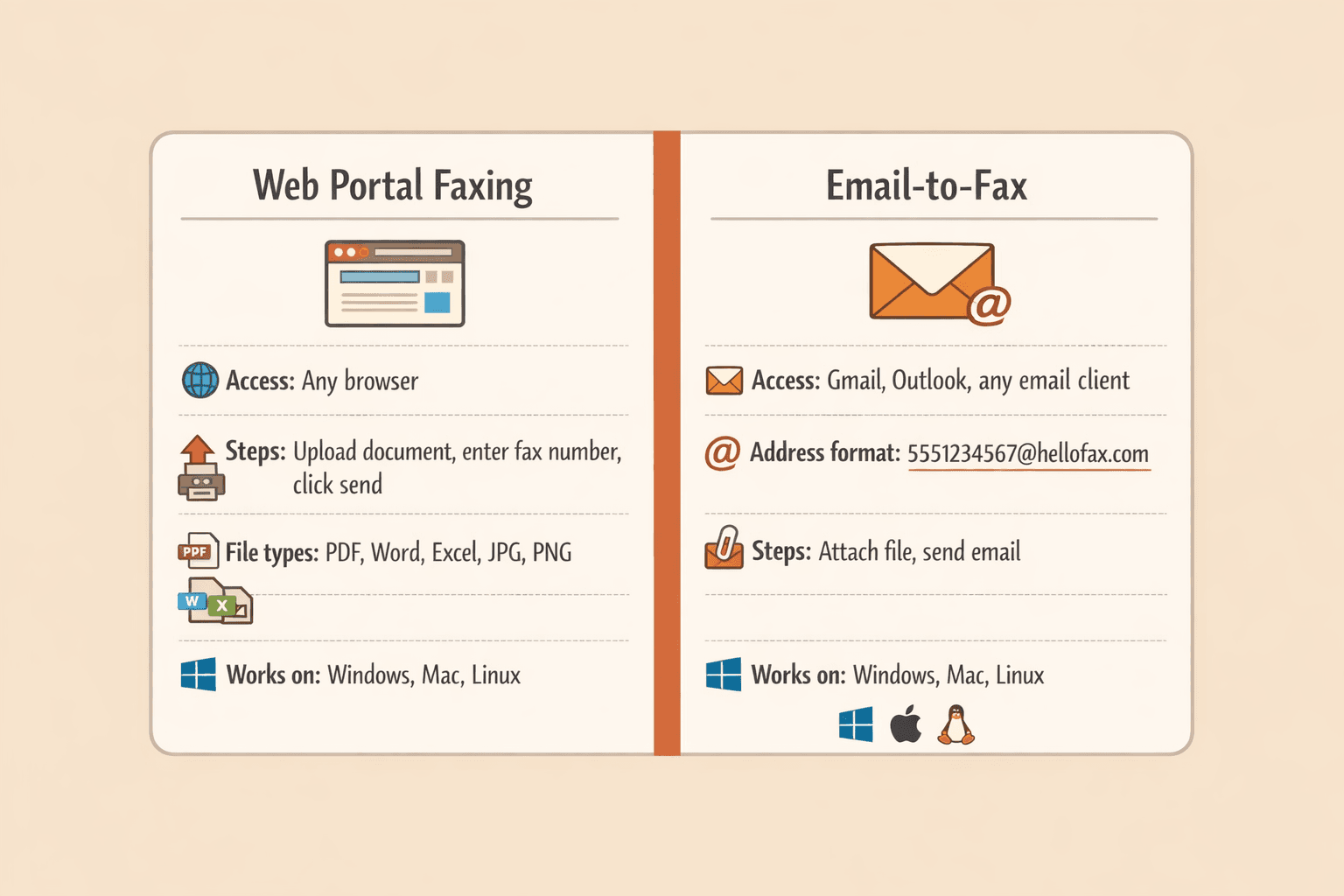
- Access your fax service portal (2 minutes): Log into your account through any web browser. Works on Windows, Mac, and Linux.
- Create a new fax: Click “Send Fax” or “New Fax” from your dashboard.
- Attach your document: Drag and drop your file or click to upload. Most services accept PDF, Word, Excel, JPG, and PNG files.
- Enter the destination fax number: Type the full fax number including area code. The service automatically formats it.
- Send and track delivery: Click send. MetroFax and similar services send confirmation notices showing successful transmission.
Via email-to-fax:
- Compose an email: Open Gmail, Outlook, or your preferred email client.
- Format the recipient address: Use the format
faxnumber@servicedomain.com—for example, with Dropbox Fax, you’d send to5551234567@hellofax.com. - Attach your document: Add your file as an email attachment.
- Send: Hit send like a normal email. The service converts it to a fax automatically.
Platform compatibility is universal—these methods work on Windows, Mac, and Linux through any modern web browser.
How to Fax from Mac Without Phone Line
Mac users can fax through online fax services via web browser or dedicated Mac apps. The process is identical to other platforms, with a few Mac-specific options.
Using a Mac app:
- Choose a Mac-compatible service: Fax.Plus offers a native Mac app (requires macOS 12.0+ and Apple M1 or later). iFax works on both Intel and M1 Macs.
- Download and install: Get the app from the Mac App Store or service website.
- Upload your document: Drag files from Finder directly into the app, or click to browse.
- Enter recipient fax number: Type the number in the “To” field. The app handles formatting.
- Send your fax: Click send and wait for confirmation—usually takes 1-2 minutes per page.
Browser-based option: Most services work perfectly in Safari or Chrome without installing anything. eFax, MetroFax, and Dropbox Fax all offer full functionality through the browser—useful if you’re on an older Intel Mac.
How to Fax from Home Without a Landline
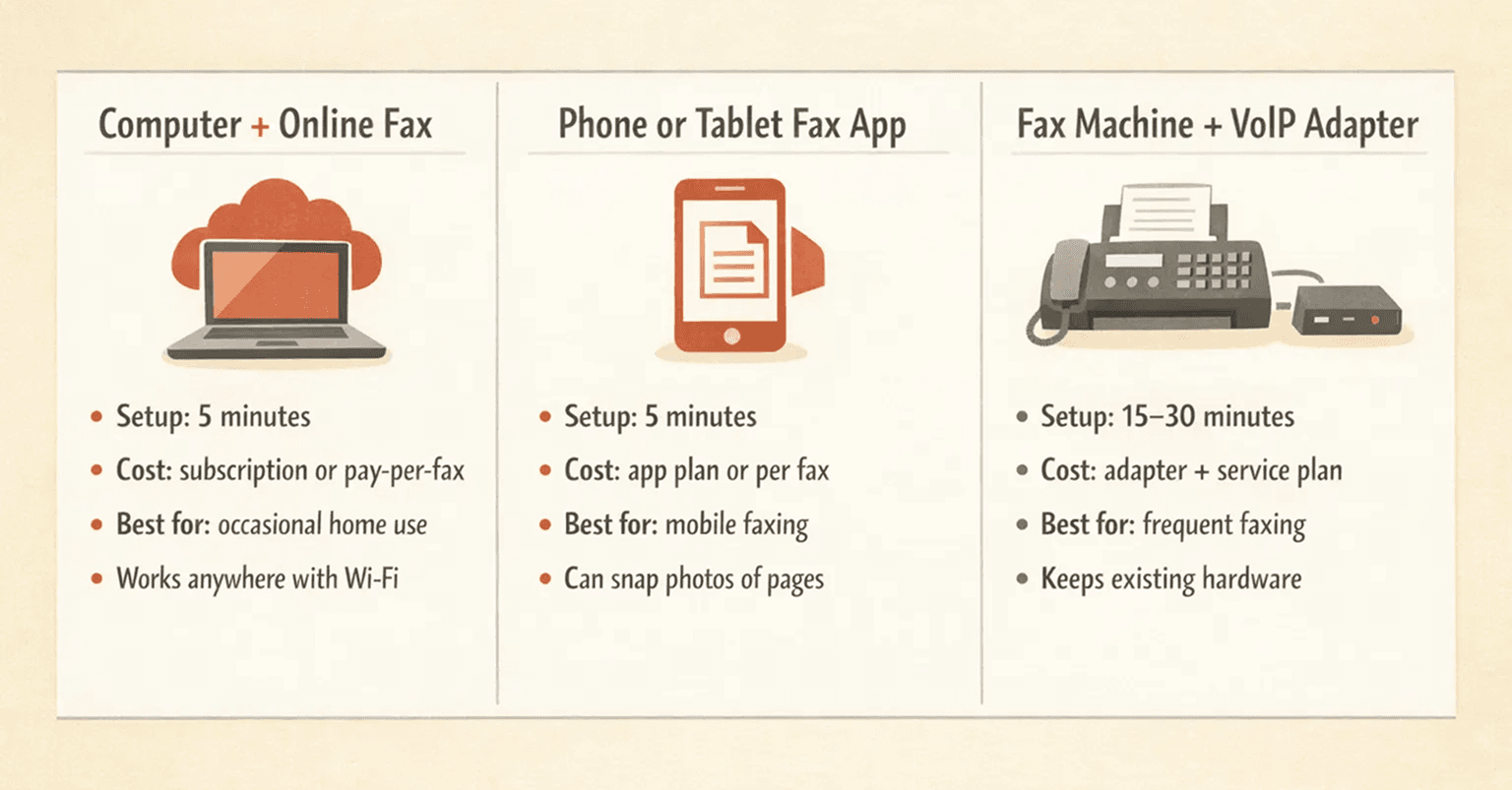
Home faxing without a landline uses your existing internet connection. You’ve got three setup options depending on what equipment you already own.
Three home faxing methods:
- Computer + online fax account: Sign up for a service, send/receive through your browser. Best for occasional faxing—works from any room with WiFi.
- Smartphone or tablet with fax app: Download eFax mobile or similar. Snap photos of documents to fax them. Great for faxing on the go.
- Existing fax machine + VoIP adapter: Connect your old fax machine to the internet using an adapter. Only worth it if you already own the machine and fax frequently.
For occasional home use—a few faxes per month—stick with a browser-based service or pay-per-fax option. For regular home office faxing, a monthly subscription makes more sense. MetroFax’s $11.95/month plan includes 550 pages and a dedicated number for receiving, which beats paying per page if you’re sending more than 15-20 faxes monthly.
How to Fax Without a Landline for Free
Free faxing without a landline exists, but comes with restrictions. Free trials and limited free services work for occasional use—but unlimited free faxing doesn’t exist.
Free options and their limits:
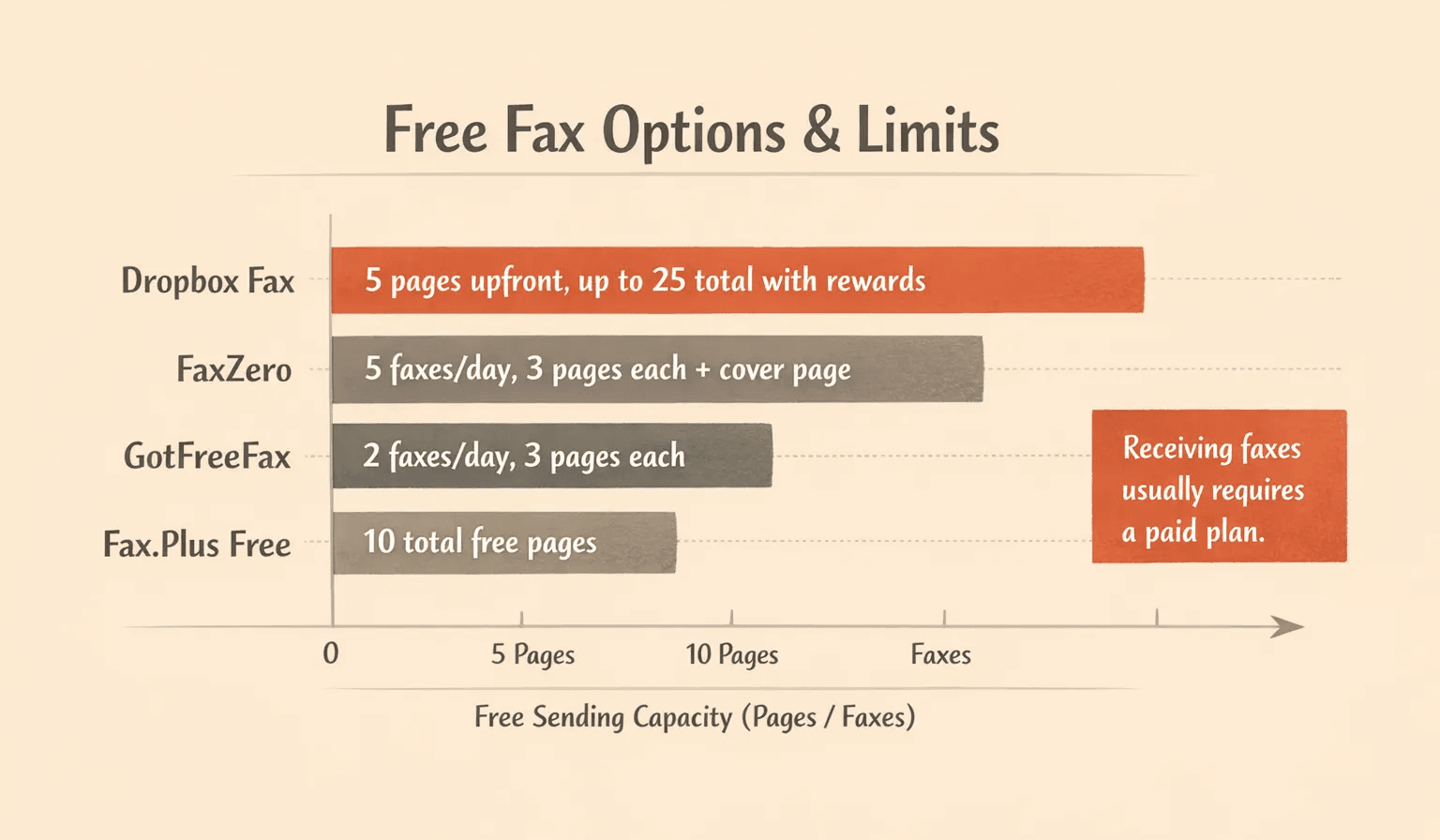
- Free trial periods: Most paid services offer 7-30 day trials. Dropbox Fax gives 5 free pages upfront, plus you can earn up to 20 more for a total of 25 free pages.
- Daily-limit services: FaxZero lets you send 5 faxes per day (3 pages each, plus cover page) with no credit card required. GotFreeFax allows 2 daily faxes of 3 pages each to the U.S. and Canada.
- Freemium plans: Fax.Plus includes 10 total free pages on its free tier, then requires payment.
- Pay-per-fax without subscription: After free pages run out, Dropbox Fax charges $0.99 per fax (up to 10 pages), then $0.20 per additional page.
Here’s the catch: receiving faxes almost always requires a paid subscription. Free services typically only let you send outbound faxes. And free faxes often include branding, destination restrictions (U.S./Canada only), or watermarks.
Free faxing works fine for sending a job application or one-off personal documents. But for business, healthcare, or legal use where you need to receive faxes reliably, you’ll need a paid plan.
How to Use a Fax Machine Without a Phone Line
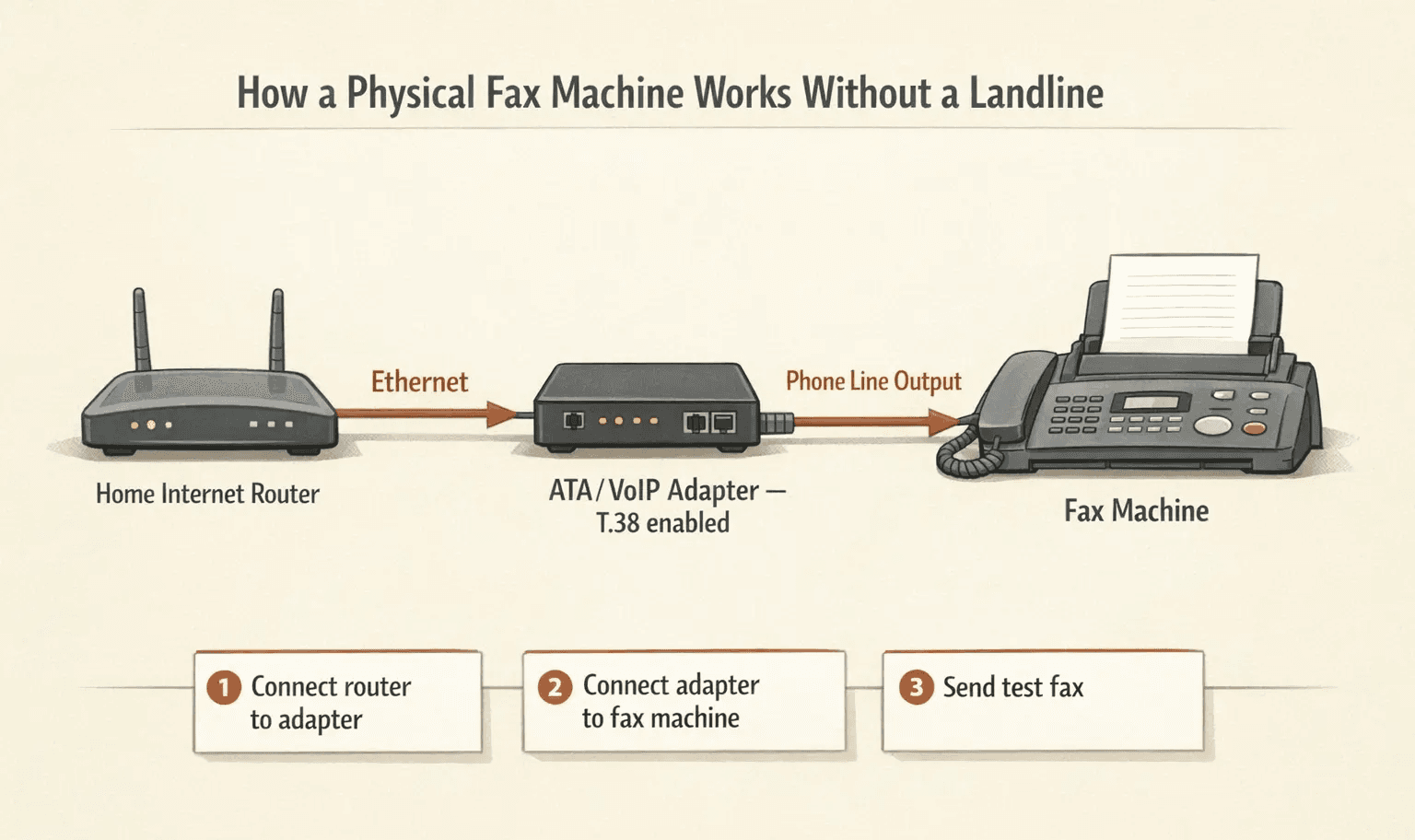
Traditional fax machines can work without a landline by connecting them to a VoIP adapter or internet fax modem. The adapter converts your internet connection into the phone-line signal the fax machine expects.
Setup process:
- Purchase a VoIP adapter or fax-over-IP device (10 minutes): Look for an ATA (analog telephone adapter) that supports T.38 fax protocol. RingCentral and Ooma sell compatible adapters.
- Connect adapter to your router: Plug an ethernet cable from your router into the adapter’s WAN/internet port.
- Connect fax machine to adapter: Run a standard phone cable from the adapter’s “Phone” or “Line 1” port to your fax machine’s line jack.
- Power everything on: Plug in the adapter and fax machine. Wait 2-3 minutes for the adapter to initialize.
- Configure adapter settings: Log into the adapter’s web interface (instructions vary by model). Enable T.38 if it’s not on by default.
- Test with a test fax: Most services provide a test fax number. Send a page to verify everything works.
- Use normally: Your fax machine now operates like it did with a landline—just dial and send.
Compatibility warning: Older fax machines (pre-2010) may struggle with VoIP due to timing sensitivity and compression. Newer models handle internet-based connections more reliably. If your old machine won’t work consistently, an online fax service is a simpler alternative.
How to Set Up a Fax Machine Without a Phone Line
Setup requires either a VoIP adapter (to keep using a physical fax machine) or subscribing to an online service that provides a virtual fax number (which eliminates the machine entirely).
Complete setup for physical machine + adapter:
- Choose your VoIP fax service: Look for providers that explicitly support faxing—regular VoIP isn’t always fax-compatible. Options include RingCentral Fax, Ooma Office, or dedicated fax ATAs.
- Sign up and receive your virtual fax number: You’ll get a new number immediately, or you can port your existing fax number (takes 2-3 weeks).
- Connect your hardware: Follow the adapter setup steps from the previous section—router to adapter, adapter to fax machine.
- Configure fax machine settings: Set your machine to the slowest speed (usually 9600 bps) and disable error correction mode (ECM). These settings improve VoIP fax reliability.
- Set up receiving preferences: Configure your service to forward received faxes to email, or have them arrive at the physical machine—your choice.
- Test send and receive: Send a test fax outbound, then have someone fax your new number to confirm both directions work.
- Configure additional features: Set up email notifications for received faxes, configure auto-forwarding, or enable fax-to-PDF conversion through your service portal.
Alternative setup (no physical machine): Sign up for an online fax service that includes a virtual number. Skip all the hardware. Send/receive from your computer or phone instead.
Setup typically takes 15-30 minutes for the adapter route, or about 5 minutes for online-only.
FAQ
Can You Fax Without a Landline?
Yes, you can fax without a landline using online fax services, mobile apps, or VoIP adapters. All three methods work entirely over your internet connection, no traditional phone line required.
Do You Need a Landline to Fax?
No, landlines are no longer required for faxing. Modern internet-based solutions like eFax, Dropbox Fax, and MetroFax handle everything through your existing internet connection.
Does a Fax Machine Need a Phone Line?
Traditional fax machines need a phone-type connection, but it doesn’t have to be a landline. You can connect a fax machine through a VoIP adapter instead. Or skip the machine entirely and use an online fax service—no phone line or fax hardware needed.
Can I Fax from My Computer Without a Phone Line?
Yes, computer faxing works through online fax services using only your internet connection. Send via web browser, desktop app, or email-to-fax. No phone line required.
Do You Need a Phone Line for a Fax Machine?
Physical fax machines need some type of phone connection (landline or VoIP), but online fax services eliminate the need for both the machine and the phone line.
If you want to keep using a physical fax machine, you can connect it through a VoIP adapter—which runs over your internet connection instead of a traditional landline.

Written by
Bernard Bado
I created ThirtyFax after needing to send a single fax and refusing to pay for a monthly subscription to do it. I write here about faxing, document workflows, and the surprisingly stubborn role fax still plays in modern business.
View author profile