
How to Fax From a Printer
Faxing from a printer requires a fax-capable multifunction device and phone line, or an online service if your printer lacks fax hardware. This guide covers setup, sending, and troubleshooting.
Quick Verdict
Faxing from a printer requires either a fax-enabled multifunction printer connected to a phone line, or an online fax service if your printer lacks fax capability. The phone-line method works through built-in fax hardware that transmits documents over traditional telephone networks, while online services send faxes over the internet—no printer required.
Most home and office printers don’t have fax capability. Only multifunction or all-in-one models explicitly marketed with fax features can send documents this way.
How to Fax From a Printer (Step-by-Step)
The process varies slightly by printer model but follows the same core workflow. Here’s how to send a fax from any fax-capable printer:
- Verify fax capability (2 minutes): Check for a “Fax” button on the control panel or look for phone line ports labeled “LINE” or “1-LINE” on the back of the device. If neither exists, your printer can’t fax.
- Connect to a phone line (5 minutes): Plug a standard telephone cord from your wall jack into the printer’s LINE port. Some models have a second port (EXT or 2-EXT) for connecting an answering machine or phone.
- Load your document: Place pages face-up in the automatic document feeder (ADF) for multi-page faxes, or face-down on the scanner glass for single pages. The ADF is faster and handles batches automatically.
- Access the fax function (30 seconds): Press the “Fax” button on the control panel. Most printers switch to fax mode and display a dial pad or number entry screen.
- Enter the recipient’s fax number: Use the numeric keypad to type the full fax number, including area code. Double-check—there’s no autocomplete.
- Adjust settings if needed (1 minute): Most printers let you change resolution (standard, fine, or super fine) or add a cover page through the fax menu. Standard resolution works for most documents.
- Send and confirm: Press “Send” or “Start.” The printer scans the document and transmits it over the phone line. Wait for the confirmation page—it prints automatically and shows whether transmission succeeded.
Most printers also display “Fax sent successfully” or similar on-screen. If transmission fails, check your phone line connection and verify the recipient’s number.

How Does Fax Work on Printer
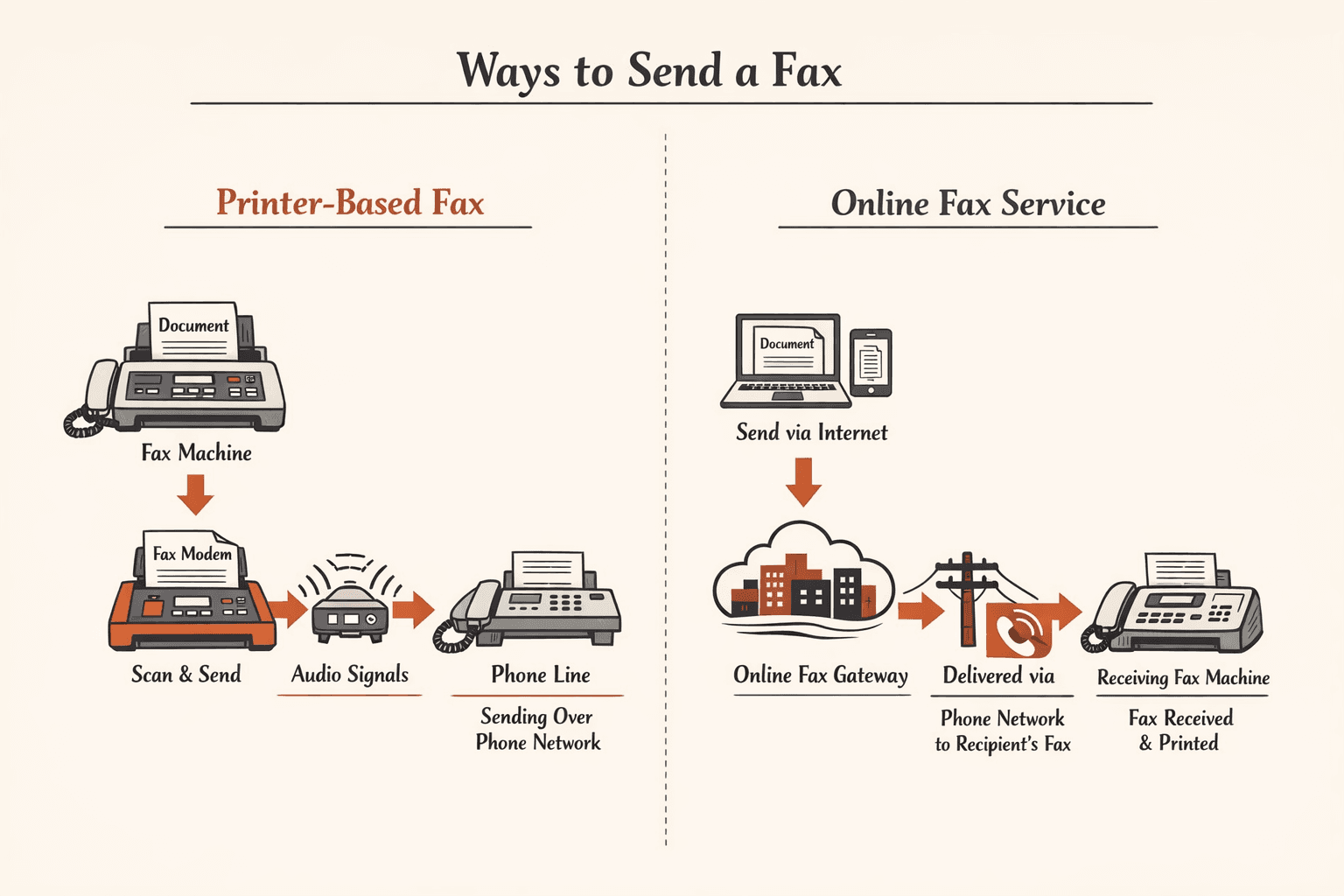
A printer with fax capability converts your document into audio signals, transmits them over a phone line using the same technology as standalone fax machines, and the receiving device decodes those signals back into an image. It’s the same process fax machines have used since the 1980s—just built into a multifunction device.
Here’s what’s required for printer-based faxing:
- Fax modem built into the printer — Handles signal conversion and transmission
- Active phone line connection — Standard analog landline or compatible VoIP line
- Fax transmission protocol — Industry-standard encoding that both devices understand
- Receiving fax machine or service — Someone on the other end to decode and print
Modern online fax services work differently. Instead of phone lines, they send faxes over the internet and deliver them to the recipient’s fax number through a gateway that connects to the traditional phone network. For one-time sending, this is faster and requires no printer setup.
How to Set Up Fax on Printer
Setup must be completed before sending your first fax. Here’s the process:
- Verify fax capability (2 minutes): Confirm your printer model includes fax hardware. Check the control panel for a “Fax” button or look for phone ports on the back labeled “LINE” or “1-LINE.”
- Locate the phone line port (1 minute): Find the LINE port on the back or side of the printer—it’s usually labeled and separate from USB or network ports.
- Connect the phone cable (3 minutes): Plug a standard two-wire telephone cord from your wall jack into the printer’s LINE port. If you’re using an answering machine or phone on the same line, connect it to the printer’s EXT or 2-EXT port.
- Run the fax setup wizard (5 minutes): Most printers have an automatic configuration process in the control panel under Settings > Fax Setup. Follow the prompts to detect the phone line and configure basic settings.
- Enter your fax header information (2 minutes): Add your name, company name, and fax number. This appears at the top of every fax you send.
- Test the setup (3 minutes): Send a test fax to verify everything works. HP offers a dedicated test service at 1-888-473-2963 specifically for this purpose.
If setup fails, check three things: confirm the phone line has a dial tone, verify you’re using the LINE port (not EXT), and make sure no other device is holding the line open.

How to Fax From Printer Brother
Brother-specific instructions work across most MFC series models. Here’s the streamlined process:
- Load your document: Place pages face-down on the scanner glass for single-page faxes, or face-up in the ADF for multi-page documents.
- Press the FAX button: Located on the control panel, this switches the device to fax mode.
- Enter the fax number: Use the numeric keypad to type the recipient’s full fax number including area code. You can also select stored numbers from call history or speed dial.
- Adjust settings if needed: Press “Resolution” to change quality (Standard, Fine, Super Fine) or access the menu for additional options.
- Press Fax Start: The green “Start” or “Send” button begins transmission immediately.
Brother’s menu system also lets you set up One Touch and Speed Dial numbers for frequent recipients—useful if you fax the same contacts regularly.
How to Fax From Printer Canon
Canon’s process is similar but uses slightly different button labels depending on whether you have a PIXMA, imageCLASS, or MAXIFY model. Here’s the standard workflow:
- Place your document: Load pages in the ADF (face-up) or on the platen glass (face-down).
- Press the Fax button: On most Canon models, this is a dedicated button on the control panel.
- Enter the recipient number: Use the on-screen numeric keypad or physical buttons to type the fax number. Canon models with touchscreens make this faster.
- Select quality settings if needed: Choose Standard, Fine, or Photo mode depending on document type.
- Press Black or Color to send: These buttons initiate transmission—choose Black for standard documents, Color if your model supports color faxing.
Canon’s Quick Fax feature lets you store frequently-used numbers for one-button sending. Some MAXIFY models also support PC Fax, which lets you fax directly from your computer using Canon’s fax driver software.

How to Scan and Fax From Printer
Most fax-capable printers automatically scan documents as part of the fax process—you don’t need a separate scan step. When you load a document and press “Send,” the printer scans and transmits in one operation.
Here’s what happens during a typical fax:
- Place document on scanner bed or in feeder
- Select fax mode (not scan mode): This tells the printer to transmit rather than save locally.
- Printer scans document automatically: Happens in the background as part of fax preparation.
- Enter recipient fax number
- Confirm scan preview if available: Some models show a preview before sending.
- Send fax: Transmission begins immediately after scanning completes.
The only time you need a separate scan-then-fax workflow is when you want to edit the scanned document first or keep a digital copy before sending. In that case, scan to PDF, edit as needed, then use the fax function to send the saved file. Canon’s PC Fax driver supports this workflow on compatible models.
How to Use Fax Machine on Printer
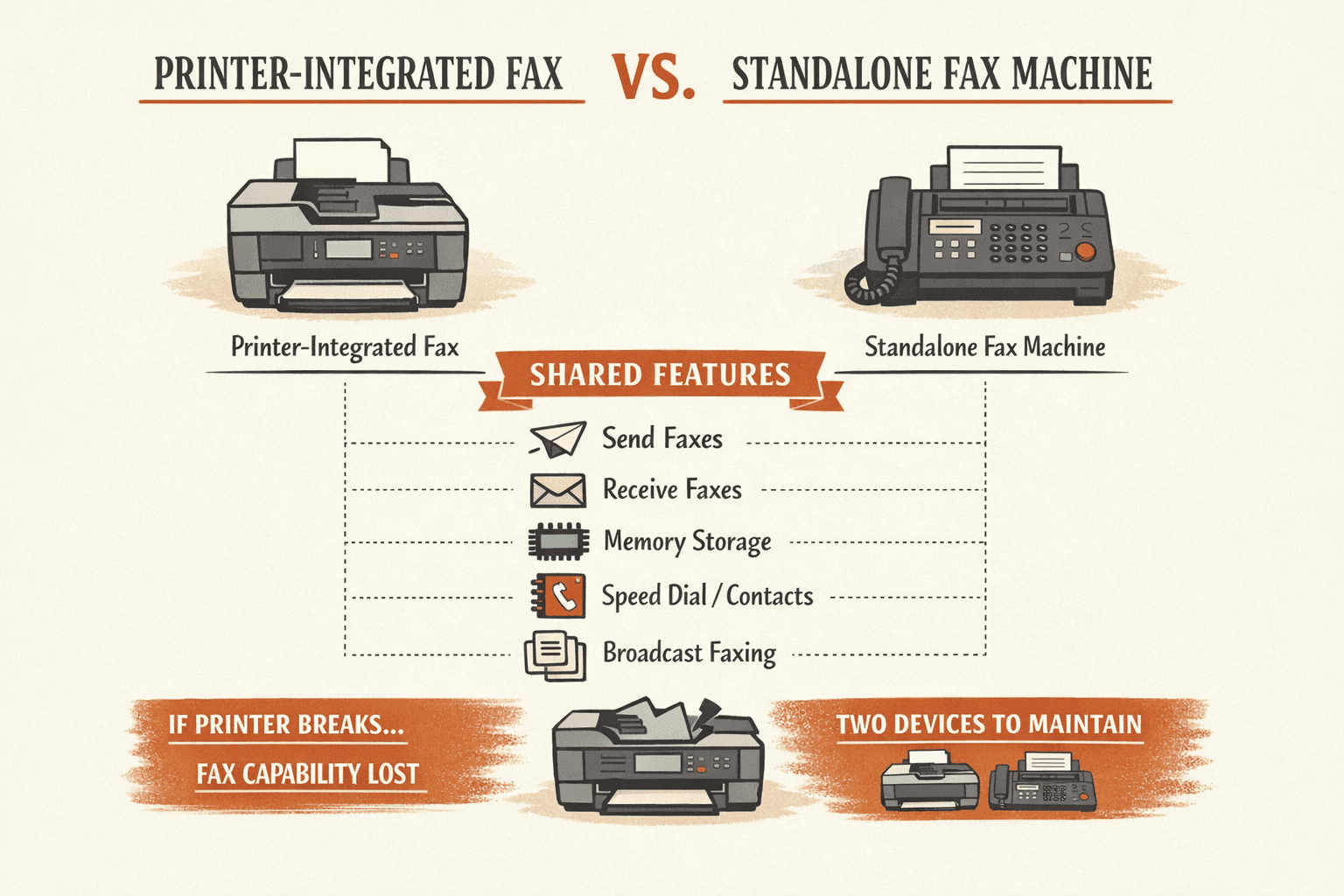
A “fax machine on a printer” is just the fax functionality built into a multifunction device. These printer-based fax systems offer most of the same features as standalone fax machines:
- Sending faxes: Standard transmission to any fax number
- Receiving faxes: If you set the printer to answer mode, it can receive incoming faxes automatically
- Memory storage: Stores sent and received faxes in device memory
- Speed dial and contact lists: Save frequently-used numbers for quick access
- Broadcast faxing: Send the same document to multiple recipients
Compared to standalone fax machines, printer-integrated fax is more convenient (one device instead of two), takes up less space, and typically costs less upfront. The tradeoff is that if your printer breaks, you lose fax capability too—though most offices now fax infrequently enough that this isn’t a major concern.
What Is Fax on a Printer
Fax functionality on a printer means the device can send and receive documents via phone lines using the same transmission technology as dedicated fax machines. It’s a feature found exclusively on multifunction or all-in-one printers—not on basic print-only models.
These devices combine print, scan, copy, and fax capabilities in one unit. The Canon imageCLASS line, for example, clearly separates models with “Print/Scan/Copy” from those with “Print/Scan/Copy/Fax”—only the latter can send faxes.
What Does Fax Mean on a Printer
“Fax” on a printer indicates the device has built-in hardware and software to transmit documents over phone lines. Specifically, it means there’s a fax modem inside that converts documents to audio signals and sends them through the telephone network.
The easiest way to identify fax capability is to look for physical phone ports on the back of the device—typically labeled “LINE” and “EXT” or “1-LINE” and “2-EXT.” If you see these ports, the printer can fax. You can also check the control panel for a “Fax” button or review the printer’s specifications sheet, where fax is listed as a distinct function alongside print, scan, and copy.
How to Fax From Home Printer
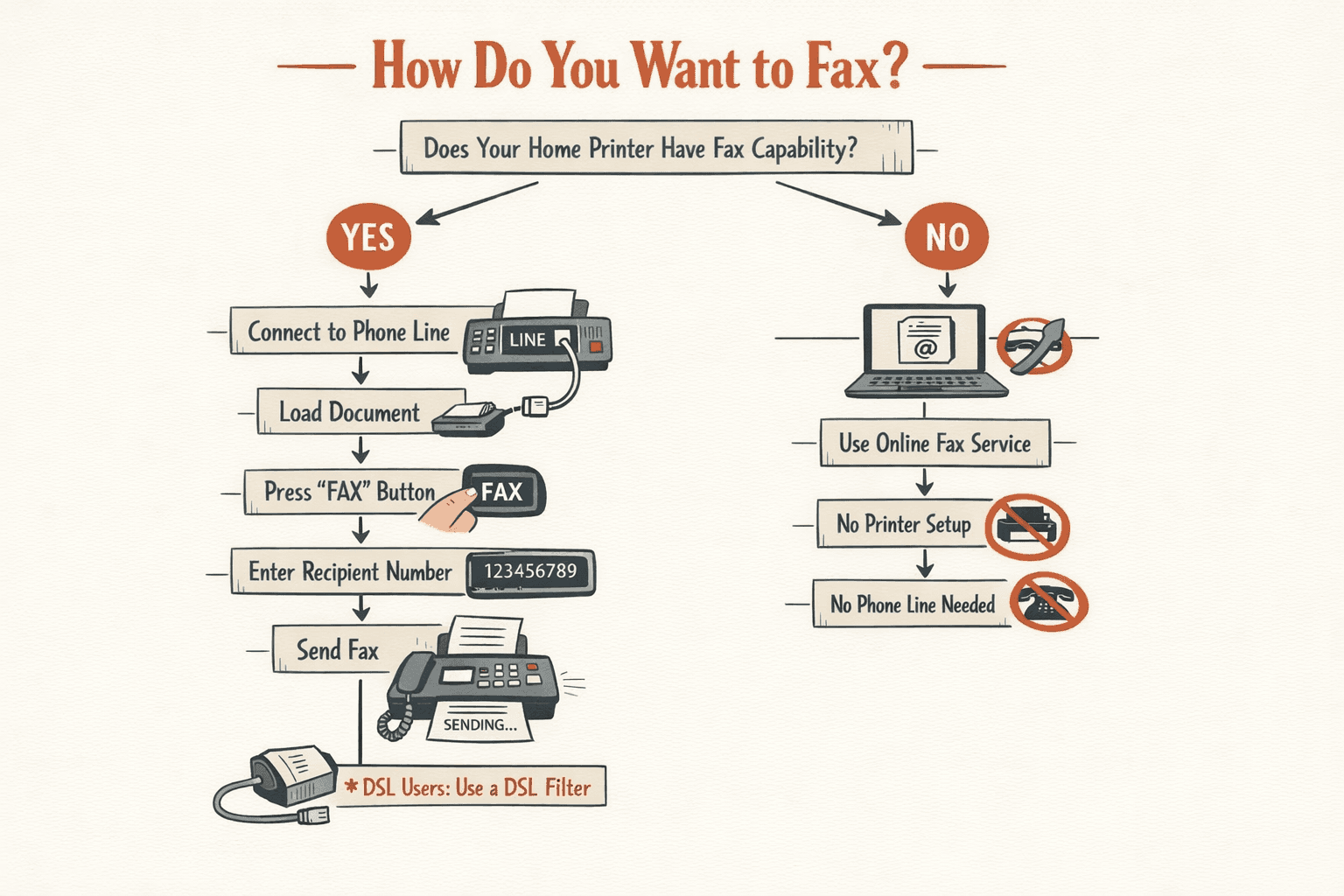
Home printers follow the same process as office printers when they include fax capability. Here’s the simplified home setup:
- Check if your printer has fax capability (2 minutes): Look for a “Fax” button on the control panel or phone line ports on the back. Most basic home printers (especially budget inkjets) don’t include this feature.
- Connect printer to your home phone line (5 minutes): Plug a telephone cord from your wall jack into the printer’s LINE port.
- Load your document: Place it on the scanner glass or in the document feeder.
- Access fax function: Press “Fax” on the control panel.
- Enter recipient number and send
For home users with DSL internet, note that you may need a DSL filter on the phone line to prevent interference with fax transmission.
If your home printer doesn’t have fax capability—or you only need to send one document—online fax services like ThirtyFax are simpler. No printer setup, no phone line, and you pay only for what you send.
Conclusion
Faxing from a printer requires the right equipment—a fax-capable multifunction printer plus an active phone line—or an online fax service if your printer lacks fax capability. Once you’ve confirmed your printer can fax and completed setup, the actual sending process is straightforward: load your document, press “Fax,” enter the recipient’s number, and send.
Before relying on printer-based fax for important documents, verify your setup works by sending a test fax. If you’re buying a new printer specifically for fax capability, check the model specifications carefully—many consumer printers don’t include this feature. For occasional one-time faxing with no equipment setup, online services like ThirtyFax offer a simpler alternative.
FAQs
Can You Fax From a Printer?
Yes, if the printer has built-in fax capability and is connected to a phone line. Only multifunction or all-in-one printers explicitly marketed with fax features can send faxes—basic print-only models cannot.
Can All Printers Fax?
No. Only printers explicitly designed with fax functionality can send or receive faxes. Most consumer printers are print-only or print/scan/copy models without the fax modem hardware required for transmission.
Do All Printers Have Fax?
No. Fax is a feature found only on specific models marketed as multifunction or all-in-one devices. The Canon imageCLASS lineup, for example, shows many models with print/scan/copy only—fax is listed separately as an optional feature on higher-tier models.
Can You Fax With Wifi Printer?
WiFi connectivity alone does not enable faxing. Traditional printer-based fax requires a phone line connection, not WiFi. However, you can use online fax services from any WiFi-connected computer or phone—no special printer required.
Do I Need a Phone Line to Fax From My Printer?
Yes for traditional fax. However, online fax services eliminate the phone line requirement entirely—you send faxes over the internet from any device.
Do You Need a Landline to Fax From a Printer?
Yes for printer-based fax. If you don’t have a landline or prefer not to use one, online fax services like ThirtyFax let you send faxes over the internet with no phone line, printer setup, or ongoing subscription.
Is a Fax Machine a Printer?
No, but the two are often combined. A fax machine sends and receives documents over phone lines, while a printer creates physical copies from digital files. Multifunction devices combine both capabilities—they can print, scan, copy, and fax from one unit.

Written by
Bernard Bado
I created ThirtyFax after needing to send a single fax and refusing to pay for a monthly subscription to do it. I write here about faxing, document workflows, and the surprisingly stubborn role fax still plays in modern business.
View author profile