
How to Fax From a Brother Printer
Send faxes from your Brother printer using the automatic document feeder or scanner glass. Setup takes 10 minutes—connect a phone line, configure your Station ID, and you're ready.
Quick Verdict
If your Brother printer has built-in fax capability, you can send faxes by connecting it to a phone line and using the printer’s control panel or scanner glass. Most Brother MFC (Multi-Function Center) models support two faxing methods: placing documents in the automatic document feeder for multi-page jobs, or using the scanner glass for single pages and delicate originals. Before you can send anything, you’ll need to complete a quick one-time setup.
How to Set Up Fax on Brother Printer
Before sending your first fax, you need to connect a phone line, configure your fax header information, and test the connection. This takes about 10 minutes and only needs to be done once.
- Connect the phone line (2 minutes): Plug one end of your telephone line cord into the LINE jack on the back of your Brother printer. Plug the other end into an active wall jack. Don’t use the EXT jack—that’s for connecting an external phone, not the incoming line.
- Power on and access fax settings (1 minute): Turn on your printer and press the Menu or Settings button on the control panel. Navigate to Initial Setup or Fax Settings using the arrow keys.
- Enter your Station ID (3 minutes): Your Station ID stores your fax number and name, which appears on the recipient’s fax header. Enter your name (or company name) and the fax number assigned to your phone line. Use the numeric keypad and navigation buttons.
- Set the date and time (2 minutes): Navigate to Date & Time in the Initial Setup menu. Enter the current date and time—this appears on every fax you send and helps recipients track transmissions.
- Configure dial mode (1 minute): Select Tone or Pulse dialing based on your phone service. Most modern lines use Tone. If you’re unsure, Tone is the safe default.
- Test the connection (1 minute): Send a test fax to another fax number you have access to (your office, a friend’s fax machine, or a free online fax service). Verify the fax is received and the header displays correctly.

Important: Make sure your phone line is active and supports fax transmission before starting setup. If you hear no dial tone when you pick up a regular phone connected to the same line, contact your phone provider—the line may not be working.
How to Fax From Brother Printer
There are two ways to send faxes from a Brother printer: using the automatic document feeder (ADF) for multi-page jobs, or using the scanner glass for single pages and special originals. Use the ADF when you have a stack of standard letter-size pages. Use the scanner glass for thick documents, pages from a bound book, or anything too delicate for the feeder.
Using the Automatic Document Feeder (ADF)
- Load your documents (30 seconds): Place your pages face-up in the ADF tray. Brother printers typically have a 20 to 50-page ADF capacity—check your model’s documentation if you’re faxing a large stack.
- Press the Fax button (5 seconds): On the control panel, press the button labeled Fax or Facsimile. The display will switch to fax mode.
- Enter the recipient’s fax number (20 seconds): Use the numeric keypad to dial the full fax number, including area code. If you’re sending internationally, include the country code and any required prefixes.
- Adjust resolution if needed (10 seconds): Press the Resolution button (if your model has one) to choose Standard, Fine, or Super Fine. Most documents work fine on Standard. Use Fine or Super Fine for small text or detailed images.
- Press Start or Send (5 seconds): Hit the Start or Send button. The printer will scan and transmit your pages automatically. Wait for the confirmation message before removing your documents.
ADF tips:
- Don’t exceed your model’s page capacity—overloading jams the feeder
- Remove staples, paper clips, and sticky notes before loading
- Standard copy paper works best—avoid cardstock or laminated pages
- Make sure pages are aligned and the guides are snug against the paper edges
Using the Scanner Glass
- Lift the document cover (5 seconds): Open the top lid of your printer to expose the scanner glass.
- Place your document face-down (10 seconds): Position the page face-down on the glass. Align it with the corner guides—usually marked with an arrow or icon in the top-left corner.
- Press the Fax button (5 seconds): On the control panel, press Fax to enter fax mode.
- Enter the recipient’s fax number (20 seconds): Dial the full fax number using the numeric keypad.
- Press Start or Send (5 seconds): Hit Start. The printer will scan the page and transmit it.
- Scan additional pages if needed (1 minute per page): After the first page transmits, the display will prompt you to scan another page or finish. If you have more pages, place the next one on the glass and press OK or Continue. Repeat until all pages are sent.

The scanner glass is your best option for thick documents, pages from a book, or single-page transmissions. It’s slower than the ADF for multi-page jobs, but it’s gentler on delicate originals and handles non-standard sizes better.
How to Find Fax Number on Brother Printer
Your fax number is the phone number assigned to the line you plugged into the printer’s LINE jack—it’s not stored in the printer itself. If you don’t know the number, you can find it a few ways.
How to locate your fax number:
- Check your phone bill or online account — Your phone service provider lists the number assigned to the line. Log into your account or review your most recent statement.
- Check the Station ID in fax settings — During setup, you entered your fax number as part of the Station ID. Navigate to Initial Setup > Station ID on the control panel to view it.
- Print a Transmission Verification Report — Send a test fax to another machine or service. The Transmission Verification Report will include your outgoing fax number, along with the date, time, and page count.
- Send a test fax and check the received header — Fax a page to a friend or another fax line you have access to. The header on the received document will show the sending fax number.
If none of these methods work, contact your phone service provider—they can confirm the number assigned to your line.
Common Fax Settings and Options
Most Brother printers let you adjust resolution, contrast, and timing settings to improve transmission quality or schedule faxes for later. These options are accessed through the Fax menu on the control panel.
Resolution Settings
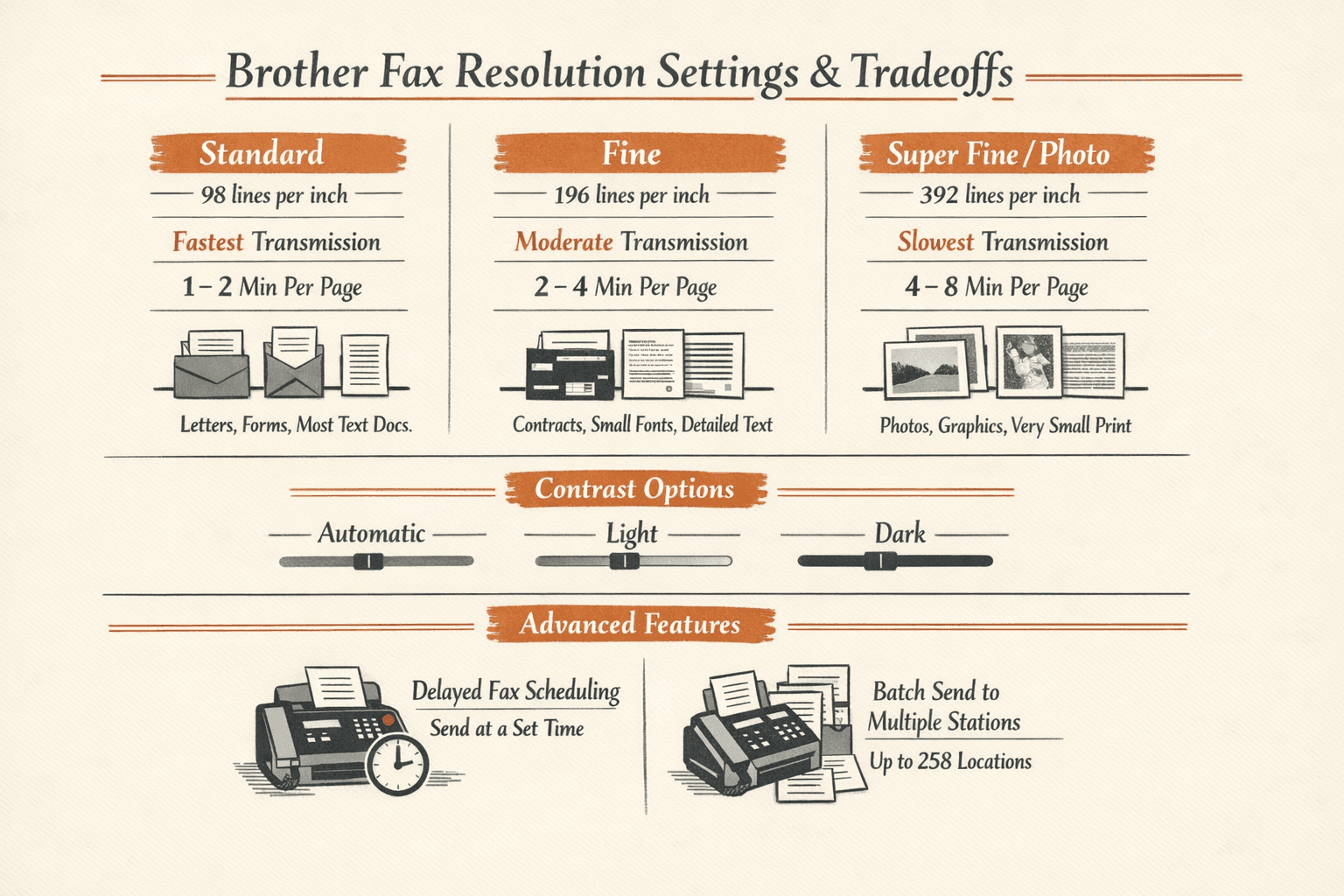
Resolution controls how much detail the scanner captures and how long transmission takes. Brother printers typically offer three options: Standard (fast, everyday documents), Fine (slower, better for small text), and Super Fine or Photo mode (slowest, best for images and fine print).
| Resolution | Lines Per Inch | Transmission Speed | Best Use Case |
|---|---|---|---|
| Standard | 98 | Fastest (1-2 min/page) | Letters, forms, most text documents |
| Fine | 196 | Moderate (2-4 min/page) | Contracts, small fonts, detailed text |
| Super Fine/Photo | 392 | Slowest (4-8 min/page) | Photos, graphics, very small print |
Higher resolution means clearer faxes but longer transmission times. Standard works for most business documents—use Fine or Super Fine only when clarity is critical.
Contrast and Brightness Adjustments
If your original is faded or printed on gray paper, increase the contrast to make text darker and more readable on the receiving end. If your original is printed too dark or has heavy ink coverage, decrease contrast to prevent solid black blocks. Access these settings in the Fax menu—Brother printers typically offer Automatic, Light, and Dark contrast modes.
Delayed Fax and Batch Sending
Some Brother models let you schedule faxes to send at a specific time—useful for sending documents during business hours even if you’re working late. Batch sending (also called Broadcasting) lets you send the same document to multiple recipients—up to 258 stations on some models. Both features are in the Fax menu under Advanced Settings or Transmission Options.
Troubleshooting Common Brother Printer Fax Issues
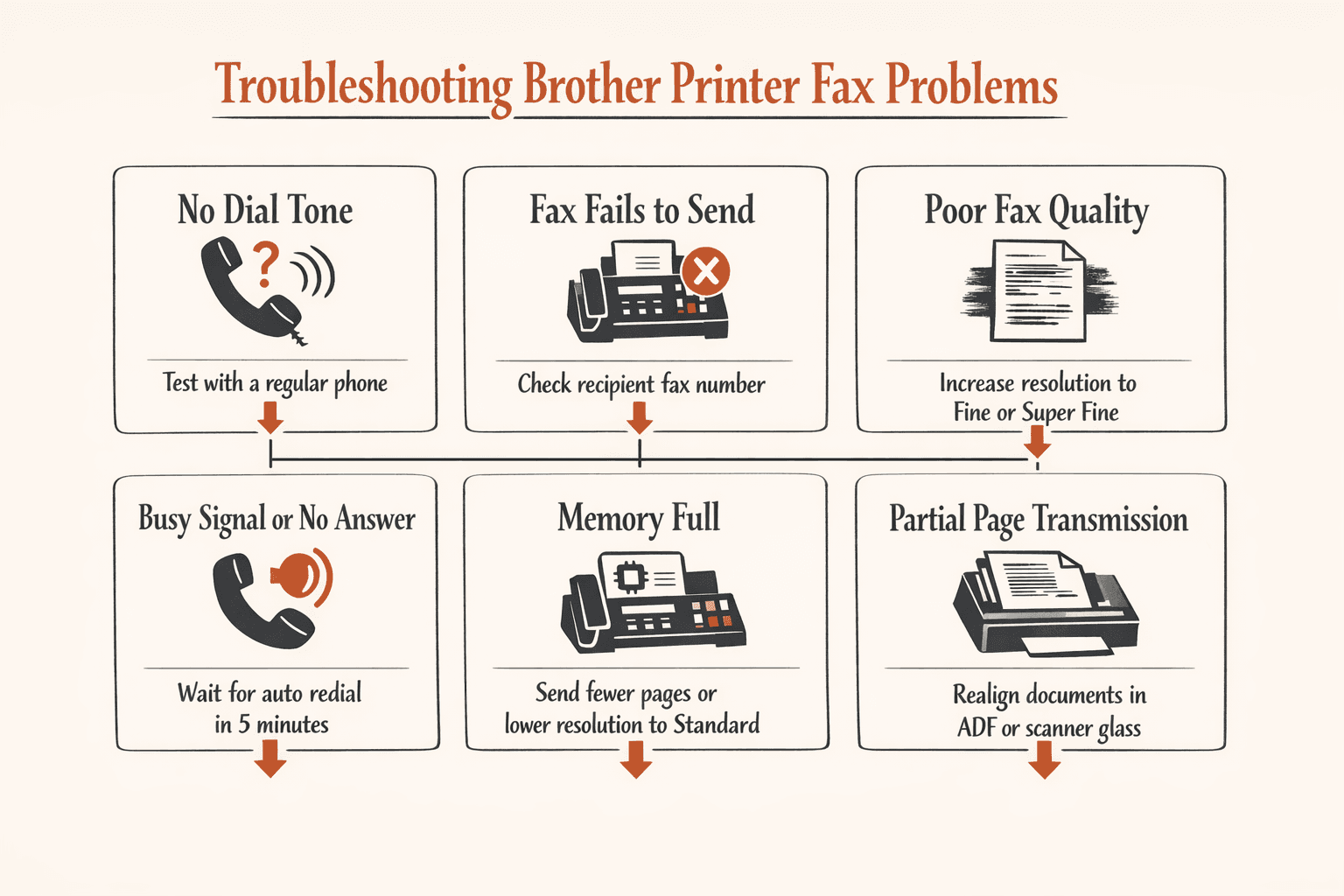
Fax problems usually fall into three categories: connection errors, transmission failures, or poor quality on the receiving end. Most issues are fixable without calling support.
Common issues and quick fixes:
- “No Dial Tone” error — The phone line isn’t connected properly or isn’t active. Unplug the line from the Brother printer and plug it into a regular phone. If you don’t hear a dial tone, contact your phone provider. If you do hear a dial tone, reconnect the line directly to the Brother printer’s LINE jack—no splitters or other devices in between.
- Fax fails to send — Double-check the recipient’s fax number. Try calling the number first—if a fax machine answers, you’ll hear a high-pitched tone. If the line rings but no machine answers, the number may be incorrect or the receiving machine may be off.
- Poor fax quality (blurry or cut off) — Increase resolution to Fine or Super Fine. Check that your original isn’t faded or printed on colored paper. Make sure the document is aligned properly in the ADF or on the scanner glass.
- Busy signal or no answer — The receiving fax machine is in use or turned off. Most Brother printers have an Automatic Redial feature—the machine will try again after five minutes. You can also manually redial later.
- “Memory Full” error — Your printer ran out of memory while scanning the document. Fax fewer pages at once or reduce resolution to Standard. Memory capacity varies based on page complexity—a text document uses less memory than a detailed image.
- Partial page transmission — The ADF may have pulled the page crooked. Check that pages are aligned and the guides are snug. If using the scanner glass, make sure the document is positioned squarely against the corner guides.
If you see an error code on the display, check your Brother printer manual for model-specific troubleshooting. Most error codes have clear explanations and fixes.
Brother Printer Models With Fax Capability
Not all Brother printers include fax functionality—only all-in-one models with built-in fax hardware can send and receive faxes. Fax capability is most common in Brother’s MFC (Multi-Function Center) series.
Popular Brother printer models with fax:
- MFC-L2750DW — Monochrome laser all-in-one with 50-sheet ADF and fax capability. Good for small offices that need reliable black-and-white faxing.
- MFC-J995DW — Inkjet all-in-one with 20-page ADF and 14.4 kbps fax modem. Affordable option for home offices with occasional fax needs.
- MFC-L8900CDW — Color laser all-in-one with fax and PC fax support. Business-grade model for offices that need high-volume color printing and faxing.
- MFC-L2900DW and MFC-L2980DW — Newer replacements for the MFC-L2750DW with updated firmware and similar fax features.
If you’re not sure whether your Brother printer supports faxing, check the product label on the front or back of the machine—models with “MFC” in the name usually include fax capability. You can also check the specifications page on Brother’s website by searching for your model number.
Conclusion
Faxing from a Brother printer requires three things: a fax-capable MFC model, a connected phone line, and completed initial setup (date, time, and Station ID). Once setup is done, you can send faxes using the automatic document feeder for multi-page jobs or the scanner glass for single pages and delicate originals. Both methods work reliably—choose the ADF for speed, the scanner glass for flexibility.
FAQs
Can I Fax From My Brother Printer?
You can fax from a Brother printer if it includes built-in fax hardware—typically models with the “MFC” (Multi-Function Center) designation—and is connected to an active phone line. Printers without fax capability, like standalone laser printers or single-function models, cannot send faxes directly. If you have an MFC model and need to send a single fax but don’t have a phone line, ThirtyFax lets you send up to 5 pages online with no account or subscription required.

Written by
Bernard Bado
I created ThirtyFax after needing to send a single fax and refusing to pay for a monthly subscription to do it. I write here about faxing, document workflows, and the surprisingly stubborn role fax still plays in modern business.
View author profile