
How to Fax From an HP Printer
HP printers fax via phone line or internet (Mobile Fax). Phone setups need a landline connection; Mobile Fax works through the HP Smart app with no phone line required.
Quick Verdict
HP printers can fax in two ways: using a traditional phone line connection or sending internet-based faxes through HP’s Mobile Fax feature in the HP Smart app. Phone line setups require connecting your printer to an active landline, while Mobile Fax works entirely over the internet with no phone line needed. Setup requirements differ based on which method you choose.
How to Set Up Fax on HP Printer
Fax setup varies by connection type — phone line or internet-based. Both methods require entering basic information like your fax header details (your name and number), but the physical setup process differs.
Setting Up Fax With a Phone Line
- Connect the phone line (2 minutes): Use a two-wire telephone cord (not four-wire) to connect your wall phone jack to the printer’s 1-LINE port. HP specifies two-wire cords because four-wire cords don’t work with fax signals.
- Identify the correct port: Look for the 1-LINE icon on your printer’s back panel — on some models the fax port sits above the phone port, so rely on the icon, not position.
- Optional: Connect an answering machine: If you want voice calls and faxes on the same line, plug your answering machine into the printer’s 2-EXT port. This prevents fax noise from interfering with voice messages.
- Access fax settings: On the printer control panel, navigate to Fax or Setup menu. The exact path varies by model, but you’re looking for “Fax Setup” or “Fax Settings.”
- Enter fax header information: Input your name, company name (optional), and fax number. This information appears on every fax you send, and the number must match your actual line for test faxes to work properly.
- Set date and time: Configure these settings so your fax transmissions include accurate timestamps.
- Run a test fax: HP offers a free test service at 1-888-473-2963. Send a test fax to this number — you’ll receive a return fax within 5-7 minutes if everything’s working.

Setting Up Fax Without a Phone Line (HP eFax/Digital Fax)
- Install the HP Smart app (5 minutes): Download HP Smart from the Windows Store, Mac App Store, Google Play, or Apple App Store. You’ll need Windows 10 version 1809 or later, macOS Big Sur 11 or later, Android 10 or later, or iOS/iPadOS 16 or later.
- Create or sign in to your HP account: Open the app and sign in with your HP account credentials. If you don’t have an account, create one — it’s free and required for Mobile Fax.
- Enable Mobile Fax: Look for the Mobile Fax tile on the app’s home screen. If it’s not visible, tap “Add” or “More Services” to enable it. Not all printer models support Mobile Fax, so the feature may not appear if your printer isn’t compatible.
- Verify your sender information: Enter a sender name and valid phone number. This information appears on your outbound faxes even though Mobile Fax doesn’t provide you with a receive-capable fax number.
- Check regional availability: Mobile Fax support varies by country and region. If the feature doesn’t appear in your app, it may not be available in your location yet.
Important note: HP Digital Fax is a different feature that forwards incoming faxes to email or a network folder. It still requires a traditional phone line setup first — it’s not a phone-line-free sending option.
How to Fax From HP Printer
The faxing process depends on whether your printer uses a phone line or internet connection. Phone line setups send directly from the printer control panel, while internet-based sending happens through the HP Smart app.
Faxing With a Phone Line Connection
- Load your document (1 minute): Place pages face-down on the scanner glass or face-up in the automatic document feeder (ADF). The ADF works best for multi-page documents.
- Access the fax function: Press the Fax button on your printer’s control panel. On touchscreen models, tap the Fax icon or navigate to Fax from the home screen.
- Enter the recipient fax number: Use the keypad to dial the full number, including any outside-line access code (like 9), country code, and area code where needed.
- Choose send options: Most HP printers let you select Black or Color before sending. Send in black and white if you’re unsure whether the recipient’s machine supports color faxes — it prevents compatibility failures.
- Adjust quality settings (optional): Standard resolution works for most documents. Use Fine or Super Fine for small text or detailed images — just know that higher resolution takes longer to transmit.
- Press Send: Hit the Black, Color, or Send button depending on your model. On some printers, you’ll hear dial tones and connection sounds — this is normal.
- Review the confirmation report: After sending, the printer prints a fax report showing whether transmission succeeded. Keep this for your records. If the fax failed, the report includes an error code you can look up in HP’s troubleshooting docs.
Faxing Without a Phone Line (Using HP Smart App or Email)
- Open HP Smart and tap Mobile Fax (1 minute): Launch the HP Smart app on your computer or mobile device and select the Mobile Fax tile from the home screen.
- Tap “Compose Fax”: This opens a new fax creation screen where you’ll enter recipient details and attach documents.
- Enter recipient information: Type the recipient’s fax number in international format if you’re faxing outside your country. Include the country code and area code.
- Attach your document: Tap “Add Attachment” to select files from your device. You can attach PDFs, images, or other supported document formats. Keep files in portrait orientation — landscape documents may get cropped.
- Review the cover page: Mobile Fax automatically generates a cover page with your sender information and the recipient’s details. You can add a message if needed.
- Send the fax: Tap “Send.” You have about 20-30 seconds to cancel from the dial screen if you spot an error.
- Check fax status: Tap the “Sent” tab in Mobile Fax to see delivery status. Successful faxes show “Delivered,” while failed transmissions show error details.
Important limitation: Mobile Fax doesn’t support receiving faxes and can’t send to VoIP phone numbers. If you need to receive faxes or send to VoIP lines, use a phone line setup or a third-party online fax service instead.

How to Fax From HP Printer Without Phone Line
HP printers can fax without phone lines using HP’s Mobile Fax feature, which sends faxes over the internet through the HP Smart app. The key requirement is an internet connection instead of a landline — your printer doesn’t even need to be physically connected to a phone jack.
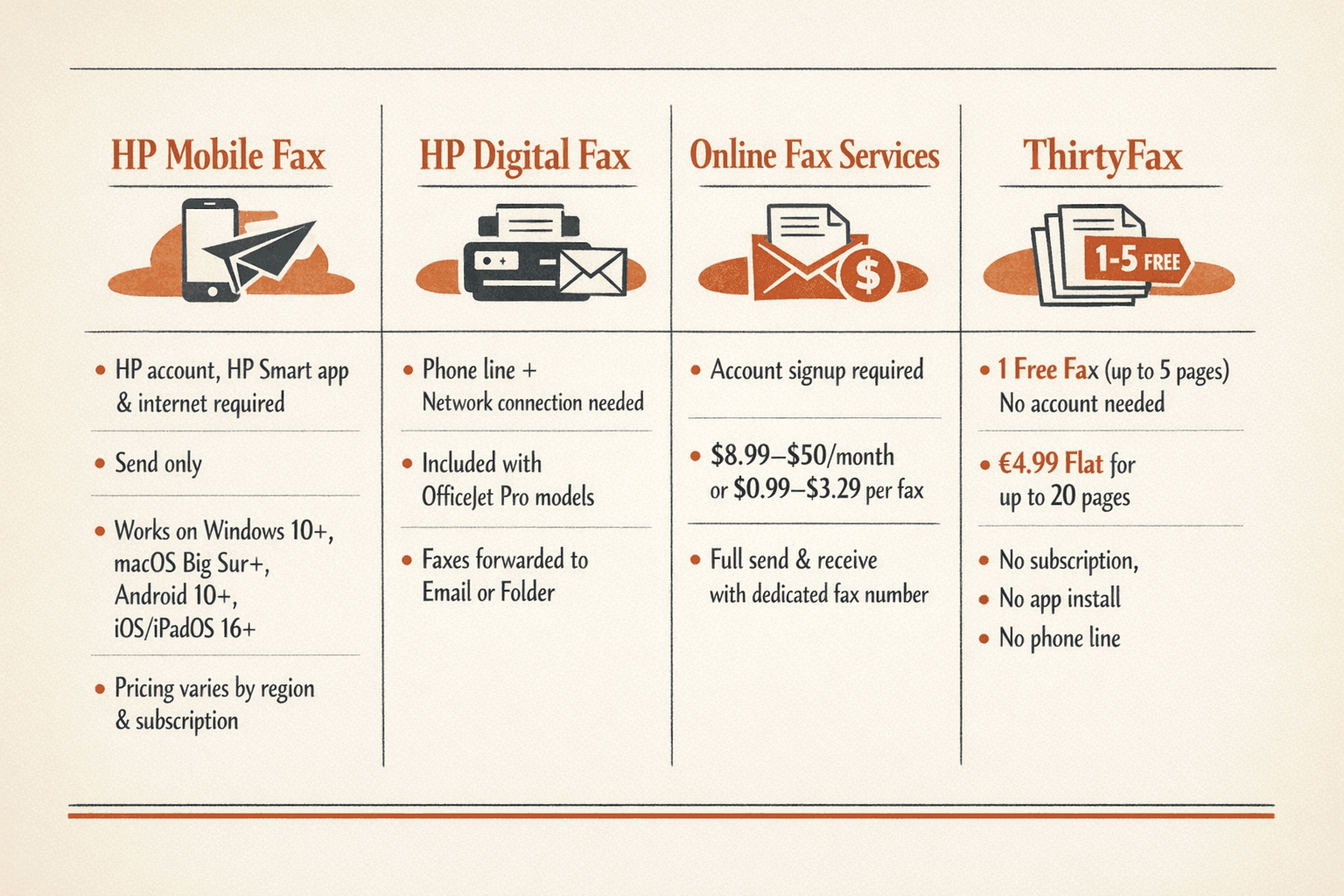
| Method | Setup Requirements | Cost Structure | Sending Limits | Receive Capabilities | Device Compatibility |
|---|---|---|---|---|---|
| HP Mobile Fax | HP account, HP Smart app, internet connection | Varies by region and subscription status | Depends on plan | Does not support receiving | Windows 10+, macOS Big Sur+, Android 10+, iOS/iPadOS 16+ |
| HP Digital Fax | Requires phone line + network connection | Included with compatible OfficeJet Pro models | Based on phone line plan | Forwards incoming faxes to email or folder | Network or USB-connected HP OfficeJet Pro printers |
| Third-party online fax services (e.g., eFax, Fax.Plus) | Account signup, subscription or pay-per-fax | Subscription ($8.99-50/month) or per-fax ($0.99-3.29) | Varies by plan | Full send and receive with dedicated fax number | Web, mobile apps, email integration |
Before using internet-based faxing, verify these prerequisites:
- HP account — Required for Mobile Fax access through HP Smart app
- Compatible printer model — Mobile Fax availability varies by printer model and region
- Stable internet connection — Fax transmission happens over your Wi-Fi or ethernet connection
- HP Smart app installed — Available for Windows, Mac, iOS, and Android
- Subscription or service activation — Check HP’s current pricing for your specific model and region
If you’re sending just one or two faxes and don’t want to deal with HP accounts or app downloads, ThirtyFax offers a faster option: send 1 fax (up to 5 pages) free with no account required, or pay €4.99 flat for up to 20 pages. No subscription, no app install, no phone line — just upload your document and send.
How to Find Your Fax Number on HP Printer
Your fax number location depends on setup type — phone line users already know their number from their phone service, while Mobile Fax users enter sender information but don’t receive an assigned fax number for incoming transmissions.
Finding Your Fax Number (Phone Line Setup)
- Check with your phone carrier: Your fax number is the same as the phone line connected to your printer. Call your phone service provider or check your phone bill to confirm the number.
- Review your fax header settings: Navigate to Fax Settings or Setup on your printer control panel. The number you entered during setup is what appears on outbound faxes. This number must match your actual line for test faxing to work.
- Send a test fax: Fax a document to your mobile phone or another known fax number. The recipient will see your fax number in their caller ID or on the received document’s header.
Finding Your Fax Number (Digital Fax/HP eFax)
HP Mobile Fax requires you to enter sender information (name and phone number) but doesn’t assign you a dedicated receive-capable fax number. If you need a number that can receive faxes, you’ll need either a traditional phone line setup or a third-party online fax service like eFax or Fax.Plus that provides a dedicated fax number.
For HP Digital Fax specifically, remember that it’s a feature for routing incoming faxes to email or folders — it requires an existing phone line setup first, so your fax number is still the phone line’s assigned number.
Troubleshooting Common Fax Issues
Most fax problems stem from connection issues, incorrect settings, or service limitations. Here’s how to fix the most common failures:
- Fax won’t send (phone line setup): Check that your phone line is connected to the 1-LINE port and that you hear a dial tone when you pick up a phone plugged into the 2-EXT port. Run the HP Fax Test from your printer’s control panel to diagnose hardware and line issues.
- Poor fax quality: Adjust resolution settings to Fine or Super Fine for documents with small text or detailed images. Clean your scanner glass if you’re seeing streaks or smudges on sent faxes.
- Can’t receive faxes: Verify that your fax number is active and that your printer is set to answer mode (Auto Answer enabled). For Digital Fax setups, confirm that email forwarding or folder permissions are configured correctly.
- “No dial tone” error: This usually means the phone line isn’t connected properly or your phone service doesn’t provide a compatible analog signal. Try a different phone cord or contact your phone carrier to verify line type — cellular networks and some VoIP services don’t support fax.
- Mobile Fax transmission failed: Check that you entered the correct fax number in international format (country code + area code + number). Mobile Fax can’t send to VoIP numbers, so verify the recipient has a traditional fax line. Also check your internet connection — unstable Wi-Fi can interrupt transmission.
- Recipient not receiving fax: Confirm the fax number is correct and try sending in black and white instead of color — some older fax machines don’t support color and will reject the transmission entirely.
- Mobile Fax document is cropped: Mobile Fax currently supports portrait orientation only. Rotate landscape documents to portrait before attaching to avoid cutoff edges.
- Busy signal or no answer: The recipient’s fax machine might be powered off, out of paper, or handling another transmission. Wait a few minutes and resend.

FAQ
Can all HP printers send faxes?
No — faxing is model-specific. HP’s fax features appear on certain all-in-one and multifunction printers, typically in the OfficeJet Pro, LaserJet Pro MFP, and some higher-end DeskJet lines. Basic inkjet or laser printers without scanning or phone-line ports don’t support faxing. Check your printer’s specifications or look for a phone jack labeled “1-LINE” on the back panel — if it’s there, your printer can fax.
Do I need a phone line to fax from my HP printer?
Traditional faxing requires a phone line, but HP offers Mobile Fax through the HP Smart app that works over internet connections with no phone line needed. Availability varies by printer model and region, so check the HP Smart app to see if your printer supports it. If Mobile Fax isn’t available for your model, you’ll need either a landline connection or a third-party online fax service.
How much does HP digital fax service cost?
HP doesn’t publish uniform pricing for Mobile Fax on its support pages — cost varies by region, printer model, and whether your printer includes promotional credits. Check the HP Smart app or your printer’s online account portal for current pricing in your area. For one-time faxing with no subscription, ThirtyFax offers 1 free fax (up to 5 pages) or €4.99 flat for up to 20 pages with no account required.
Can I fax from my HP printer using my computer?
Yes — you can send faxes from your computer using the HP Smart app on Windows or macOS. Install the app, sign in with your HP account, and use Mobile Fax to send documents directly from your computer over the internet. For traditional phone line setups, you can also initiate faxes through HP printer software by selecting “Print” and choosing your fax-capable HP printer as the output device, then entering the recipient’s fax number when prompted.

Written by
Bernard Bado
I created ThirtyFax after needing to send a single fax and refusing to pay for a monthly subscription to do it. I write here about faxing, document workflows, and the surprisingly stubborn role fax still plays in modern business.
View author profile